
How to edit a PDF on a Mac
Step-by-step guides for changing PDFs on a Mac, by the job you have: the text, the fonts, the file, the other apps.
Most PDF jobs on a Mac fall into a few kinds: changing a word or a line that is already on the page, keeping the document’s font while you do it, working with the apps the Mac already has, and dealing with the file itself once it is saved. The guides below are grouped that way. Each one starts with what the job involves, gives the steps with the tool that fits, and says plainly where each tool stops, the apps that come with the Mac included.
Where PDF Textfix is the right tool, the guide says so and shows it on the demo documents made for the app, synthetic files with invented names and figures. Where it is not, because the job is adding a text box, changing a font, editing a scanned page or redacting, the guide points to the kind of tool that does it. Every guide names its sources and the day its claims were checked.
Which kind of edit is it?
A PDF can be changed in several ways, and each needs a different kind of tool. Find your job in the list; the page linked under it has the steps.
-
Change words that are already on the page: a date, a name, a typo, a number
PDF Textfix changes the line where it stands, in the font inside the document, and checks that nothing else on the page moves.
-
Add a comment, a highlight or a new text box
A markup tool, such as the Markup toolbar of Preview, puts notes, shapes and text boxes on top of the page; the text underneath stays as it was.
-
Sign a document or fill in a form
Preview signs PDFs and fills in interactive forms on a Mac. PDF Textfix does not edit form fields, and saving an edit to a signed file stops its signature from verifying.
-
Combine, reorder, rotate or delete pages
Preview does this in its sidebar of page thumbnails. PDF Textfix changes the text on the pages, not the pages themselves.
-
Rewrite paragraphs or change the layout
Convert the PDF into a document a word processor edits, then export a new PDF. The conversion rebuilds the layout, so fonts and line breaks can change.
-
Change the font, the size or the color of text
An editor that sets the text again in a font installed on your Mac. PDF Textfix keeps the document’s own font, size and color.
-
Edit the text of a scanned page
Text recognition (OCR) first. The words of a scan are a picture of text, so a text editor has nothing to change until they are recognized.
-
Remove confidential text for good
A redaction tool. PDF Textfix removes the text it replaces from the page, but the same words can remain elsewhere in the file, so it is not one.
Change a line of text
9 pages
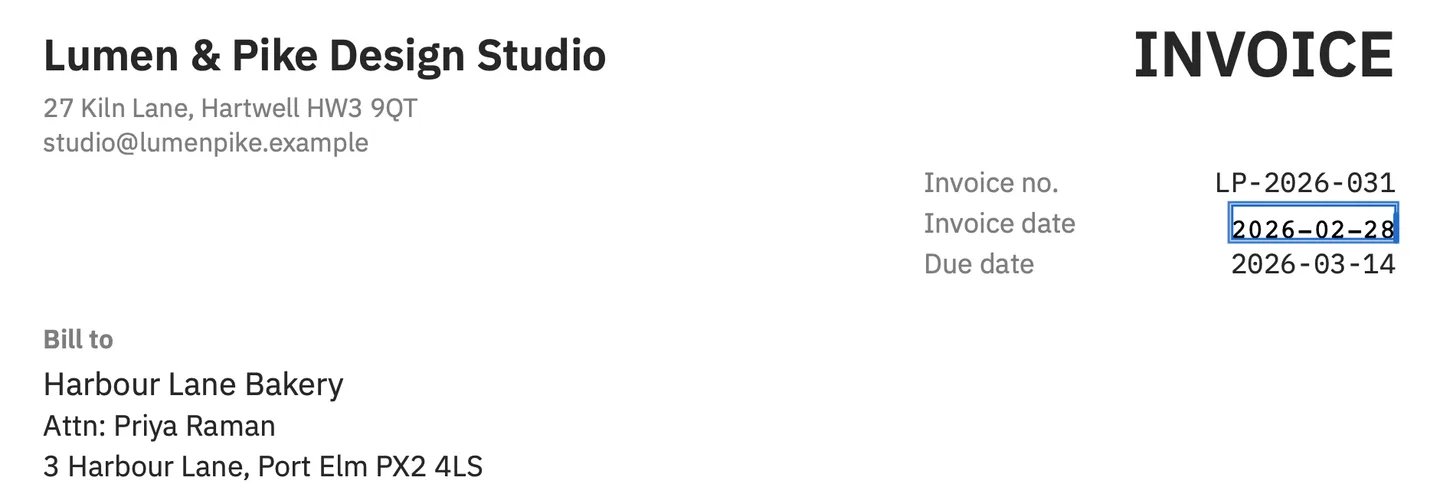
A wrong date, a misspelled name, a figure, a word that appears in several places: the jobs where the text is already on the page and one line needs to read differently. Each guide gives the steps on a demo document and says what the edit leaves alone.
-
How to edit text in a PDF on a Mac, step by step
Change a line of text in a PDF on your Mac: what Preview cannot do, the other routes and their costs, and each step in PDF Textfix, from open to save.
-
How to change text in a PDF: four ways and their trade-offs
Four ways to change or modify text in a PDF on any computer, what each does to the fonts, the layout, the old words and the file size, and which to pick.
-
How to fix a typo in a PDF without breaking the layout
Fix one wrong letter in a PDF without moving the rest of the line: why one character can shift text, what to check before and after, and a safe route.
-
How to replace a word or a line in a PDF
Replace a word or a whole line in a PDF in the same font: type over it, find each occurrence with Find, and why every replacement is checked on its own.
-
How to change a date in your own PDF
Correct a wrong date in a PDF you issued, in the document's own font: the steps, which dates are not on the page, and what a change does to a signature.
-
How to change a name in your own PDF
Correct a misspelled name in a PDF on a Mac: find every line it is on, type it in the document's own font, and deal with accents the font lacks.
-
How to change numbers, a phone or an address in a PDF
Correct a figure, a phone number, an email or an address in your own PDF on a Mac: digits in the same font, symbols that fall back, totals you redo.
-
How to white out, cover or delete text in a PDF
To white out text in a PDF on a Mac, cover it with a white box in Preview; the words stay underneath. How deleting and redacting differ from covering.
-
How to edit a PDF without changing its format
Why editing a PDF breaks its layout: conversion, font substitution and reflow. How to tell which one hit you, and how to change a line and keep the rest.
Keep the font
3 pages
Why an edited line can come out in another typeface, how to see which fonts a file embeds, and what to do when Acrobat cannot find a system font for the line you are editing.
You type é. The line’s own font has no é.
- Another copy of the same font in the file.
- The same font, installed on your Mac.
- The closest standard font.
-
How to edit a PDF and keep the same font
Make new letters in a PDF match the old ones: why editors swap fonts, the three honest options, and typing with the font subset embedded in the file.
-
How to find which fonts a PDF uses on a Mac
Identify the fonts in a PDF on a Mac with Acrobat, the free pdffonts or PDF Textfix, and learn what embedded, subset and the ABCDEF+ prefix tell you.
-
Acrobat says no available system font: what to do
What Acrobat's "no available system font" message means, how to find the font's name, and three ways to change the text: install, substitute, keep it.
With the apps you have
5 pages
Preview, Word and Pages, Acrobat, a Mac without a network connection, and macOS Tahoe: what each route can change in a PDF, step by step, and where it stops.
-
Can you edit PDF text in Preview? What works
Preview cannot change the existing text of a PDF. What it can do with text instead, step by step on macOS 26 and later, and where to change a line.
-
How to edit a PDF without Acrobat on Mac
Which PDF jobs a Mac handles without Acrobat: notes, signatures, pages and forms in Preview, text edits in the file's own font, and what still needs more.
-
How to edit a PDF in Word or Pages, and what changes
Word converts a PDF into a new Word document; Pages cannot open one at all. What conversion does to fonts and layout, and when to edit the PDF instead.
-
How to edit a PDF offline on a Mac
Which Mac apps change a PDF without the internet, and how to check it yourself: Wi-Fi off, Activity Monitor, an outgoing-connection monitor, entitlements.
-
Editing PDF text on macOS Tahoe and later
What Preview on macOS Tahoe 26 does with a PDF, from pages and forms to signatures, why it still cannot edit text, and which Macs run PDF Textfix.
The file, its signature and its versions
5 pages
What Save writes into the file, what an edit does to a digital signature, how to get an earlier version back, and the file’s properties and default app on a Mac.
Incremental save. The new line is appended after the original; the old line is still in the file.
Full rewrite. The file is written again, and the replaced line is gone from the page.
-
Why a PDF gets bigger when edited, and where old text stays
Why a PDF grows when edited and whether deleted text is still inside: appended updates versus a rewrite, measured with qpdf on a demo invoice.
-
How to edit a signed PDF, and what it does to the signature
You can change the text of a signed PDF, but its digital signature stops verifying. When that is fine, when it is not, and what to ask for instead.
-
How to see previous versions of a PDF on a Mac
Saved over a PDF? Where to see previous versions of it on a Mac: Preview's version history, Time Machine, iCloud, Dropbox, Google Drive, OneDrive.
-
How to view and edit PDF metadata on a Mac
See a PDF's title, author and dates on a Mac with Preview, pdfinfo or exiftool, change its keywords, title or author, and check a file before sending it.
-
How to change the default PDF app on a Mac
Make every PDF open in the app you want with Get Info and Change All, open one file elsewhere with Open With, and set Preview back as the default.