
No. Preview cannot change the text that is already in a PDF, and Apple says so in its own guide: “Although you can’t edit the text of a PDF in Preview, you can use the markup tools to provide feedback or write down something you want to remember.” What Preview can do is add things on top of the page: a text box, a shape, a highlight, a note, a signature, form entries, and redactions that remove words from view. The steps below cover each of those on macOS 26 and later, checked against Apple’s Preview guides for macOS Tahoe 26 and macOS 27, and then the route for changing the existing line itself.
| What you want to do | What Preview offers | Does it change the existing text? |
|---|---|---|
| Fix a wrong word or date | Nothing that edits it | No |
| Add a word or a note | Text tool, Note | No: it sits on top |
| Hide words | A shape with a fill color | No: the words stay under it |
| Remove words from view for good | Redaction Selection | Removes them; adds nothing |
| Copy words | Text Selection | No |
| Fill a form | Typing in its fields, or Form Fill | Only the field values |
Step 1: How do I show Preview’s markup tools?
Open the PDF in Preview and click the Show Markup Toolbar button in the window’s toolbar if the Markup toolbar isn’t showing. Most of the tools in the following steps live in that row, and the Tools menu holds the selection tools.
Step 2: How do I add text to a PDF in Preview?
- Choose the Text tool. Apple’s description: “Type your text, then drag the text box where you want.”
- Type, then drag the box into place.
- Set its look with Text Style, which Apple says lets you “Change the font or the font style and color.”
The box is an annotation, an object laid over the page. Its font is one installed on your Mac, so it rarely matches the document’s own lines, which use the fonts embedded in the file.
Preview’s Inspector shows which is which: its Annotations pane lists what was added to the PDF, “such as the addition of shapes or text”, and the document’s own lines never appear there.
To fix the box to the page so it can no longer be moved, Apple’s guide gives this route: “To save a PDF and flatten annotations (so that they can’t be edited), choose File > Print, then select Save as PDF.”
Step 3: How do I hide or remove words in Preview?
Two different tools:
- A shape from Shapes, filled white, covers words. They remain in the page underneath, where a search still finds them.
- Redaction Selection removes them from view. Apple’s guide for macOS 27: “Select text to remove it from view. You can change the redaction as you edit, but once you close the document, the redaction becomes permanent.” The macOS 26 edition says “Select text to permanently remove it from view.” The macOS 27 edition adds: “If the PDF has a table of contents, entries in it that link to redacted text aren’t removed.”
Neither puts new words in place of the old ones. How to white out, cover or delete text in a PDF compares covering, deleting and redacting.
Step 4: How do I copy text out of a PDF in Preview?
Apple gives the menu steps: “Copy text: Choose Tools > Text Selection, drag over the text, then choose Edit > Copy.” For a column of a table, “Copy a portion of text vertically: Choose Tools > Text Selection, hold down the Option key as you select the text, then choose Edit > Copy.”
If nothing gets selected, Apple’s troubleshooting page names two causes: “The Text Selection tool may not be selected: Choose Tools > Text Selection”, or “The PDF may require a password before you can select or copy text: Choose Tools > Show Inspector”. A third is common: a scanned page has no text to select at all. Why can’t I edit the text in a PDF? goes through the other reasons.
Step 5: How do I fill in a form in Preview?
Apple’s guide: “Click a field in the form, then type your text. If a PDF won’t allow you to type directly into the form, you can add a text box instead.” The Markup toolbar’s Form Fill tool does the same job: “Type your text in the fields of a PDF form.” Preview can also fill names, addresses and other details from your contact information with AutoFill, though Apple notes that “Not all PDFs support this feature.” Typing into a field changes the field’s value, not the printed text around it. Fillable versus editable PDFs explains the difference.
Step 6: Can Preview export a PDF with editable text?
Not in the way the question hopes. Apple’s guide to exporting reads: “Choose File > Export. Select a file type from the Format pop-up menu.” Exporting saves the document in another format, or as a smaller PDF, and Apple’s guides for macOS 26 and macOS 27 describe no export option that makes a page’s existing text editable. Whatever Preview exports, it opens again with the same markup tools and the same limit.
Step 7: How do I change the existing text instead?
Three routes, from cheapest to most specific:
- Edit the source. If you have the Pages, Word or InDesign file the PDF came from, correct it there and export a new PDF.
- Convert. A word processor can turn the PDF into an editable document, at the cost of the layout; how to edit a PDF in Word or Pages explains what changes.
- Edit the line in the PDF. PDF Textfix, a Mac app, changes text that is already on the page. Double-click a line, type the correction in the document’s own font, press Return, then ⌘S. Before the edit is applied, it checks that every other character on the page stays where it was.
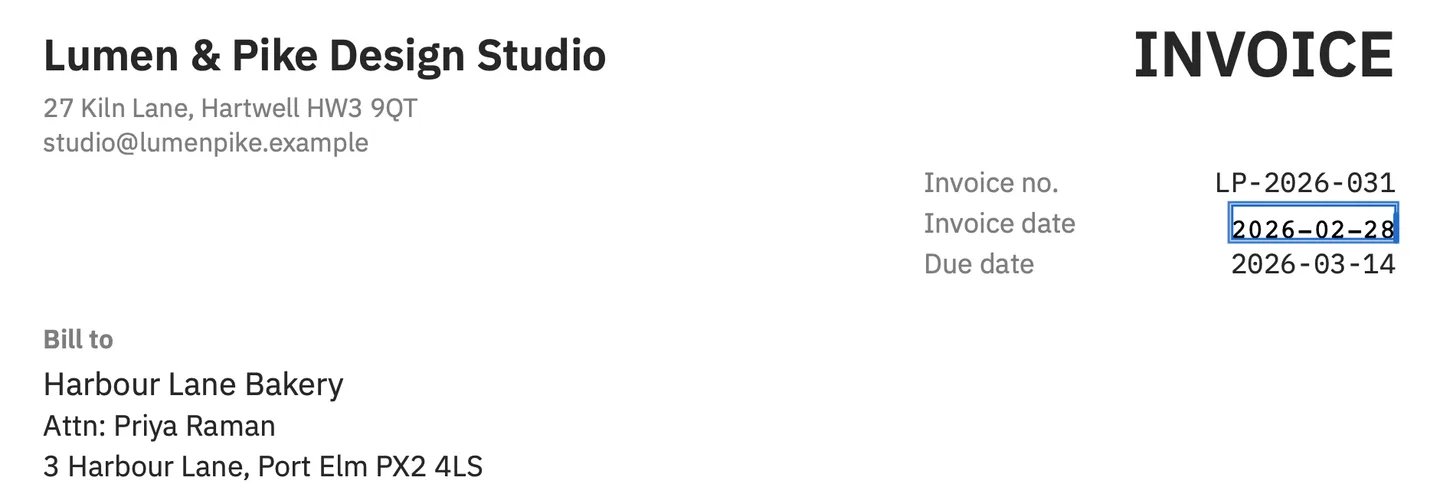
PDF Textfix does the one thing Preview does not, and nothing else Preview does: it adds no text boxes, notes or signatures and fills no forms. Many people use both. PDF Textfix and Apple Preview compares the two apps feature by feature, and how to edit text in a PDF on Mac is the full walkthrough.
Questions about editing text in Preview
Can Preview change the font of the existing text?
No. Text Style changes the font of the text boxes you add, not of the lines already on the page.
Why does my text box look different from the document?
It uses a font installed on your Mac, while the document’s lines use the fonts embedded in the file, which your Mac often does not have installed.
Does a redaction in Preview remove the text for good?
From the page, once you close the document. Apple’s guide for macOS 27 adds that table of contents entries linking to redacted text are not removed, so check the sidebar too.
Is there a free way to change one word in a PDF on a Mac?
Editing the source file and exporting again costs nothing. PDF Textfix is the in-place route: Free to try. Your first 5 line edits save clean. After that, saved files carry a watermark until you buy once.
