
Preview or PDF Textfix: what does each do with a PDF’s text?
Preview marks up a page; PDF Textfix changes the words already on it. Preview puts new things on top of a page: a text box, a note, a shape, a highlight, a signature, form entries, and its Redaction Selection takes selected text from view. It does not change the words already printed there, as Apple’s own guide says, and can you edit PDF text in Preview? walks through Preview’s tools step by step.
PDF Textfix does the other half. It opens a line that is already in the PDF, lets you type the correction in the font inside the document, and writes the file again without the old words. It does almost nothing else Preview does, so it works alongside Preview rather than replacing it. The table above sets the two side by side, and the sections below take its rows one at a time.
What is each app for?
Preview is the viewer for PDFs and images that every Mac has. Apple lists it among the apps a Mac comes with and describes it in its guide as the app where “you can view, edit, and manage PDFs and images on your Mac. You can open documents and photos, add annotations and signatures, combine or split PDF files, and share your work with others.” Reading, marking up, signing, adding or deleting pages, combining files, protecting a PDF with a password and printing are all Preview’s jobs, and for them there is nothing to buy.
PDF Textfix is a Mac app for macOS 26 or later on Apple silicon with a narrower purpose: correcting words in a finished PDF of your own. A wrong date on an invoice, a misspelled name in a letter, a phone number that changed after the brochure was exported. It opens, edits, saves, prints and shares, and leaves the other PDF jobs to other apps.
What happens to the words in each app?
In Preview, the words already on the page stay as they are. The Text tool works as Apple describes it, “Type your text, then drag the text box where you want”, so a correction becomes a box laid over the page. Covering a wrong date with a white shape and typing a new one on top changes what the page looks like, not what it holds: in a PDF, a shape or a text box is an annotation drawn over the page, and the page’s own text stays underneath it. How to white out, cover or delete text sets covering against deleting.
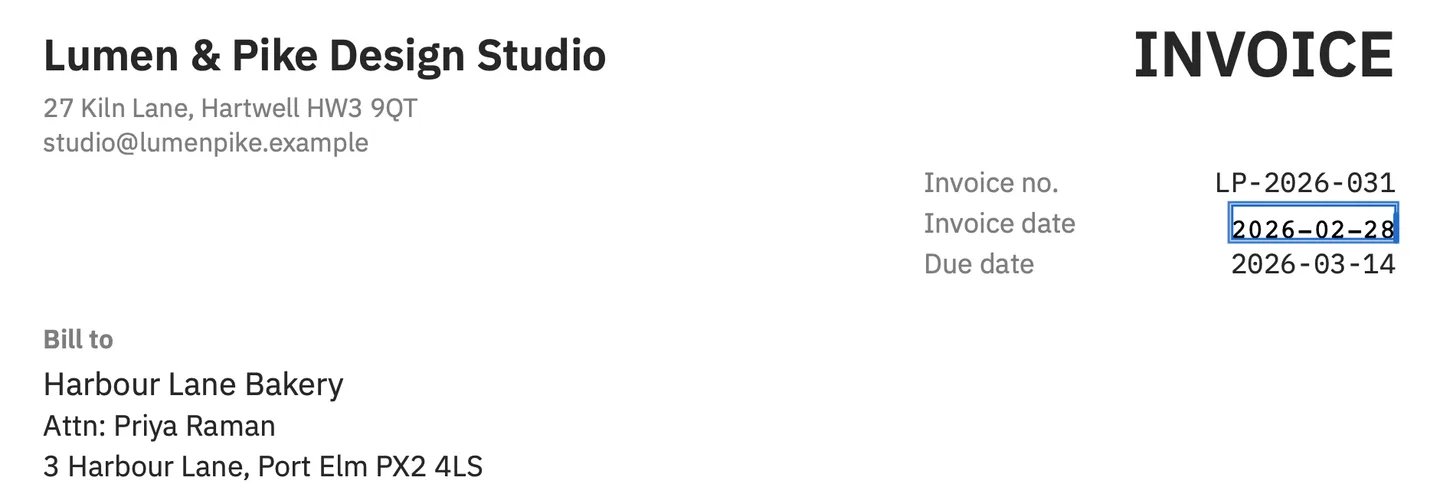
In PDF Textfix, you double-click a line, or select it and press Return, and an editor opens over that line in the line’s own font. You type, then press Return to apply or Escape to cancel; Tab applies the edit and moves to the next line, and Find (⌘F) and the Lines pane reach any line of the document. The new words replace the old ones in the page’s content. In the screenshot above, the demo invoice’s impossible date, 2026-02-30, becomes 2026-02-28, and nothing else on the page moves.
The app shows its limits instead of guessing. It changes one line at a time and does not reflow a paragraph. Some lines are locked, and the line says why; among the reasons are fonts made of pictures, the hidden text layer of a scan, vertical and right-to-left text, form fields and comments. A scanned page is a picture, so it has no text to change, and encrypted files, or files whose permissions forbid changes, open view only.
Which font does each one write with?
A text box in Preview takes the font you pick: Apple’s guide sums up Text Style as “Change the font or the font style and color.” The choice is among the fonts installed on your Mac. That suits a note in the margin; matching the line next to it is harder when the PDF carries its own fonts, often only the characters the document uses, and those fonts are not installed on your Mac.
PDF Textfix starts from the font inside the document. On October 12, 2026, pdffonts listed the three fonts of the demo invoice, IBM Plex Sans SemiBold, IBM Plex Sans and IBM Plex Mono, each as an embedded subset; IBM Plex is not one of the fonts macOS installs. The corrected date is still written in the file’s own IBM Plex Mono.
When the document’s font lacks a character you type, the app looks for it in a fixed order: a glyph already in the same font, another copy of the same face in the document, the same font installed on your Mac, then the closest standard font. While you type, a character from a fallback font is orange, one from another copy of the line’s font is underlined, and one no font can draw is red, with the reason. The font objects already in the file are never modified; added glyphs go into a new font that only the inserted text uses.
What does saving do in each app?
Preview saves as you go. In Apple’s words, “Preview automatically saves changes for you as you work”, and “When you edit a file, Preview saves a version at least every hour”. Apple’s pages do not say how Preview writes the bytes of a PDF, and this page does not guess: that row of the table reads “not verified”.
PDF Textfix has no autosave; the file changes only when you choose Save (⌘S). Save writes the whole file again: the lines you replaced are removed from the pages, and the saved file keeps no earlier version of them. Everything you did not edit is copied as it was, unless the file was damaged; the app tells you when it repaired one. The status bar then says “Saved and verified.” Save As leaves the original untouched, and File > Revert to Saved drops every edit since the last save. What saving does to your PDF measures it on the demo invoice.
Can either one take confidential text out of a PDF?
Preview has a tool for it. Its Redaction Selection, in Apple’s description, lets you “Select text to remove it from view”, and the guide adds that “If the PDF has a table of contents, entries in it that link to redacted text aren’t removed.”
PDF Textfix is not a redaction tool, and says so. Removing words from a page is not removing them from the file: the same words can remain in links and the addresses they open, bookmarks, comments, form fields, a tagged file’s accessibility text, images and the file’s metadata, and fonts keep the shapes of every character they held. For confidential content, use a redaction tool and check what it leaves; redacting versus deleting text explains the difference.
What does each one cost?
Preview comes with macOS, so it is already paid for. PDF Textfix is free to try. Your first 5 line edits save clean. After that, saved files carry a watermark until you buy once. The sample documents in the Help menu never count, and the purchase is a one-time payment, in the Mac App Store or as a licence from this website, with no subscription and no account. The pricing page lists the price for each region.
Preview or PDF Textfix: which should you use?
Use Preview to read, annotate, sign, fill a form, combine or split files, or to put a note or a new line of text on top of a page. It is on every Mac, and those jobs need nothing else.
Use PDF Textfix when words already printed on the page are wrong and the rest of the file should stay as it was: a date, a name, an amount, a typo. It edits the line where it stands, in the document’s font, and refuses an edit that fails a check, with the reason.
Use neither to change fonts and sizes, rewrap paragraphs or edit a scanned page; those need a full PDF editor with text boxes and text recognition. The comparisons set the other editors against the same questions, and alternatives look at leaving one for this single job. For the full walkthrough of a fix, read how to edit text in a PDF on Mac.
Can you use both on the same document?
Yes, and the order is simple: correct the words first, then mark up. Fix the line in PDF Textfix and save, then open the saved file in Preview to sign it, add a note or send it on. A note or a link that already covers the line stays where it is when PDF Textfix edits the text under it. A document with a digital signature is different: its signatures no longer verify once an edit is saved, so PDF Textfix asks before your first edit of a signed or certified file.
Do Macs have a built-in PDF editor?
Yes, in part: Preview, which comes with macOS. Apple lists it among the apps every Mac comes with, and its guide describes it as the app where “you can view, edit, and manage PDFs and images on your Mac”. The editing it means is markup, signatures, forms and pages; it does not change the text already on a page, which is the job PDF Textfix does.
Can Preview change the font of the text already in a PDF?
No. Text Style changes the text boxes you add, not the document’s own lines.
Does PDF Textfix replace Preview?
No. It does one job Preview cannot do and none of Preview’s others, so it works alongside Preview rather than replacing it.
