
What can you use for free on a Mac, and what is the catch?
The free options fall into three groups. Preview, Firefox and Acrobat Reader cost nothing. Preview and Acrobat Reader do not change existing text, in Apple’s and Adobe’s words, and Firefox’s page describes only adding text, images, highlights and comments. PDFgear and Sejda’s web editor do change existing text at no cost; PDFgear’s listing says it has no trial watermark or page limit, and Sejda’s free service stops at 200 pages, 50 MB and 3 tasks per hour. The rest are free tiers of paid apps, and the catch shows up when you save or when a trial ends.
PDF Textfix belongs to that last group, and says so before you start: Free to try. Your first 5 line edits save clean. After that, saved files carry a watermark until you buy once.
The table above sets each product’s own words side by side. Every cell about another product links its source and the day it was read. A cell set in gray is one the vendor’s pages do not settle, and we have left it unsettled rather than guess.
How to read the table
Four questions decide whether a free editor does the job you have.
Editing existing text asks whether the tool changes the words already on the page, or only adds new text on top. A text box laid over an old date hides it on screen, but the old date is still in the file, and a reader who copies the text or searches for it can find it.
Font rule asks which font the edited text is drawn in. A PDF usually carries its fonts inside the file, often only the characters the document uses. An editor that needs the font installed on your Mac may swap in another one when it is missing.
Watermark or limits is where “free” is defined: a time limit, a usage limit, a page or size limit, or a watermark on save.
Uploads asks where the file goes. A web editor uploads your PDF to its servers, and its privacy policy says how long it keeps it. An app on your Mac may still use the network for other things, such as AI features or updates.
Free tiers change often. The dates in the sources list tell you when each fact was read, and the vendor’s own page is the place to check before you rely on one.
Which free editor fits which job?
You only need to add a note, a signature or a filled-in field
Preview, Firefox and Acrobat Reader all do this without a purchase. Apple’s guide is direct about the limit: “Although you can’t edit the text of a PDF in Preview, you can use the markup tools to provide feedback or write down something you want to remember.” Firefox’s built-in editor adds text, images, highlights and comments, and Adobe says of its free reader that “Text and image editing is not available in Acrobat Reader and requires an Adobe Acrobat Standard or Adobe Acrobat Pro subscription.”
For a signature, a form or a comment to a colleague, any of the three is enough. For a wrong word, they are not: covering text is not changing it. The guide to Preview and the page on browser PDF editors go into each one’s tools.
You need to change a word that is already there
PDFgear and Sejda change existing text for free. UPDF’s free version edits too, and adds a trial watermark when you save. PDF Textfix’s first 5 line edits save clean, and later saves carry a watermark until you buy once.
For a finished document, the font is the difference to watch. PDFgear’s guide says that “the original text font and styles will preserved” when you edit. UPDF’s guide says it “keeps the same font only when that font is available on your system”. Sejda’s editor, when the original font lacks a character you typed, opens a dialog that says “The original font is missing some of the characters you typed.” and asks you to choose a replacement. PDF Textfix writes with the font inside the document whether or not it is installed on your Mac, and when that font lacks a character, it takes it from a fixed fallback order and marks it so you see it before you apply the edit. The step-by-step guide to editing text in a PDF on a Mac shows that in the app.
The document must not leave your Mac
A web editor is the quickest route, but the file goes to someone else’s server first. Sejda’s editor says “Files stay private. Automatically deleted after 2 hours.” Smallpdf’s privacy notice says that with an account, “we delete User Files within one hour unless you save them to your file storage.” Both are plain, dated statements; whether they suit a contract or a payslip is your call.
On the Mac side, PDFgear says “Most editing tools within PDFgear work locally on the Mac”, with AI features, online services, help and updates using the internet. Firefox’s page presents its editor as the way to avoid an online editor: you open the PDF and save it back to your computer. The Mac App Store version of PDF Textfix goes online only to confirm a purchase. The version from this website checks for updates only when you allow it, and with a licence it goes online once on each Mac to activate it and about once a week to check it. The comparison of online PDF editors covers the web route in detail.
You edit PDFs every week
Usage limits add up when the work is regular. Three tasks an hour, a viewer after seven days, or a watermark on every save are fine for a one-off and tiring for a weekly job. If that is you, the honest comparison is between paid tools, and the page on PDF editors without a subscription sets the one-time prices side by side.
What does “free” mean on a PDF editor?
The word covers at least four different deals, and the table shows each one.
- Free with no stated limit. Preview comes with macOS. Firefox and Acrobat Reader are free to download. LibreOffice “provides unfettered access to our office productivity tools, at no cost to you”, in its own words. PDFgear says it “provides free use for all functions without any limits like trial watermark, page count, etc.”
- Free with usage limits. Sejda’s free service handles “documents up to 200 pages or 50 MB and 3 tasks per hour”. Smallpdf’s free plan lists “Limited document downloads”.
- Free for a time. PDF Expert downloaded from Readdle’s website gives a seven-day trial; after it, Readdle says you can “continue to use it as a PDF viewer only”.
- Free to edit, marked when saved. UPDF says its “free version automatically adds a trial watermark when saving the document.” PDF Textfix belongs to this group once its clean saves are used, as stated above.
Each of these is fair when it is stated before you start; check which one applies before you spend an hour on a file.
How does the free version of PDF Textfix work?
The allowance is counted in line edits, not in days, so it does not run out while you are deciding.
- Open a PDF with File > Open… (⌘O), or drag it onto the app.
- Double-click the line you want to change, or select it and press Return. Type the correction and press Return to apply it. The line keeps its font, size and position.
- Save with ⌘S, or with ⇧⌘S to keep the original untouched. When the check of the written file passes, the status bar says “Saved and verified.”
- Settings and About show what is left, such as “Free version: 3 of 5 free line edits left on this Mac.” An edited line counts once per document, however often you save the file.
- Once the 5 are used, a sheet asks “Save with a watermark?” before the first watermarked save after the app starts, and quotes the line the pages will carry. In the saved file, that line and a small logo in the corner open the pricing page, or PDF Textfix on the Mac App Store in the Mac App Store version. Save with Watermark saves; Cancel saves nothing.
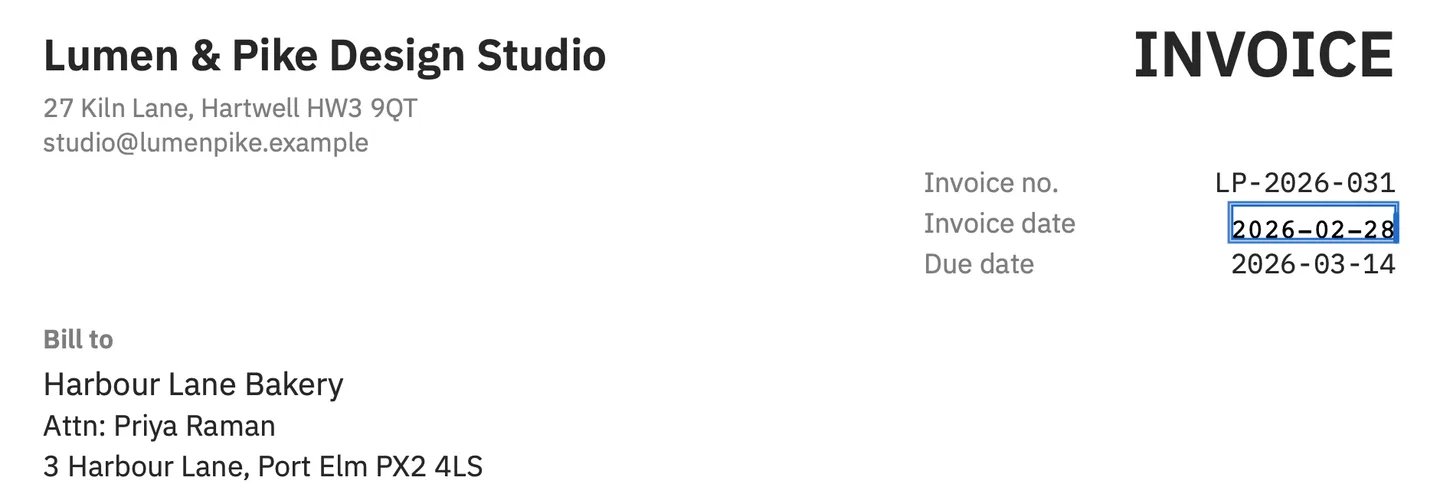
The samples in Help > Open Sample PDF, a letter and an invoice, never count and never get a watermark, so you can try every feature on them first. The screenshot above shows the demo invoice the sample invoice is made from. Buying once, as an in-app purchase in the Mac App Store or as a licence from this website, removes the watermark from new saves and takes it out of files saved with it; the pricing page has the price for your region.
What should you check before you trust a free edit?
Whatever tool you use, five checks catch common problems before the file goes out.
- Open the saved file in a second viewer. If the edited line looks different there, the edit depends on something the other viewer does not have.
- Look at the font of the new text. Zoom in on the line. A substituted font usually shows in letter widths and in characters such as “g”, “a” and “1”.
- Search the saved file for the old words. If the old wording is still found, it was covered, not replaced.
- Check every page for a mark. A watermark may sit at the bottom of the page, in a corner or diagonally across it.
- Check signatures. Editing a signed PDF changes the document that was signed. When PDF Textfix saves an edit to one, its signatures no longer verify, so it asks before your first edit.
Questions people ask
Is there a free PDF editor for Mac without a watermark?
PDFgear’s Mac App Store listing says it has no trial watermark or page limit. Preview, Firefox and Acrobat Reader are free too, but Apple and Adobe say Preview and Acrobat Reader do not change existing text, and Firefox’s page describes only adding content. PDF Textfix’s free version is set out in the section on how it works.
Does a Mac have a built-in PDF editor?
It has Preview, which comes with macOS and marks up PDFs. Its markup tools add text boxes, shapes and signatures on top. Apple’s guide says you can’t edit the text of a PDF in Preview, so changing the words already on a page takes another app.
Can the free Acrobat Reader change text?
No. Adobe says text and image editing is not available in Acrobat Reader and needs an Acrobat Standard or Pro subscription. The page on Acrobat Reader lists what the free reader does.
Does the free version of PDF Textfix expire?
No. The limit is a count of line edits on each Mac, not a number of days. Free to try. Your first 5 line edits save clean. After that, saved files carry a watermark until you buy once. The samples in the Help menu never count.
Do I need an account to try PDF Textfix?
No. Neither version asks for an account, and the purchase, when you make it, is a one-time payment.
For every product compared on this site, the comparisons hub lists the pages one by one.
