
To edit text in a PDF on a Mac, you need an app that changes the words already printed on the page. Preview, the viewer that comes with macOS, cannot replace or retype the text already on a page; it offers markup tools instead. PDF Textfix can: open the file, double-click the line, type the correction, press Return, then press ⌘S. This guide shows each of those steps with screenshots, what Preview and the other routes do instead and what they cost, how to check the saved file, and where the app stops.
The steps describe PDF Textfix 1.0.0 on its demo documents, synthetic files set in fonts that stock macOS does not install. The app comes with a sample invoice and a sample letter of its own (Help > Open Sample PDF), so you can try the main steps (open, find, edit, apply, save) on them before you touch a file of your own. The cover letter of Step 5 and the contract of Step 7 are not among the bundled samples. The bundled samples never count toward the free line edits, so the watermark sheet described below never appears on them.
Before. The line as the file holds it.
After. The corrected line, in the same font and place.
Why is editing text in a PDF so hard on a Mac?
A PDF is not a word-processing document. It is a set of drawing instructions: these characters, in this font, at these coordinates. The font usually lives inside the file, often as a subset that holds only the characters the document uses, and every character’s position is fixed, so a wider word has nowhere to go. An editor that types with installed fonts has to pick a stand-in when the document’s font is not on your Mac, and the new word looks different from the words around it. The guide to keeping the same font explains subsets and stand-in fonts in full, and the troubleshooting guide covers the other reasons text refuses to change, from scanned pages to passwords.
What does Preview let you do instead?
Apple’s Preview User Guide is direct about the limit: “Although you can’t edit the text of a PDF in Preview, you can use the markup tools to provide feedback or write down something you want to remember.”
So the usual workaround in Preview is a cover-up: a white rectangle over the wrong words and a text box on top. It can pass on screen, but the text box uses an installed font, its baseline is placed by eye, and the original words stay in the file under the shape. The guide to editing PDF text in Preview walks through what each markup tool can and cannot do, and PDF Textfix and Apple Preview sets the two apps side by side.
What other ways are there to change PDF text on a Mac?
Fix the source file and export again. If you have the Pages, Word or InDesign document the PDF came from, correct it there and export a new PDF. It costs nothing, and the font is right by construction because it is installed on the computer that made the document. Take this route whenever it is open to you.
Ask the sender. For a document someone else made, the cleanest correction is a new copy from the person who holds the source.
Convert it in Word or Google Docs. Word opens a PDF as a new document. Microsoft’s help describes it: “Word makes a copy of the PDF, converting it to a Word document and attempting to match layout of the original PDF.” It also warns that “when you open a PDF file in Word, it might not look exactly the way it looked as a PDF.” Google Docs converts a PDF from Google Drive in the same spirit, and its help says “Lists, tables, columns, footnotes, and endnotes are not likely to be detected.” Once converted, you can rewrite whole paragraphs and export a new PDF, but the layout is rebuilt and the text is set in whatever fonts the converter has, so a designed page can come back changed. The guide to editing a PDF in Word or Pages goes through it step by step.
A free PDF editor. Several free editors change existing text, each with its own rules about fonts. The roundup of free PDF editors for Mac lists what each one documents. Whichever you try, zoom in on the edited line afterwards and compare its letters with the line above.
An online editor. Check whether it uploads your file and what its terms say about keeping it, especially for a contract, an invoice or a CV.
Acrobat, which is paid. It edits text in place, under a rule Adobe’s help states plainly: “To edit text using a specific font, you must have that font installed on your computer. If the font isn’t installed but is embedded in the PDF, you can only change the text’s color or size.” Adobe sells it as a subscription, and also says that “Acrobat Pro 2024 desktop software is a one-time, upfront purchase that provides three years of access to Acrobat desktop.” The guide to editing a PDF without Acrobat covers that route.
How do you edit a line with PDF Textfix?
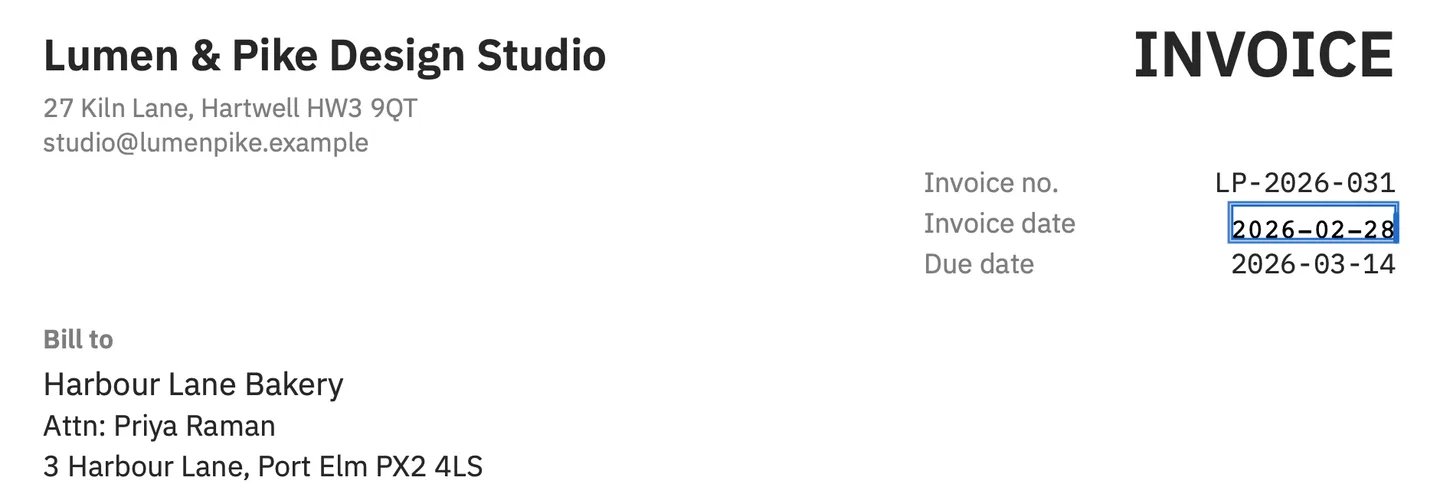
PDF Textfix changes one line of text that is already on a page, in the font the document already has, and checks every edit before it applies it. The walk-through below fixes the demo invoice, which is dated 2026-02-30, a day that does not exist.
Step 1: How do I open the PDF?
Choose File > Open (⌘O), drop the file on the Dock icon or on an open window, or pick it from the welcome window, which also offers Try a Sample. The pages appear at once. While PDF Textfix reads the text, the status bar says “Preparing text editing…”; then the Lines pane lists the lines of the pages on screen.
Step 2: How do I find the line I want to change?
Click it on the page, or press Tab and Shift-Tab to step through the lines in reading order. The Lines pane (⌥⌘L) lists every line of the visible pages, and Edit > Find > Find Line… (⌘F) searches the whole document, with ⌘G and ⇧⌘G for the next and previous match. A line with a lock cannot be edited; hold the pointer over it to read why.
Step 3: How do I type the correction?
Double-click the line, or select it and press Return. An editor opens over the line and types in the line’s own font wherever PDF Textfix can draw it. On the invoice, select the “30” of the date and type “28”.
Step 4: What does the bar under the pages tell me?
While you type, the bar describes the edit. Its first line says what Return will do; its second names the font, whether the file embeds it, and the size, here IBM Plex Mono, an embedded subset, at 9.5 points. If a warning appears that you have not read yet, Return shows it first and applies the edit on the next press.

Step 5: What if I type a letter the font does not have?
A subset holds only the characters the document used, so a letter it never needed may be missing. PDF Textfix then draws that one character from a fallback, in a fixed order, and marks it on the line before you apply anything; the guide to keeping the same font shows the order and the marks on the demo cover letter.
Step 6: How do I apply the edit, and why might it be refused?
Press Return to apply it or Escape to cancel. Tab applies the edit and selects the next line; press Return to edit it. Before anything changes, PDF Textfix checks that every other character on the page stays where it was and looks as it did. When the new text would run into the words after it, PDF Textfix moves the rest of the line to make room and says so in the bar; Keep Following Text in Place puts it back, and Shift Rest of Line (⌃⌘R) moves it by hand. If a check fails, the edit is refused, the bar says why, and the document stays as it was: a refusal is a safety stop, not a crash.
Step 7: What does the Issues pane show?
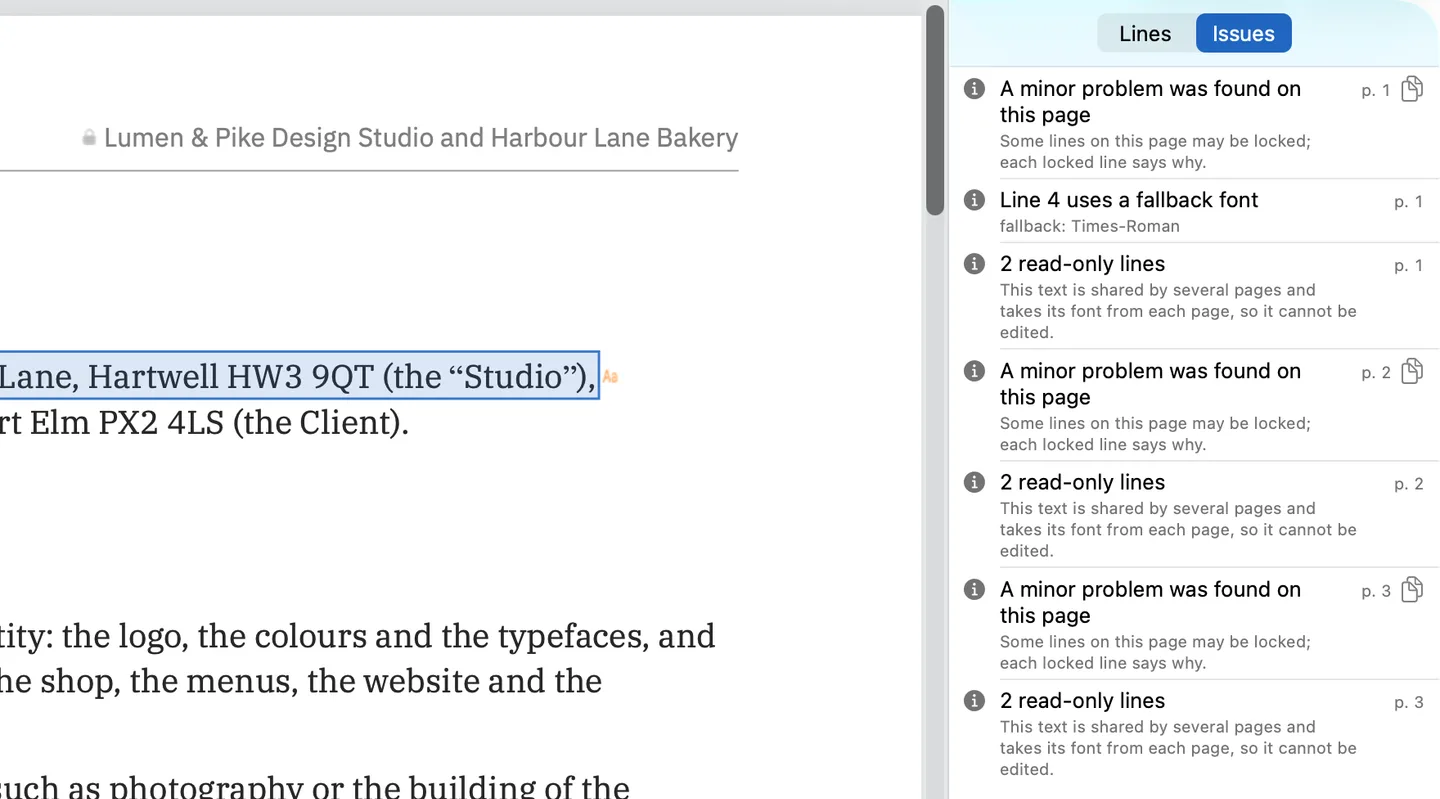
The Issues pane (⌥⌘I) lists what PDF Textfix found on the pages you have viewed so far, and says how many that is: locked lines and their reasons, fonts the file does not embed, fonts whose licence limits edits, fallback fonts your edits used, text that would land outside the visible area of the page, and damage repaired while reading. On the demo contract, the running header is drawn by one shared part of the file on every page and takes its font from each page, so those lines are locked, and the pane says so.
Step 8: How do I save, and can I keep the original?
Press ⌘S. Save writes the whole file again and, once the written file has been checked, the status bar says “Saved and verified.” The line you replaced is gone from the page, and the saved file keeps no earlier version of it. Everything you did not edit is copied as it was, unless the file was damaged; PDF Textfix tells you when it repaired one, in a banner in the window.
To keep the original, use Save As (⇧⌘S), which writes the edited copy under a new name. There is no autosave, Edit > Undo steps back one applied edit at a time, and File > Revert to Saved drops every edit since the last save.
How do you check the result after saving?
A careful check takes a minute and catches the problems that matter.
- Zoom in on the line. Press ⌘+ a few times and compare the new characters with the same letters elsewhere on the page: the “a”, the “g”, the digits. On the invoice, the new “8” should match the “8” of the amount 1,850.00 further down the page, set in the same monospaced font.
- Look for marks. An orange character came from a fallback font. Decide whether it is acceptable before you send the file.
- Turn on the Edited filter in the Lines pane to list the lines you changed on the pages around the one on screen. For a long document, search the whole file with Find (⌘F) for each wrong word you corrected: when Find Next (⌘G) no longer lands on a line that holds it, none is left.
- Open the saved file in a second viewer, such as Preview, and read the edited line there as well.
- Think about other copies of the words. Save removes the replaced line from the page. The same words can still be in links and the addresses they open, bookmarks, comments, form fields, the accessibility text of a tagged file, images and the file’s metadata, and fonts keep the shapes of all their characters. PDF Textfix is not a redaction tool. What saving does to your PDF shows what Save writes and how to check the bytes yourself.
What does the free version do?
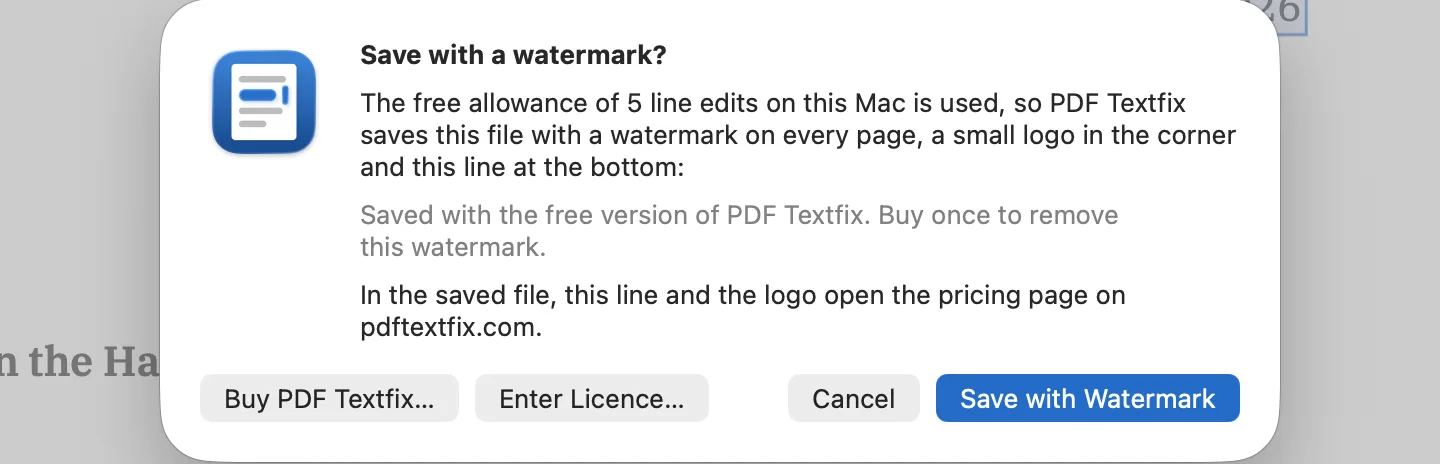
Free to try. Your first 5 line edits save clean. After that, saved files carry a watermark until you buy once. The watermark is faint diagonal text, a small logo in the corner and a line at the bottom of every page; the line and the logo open the pricing page, or PDF Textfix on the Mac App Store in the Mac App Store version. Each time the app opens, the first save that would add the watermark stops at a sheet that says so and quotes the line the file will carry, so nothing happens by surprise. The samples in the Help menu never count. Once you buy, PDF Textfix saves without the watermark and takes it out of files it saved with one. The pricing page has both ways to buy.
Does it work on a MacBook Air, MacBook Pro or M1 Mac?
PDF Textfix needs macOS 26 or later on a Mac with Apple silicon, which covers every MacBook Air, MacBook Pro, iMac, Mac mini, Mac Studio and Mac Pro with an M1 chip or later that runs macOS 26. It does not run on Intel Macs. The steps are the same on every model; only the keyboard differs, and every command above is also in the menus. The download page has the version from this website and the Mac App Store link.
What will PDF Textfix not do?
It does one job, so it is worth knowing where it stops:
- It changes text already in the PDF, one line at a time. It does not add text boxes, move text from one line to the next or reflow paragraphs.
- It does not change fonts or sizes.
- It does not edit scanned pages; the text of a scan is a picture, and the Lines pane says “This page is a scanned image”.
- Some text stays locked, and the line says why: fonts made of pictures, the hidden text layer of a scan, vertical text, right-to-left and joined scripts, Chinese, Japanese and Korean encodings, and the text of form fields and comments.
- Encrypted files, and files whose permissions forbid changes, open view only.
The how-to hub routes the other jobs, from forms to signatures, to the right tool.
Questions people ask
Do I need the PDF's font installed on my Mac?
No. PDF Textfix writes with the font embedded in the document. Only a character the embedded font lacks comes from somewhere else, in a fixed fallback order, and it is marked. While you type in some embedded fonts, the editor shows the line in the closest installed font; once you apply the edit, the page shows it in its own font.
Will the rest of the page move when I change a word?
No. An edit that would move or restyle any other character on the page is refused with the reason. On the edited line itself, when the new text would run into the words after it, PDF Textfix moves the rest of the line to make room and says so in the bar; Keep Following Text in Place puts it back. Text is never wrapped onto the next line.
Can I change several lines in one go?
One at a time, quickly: Tab applies the edit and selects the next line, Return opens it, and Undo and Redo step through the applied edits. In the free version, each changed line counts once per document, however often you save the file.
Is the old text gone from the file?
From the page, yes: Save writes the file without the replaced line and keeps no earlier version of it. Other parts of the file can hold the same words, as listed above, so for confidential content use a redaction tool.
Does my file leave my Mac?
No. PDF Textfix reads only the files you open and writes only where you save, with no account. The Mac App Store version goes online only to confirm a purchase. The version from this website checks pdftextfix.com for updates only when you allow it, and with a licence it goes online once on each Mac to activate it and about once a week to check it; none of these requests carries your file.
