
To fix a typo in a PDF without breaking the layout, change only the wrong characters, in the line’s own font, with an editor that checks that nothing else on the page moves, then compare the corrected page with the original before you send it. The fear behind the question is reasonable: in a PDF, one extra or missing letter can push the rest of a line out of place or put a word in the wrong typeface. This guide explains why that happens, gives a checklist for before and after the fix, and walks through a route on the Mac where an edit that would disturb the page is refused instead of applied.
BT- Begins a text object.
/F1 9.5 Tf- Chooses font F1 at 9.5 points.
380 712 Td- Moves to where the line starts on the page.
(2026-02-28) Tj- Shows the string: each code is a glyph of F1.
ET- Ends the text object.
Why can fixing one letter shift the whole line?
Because a PDF line is a set of characters placed at exact positions, and three things decide those positions.
Character widths. In most fonts, letters have different widths: an “m” is far wider than an “l”. Replace “teh” with “the” and the width stays the same; replace “Willam” with “William” and the word grows by one “i”. Whatever follows has to move or be overlapped.
Kerning and spacing adjustments. Many files store a line as pieces with small adjustments between them. The PDF standard’s operator for this is described as “Show one or more text strings, allowing individual glyph positioning.” Those adjustments were computed for the old letters. Change a letter next to one, and the spacing can look slightly wrong.
Justified text. In a justified paragraph, the app that made the PDF stretched the spaces of each line to fill the measure. Fix a word in such a line and the stretch no longer adds up, so the line ends a little short or a little long.
The font is a separate risk. An editor that types with installed fonts can set the corrected word in a different typeface; Adobe’s help for Acrobat says “When editing text in a PDF, Acrobat may use a fallback font if the original font isn’t available on your system.” The fix is not to avoid editing, but to edit in a way that cannot move anything you did not mean to change, and to check. The guide to editing without changing the format goes deeper into layout.
Which typos are easy to fix, and which are hard?
- Easy: same width. Swapped letters (“teh”), a wrong digit in a date or an amount, a wrong capital in a monospaced line. Nothing after the word needs to move.
- Usually fine: one letter more or less in body text. The line grows or shrinks by one character, and the rest of the line can follow it.
- Harder: a letter the document never used. The embedded font may lack it, especially in a heading set in a display face, so it comes from another font and looks different.
- Harder: the end of a justified line. There may be no room for an extra letter before the margin.
- Not possible in place: a locked line. Text in a header that takes its font from each page that draws it, in a form field or a comment, or on a scanned page cannot be edited this way; the line says why.
Knowing which kind you have tells you what to expect in the next steps.
Step 1: What should you check before you touch the file?
- Proofread the whole document first. PDF Textfix has no spell checker, and its line editor turns off automatic spelling correction, text replacement and smart quotes, so it types exactly what you type. Find every typo before you start, so you fix them in one pass and save once.
- Keep the original. Duplicate the file, or plan to use Save As.
- Note where each typo is: page, line and the exact wrong characters.
- Prefer corrections of the same length. A swapped pair of letters (“teh”) or a wrong letter (“recieve” to “receive”) keeps the width close. An added or removed letter changes it, which the next steps handle.
Step 2: How do you fix the typo in place?
Open the PDF in PDF Textfix. To reach the word, use Edit > Find > Find Line… (⌘F), type the misspelling, and press ⌘G until you are on the right line; or click the line on the page. Press Return, or double-click, and an editor opens over the line in the line’s own font. Select only the wrong characters and type the right ones. Leave everything else on the line untouched.
Step 3: What if the corrected word is wider or narrower?
When the corrected word would run into the text after it, PDF Textfix moves the rest of the line along to make room, so no word is overlapped, and the bar says so: “The rest of the line moves to make room for the edit.” A Keep Following Text in Place button then appears in the bar; it puts the following text back where it was. Shift Rest of Line (⌃⌘R) moves the rest of the line by hand, for example to close the gap a shorter word leaves.
If the text after your edit belongs to another line, such as the next column of a table, moving it would not make room, and the bar says so. Shorten the correction, or keep it in place if the gap is acceptable.
Step 4: Why was my edit refused, and is that safe?
Before PDF Textfix applies any edit, it checks that every other character on the page stays where it was and looks as it did. If a check fails, the edit is refused, the bar says why, and the document stays exactly as it was. The reasons read like this one: “This edit would move or restyle characters it should keep, so it was not applied.”
That is the safe outcome: a refused edit means nothing was changed behind your back. Some edits that would look fine are refused too, for example a new letter in the place of one that overlapped its neighbor, or an edit that would run into other text when Shift Rest of Line cannot make room. When that happens, try a correction of the same width, or fix a neighboring word instead.
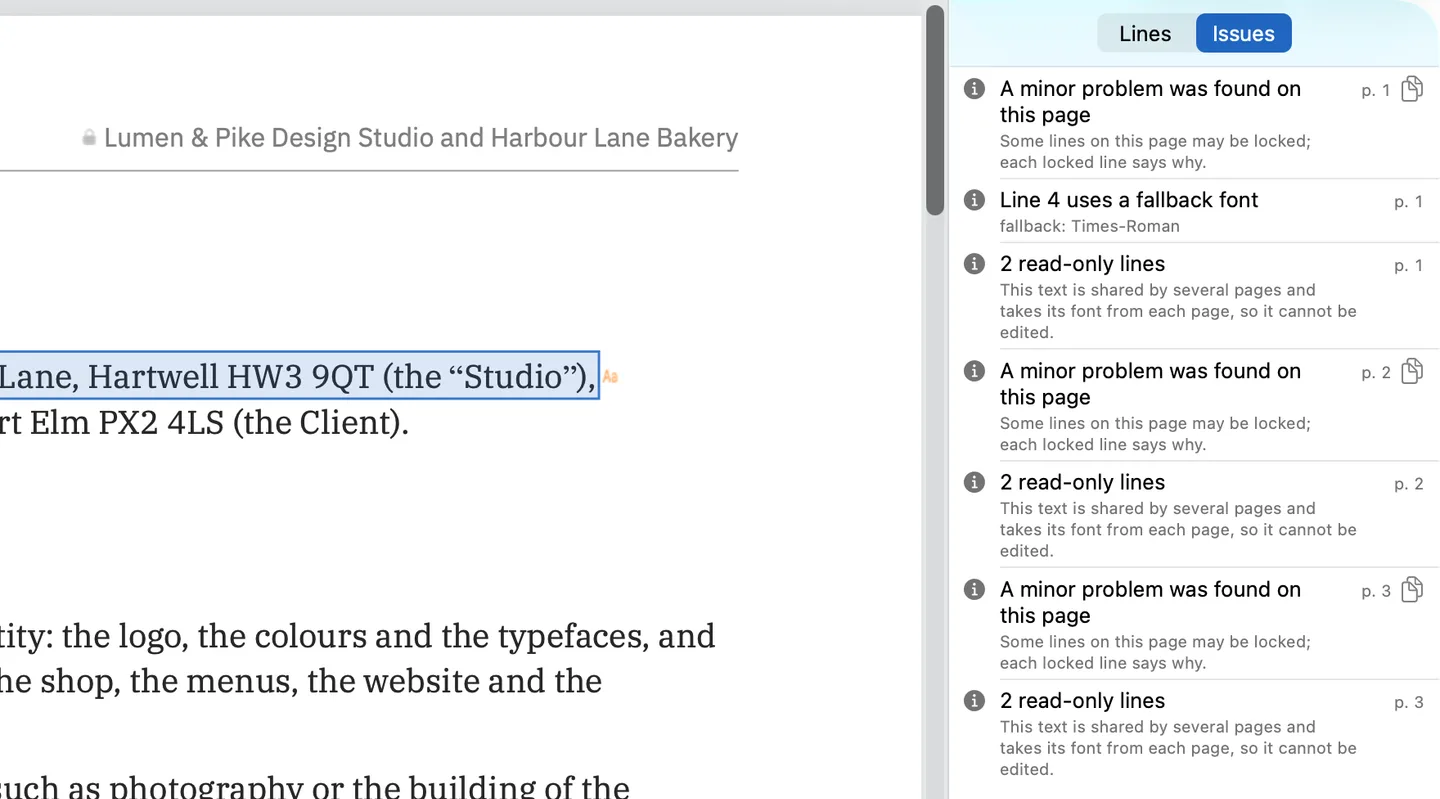
Some lines cannot be edited at all, and the Issues pane (⌥⌘I) lists the locked lines of the pages you have viewed, each with its reason, before you try. On the demo contract, the running header is shared by every page and takes its font from each page, so it is locked:
Step 5: How do you check the result?
A careful check after the fix has three parts: the letters, the layout and the font.
- Zoom in and compare the letters. Press ⌘+ and look at the corrected word next to the same letters elsewhere on the page. A character in orange was drawn with a fallback font because the document’s font lacks it; decide whether that is acceptable.
- Compare before and after. Open the original copy next to the corrected one and look at the line, the lines above and below, and the right margin. In the Lines pane, the Edited filter lists the lines you changed on the pages around the one on screen; on a long document, page back to each correction you noted in Step 1.
- Check the font name. While a line is open for editing, the bar names its font; it should be the same before and after your change.
Step 6: How do you save without losing the original?
Press ⌘S to save in place, or ⇧⌘S (Save As) to write the corrected copy under a new name. After the written file has been checked, the status bar says “Saved and verified.” The misspelled line is gone from the page and not kept in an earlier revision of the file; everything you did not edit is copied as it was, unless the file was damaged, in which case PDF Textfix says it repaired it.
For a CV, where one typo matters more than anywhere else, the résumé guide shows the same route on the demo CV. To fix the same misspelling on several lines, see how to replace a word or a line.
Questions people ask
Does PDF Textfix check my spelling?
No. It has no spell checker, and it turns off automatic correction while you type, so the text is exactly what you entered. Proofread first.
Can I fix the same typo everywhere at once?
No. There is no replace-all: Find (⌘F, then ⌘G) takes you to each line, and each correction is applied and checked on its own. The find and replace answer explains why.
Will fixing a typo change the font?
Not when the letters you type are in the document’s embedded font, which holds the letters the document already uses. A letter it lacks comes from another font and is marked in orange.
Is PDF Textfix free for one typo?
Free to try. Your first 5 line edits save clean. After that, saved files carry a watermark until you buy once. The pricing page has the details.
