
To edit a PDF without changing its format, change the text where it already is, in the font already embedded in the file, and make sure nothing around it moved. Layout breaks for three reasons: the PDF was converted into another kind of document, the edited words were set in a different font, or the editor rewrapped the paragraph. Avoid all three and the page keeps its look. The steps below show how to recognize each cause and how to edit a line in place on a Mac, with the limits of that approach.
What does “format” mean inside a PDF?
Less than it seems. A PDF page is a list of drawing instructions: put these characters, in this font, at this size, at this position. The PDF standard describes the unit that holds them: “A PDF text object consists of operators that may show text strings, move the text position, and set text state and certain other parameters.” There is no paragraph that knows where its lines end, and no table that knows its cells. Microsoft’s support page makes the same point from the converter’s side: “Most PDFs don’t include information about structural content elements, such as paragraphs, tables, or columns.”
That is why a PDF looks the same everywhere, and why editing it is delicate. Every line sits at a fixed position. Make a word longer and nothing makes room for it; the text after it is still drawn where it was. The glossary entry on text objects goes one level deeper.
Step 1: Why did my edit break the layout?
Usually for one of three reasons.
The PDF was converted. Opening a PDF in a word processor, or uploading it to a service that turns it into an editable document, rebuilds the page from guesses about paragraphs, columns and tables. The rebuilt document is laid out again by its own rules, so line breaks, page breaks and spacing move across the whole document, not only where you typed. How to edit a PDF in Word or Pages covers this route.
The edited text took another font. Many PDFs embed only the characters they use, often under a font name your Mac does not have installed. Adobe’s help states the rule its editor follows: “To edit text using a specific font, you must have that font installed on your computer. If the font isn’t installed but is embedded in the PDF, you can only change the text’s color or size.” An editor that substitutes an installed font draws your words with other letter shapes and other widths, so the edited line looks different and ends in a different place. The guide on why editing a PDF changes the font explains it in full.
The editor reflowed the paragraph. Some editors group lines into a paragraph and wrap the text again after an edit. When the grouping is wrong, lines merge, split or shift down, and the spacing between them changes.
Step 2: How can I tell which one happened?
Compare the edited file with the original, side by side, at the same zoom:
| What you see | Likely cause |
|---|---|
| The whole document looks slightly different: other line breaks, page breaks, spacing, fonts in headings | Conversion |
| Only the edited words look wrong: other letter shapes, weight or width | Font substitution |
| The edited paragraph is wrapped differently, and the lines below it moved | Reflow |
| The edited line overlaps the text after it | A longer edit with nothing moved to make room |
To confirm a font change, check which fonts the file uses before and after; how to find which fonts a PDF uses on a Mac lists the ways.
Step 3: How do I edit a line without moving anything else?
The rules are the same in any tool: edit the existing line rather than covering it, keep its own font, keep the new text close to the old length, and check its neighbors before you save. With PDF Textfix, a Mac app built for this one job:
- Open the PDF and select the line: click it, press Tab to walk the lines, or find it with ⌘F.
- Press Return or double-click. The editor opens over the line and types in the line’s own embedded font.
- Read the bar under the pages: it names the font and size the line keeps, for example “Font: IBMPlexMono (embedded subset), 9.5 pt”.

- Type the change. A character the embedded font lacks is drawn with a fallback font and tinted orange, so you can see exactly which letter differs.
- If the width changed, read the bar. By default the text after the edit on that line stays where it is; when a longer edit would run into it, PDF Textfix moves it along by the difference on its own and offers Keep Following Text in Place to undo that. The Shift Rest of Line checkbox (⌃⌘R) turns the move on or off by hand.
- Press Return to apply, then ⌘S to save. Save As (⇧⌘S) keeps the original next to the edited file.
The fix-a-typo walkthrough, how to fix a typo in a PDF without breaking the layout, applies the same steps to a single misspelled word.
Step 4: What does PDF Textfix check before it applies an edit?
That the rest of the page has not changed. Before an edit is applied, PDF Textfix verifies that the parts of the page outside the edit are untouched, that every character it keeps stays at its position and is drawn as it was, that the edited line reads back exactly as typed, and that the names the page gives its fonts and other resources do not clash. If any check fails, the edit is refused, the bar says why, and the file stays as it was. The reasons read like these:
- “This edit would move or restyle characters it should keep, so it was not applied.”
- “This edit would change how other text on the page is drawn, so it was not applied.”
- “The edited text runs into the text after it on this line, such as the next column, and would read as part of it.”
A refusal is the format being protected: the alternative would be an edit that quietly moved something.
Step 5: What does the Issues pane tell me after an edit?
The Issues pane (⌥⌘I) lists what you should know before you send the file: lines whose edit used a fallback font, locked lines with their reason, fonts the file does not embed (other viewers may draw that text differently), and edits that put text outside the visible area of the page. On the demo contract, a synthetic document, it shows the line that took a fallback font and the running header’s lines, which are locked.
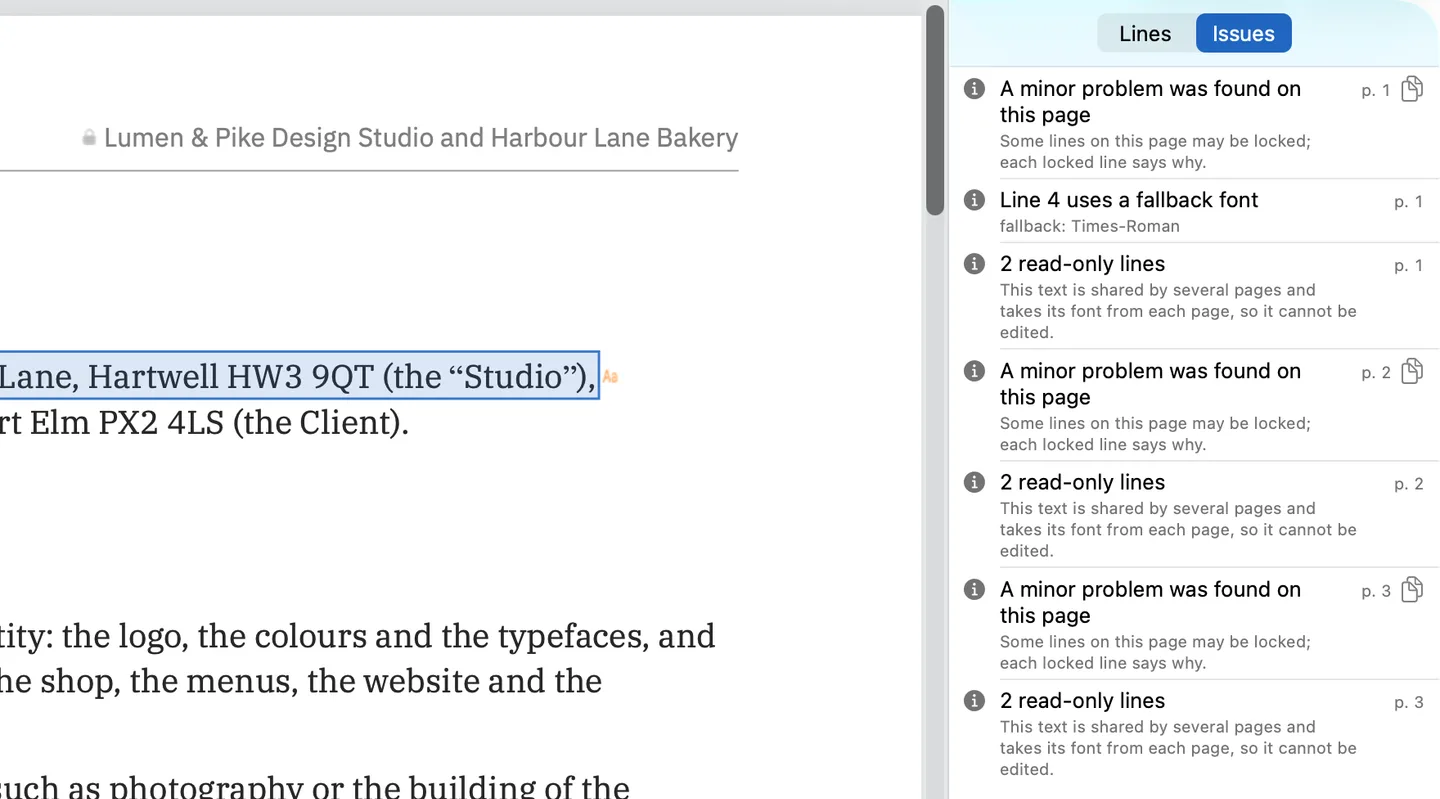
When you save, everything you did not edit is copied as it was, unless the file was damaged; PDF Textfix tells you when it repaired one.
Step 6: What can’t be done without changing the layout?
Some changes need the layout to change, and no in-place edit can deliver them honestly:
- Rewriting a paragraph. Text that has to flow onto the next line needs reflow. PDF Textfix edits one line at a time and never wraps text.
- Much longer text. When the edited text would read as part of the text after it, and moving the rest of the line cannot make room, the edit is refused. When it only comes close to or touches other text, the bar warns, and the edit needs a second Return.
- Adding lines or text boxes, or changing a font or a size. PDF Textfix does neither.
- Scanned pages. A scan is a picture of text; there is no text to edit.
For those jobs, go back to the source document if you have it, or convert and accept that the layout is rebuilt.
Questions about editing a PDF without changing its format
Why does my PDF's layout change when I edit it?
Because the tool rebuilt more than the words you changed: it converted the file, drew the words in another font, or rewrapped the paragraph (Step 1). For the font case on its own, see why editing a PDF changes the font; for conversion, how to edit a PDF in Word or Pages.
How do I edit a PDF without messing up the layout?
Change one line at a time, in the font already in the file, and keep the new text close to the old length. Then compare the page with the original before you send it (Step 2).
Does saving change anything I did not edit?
Not on the page. Save writes the file again and copies everything you did not edit as it was, unless the file was damaged; PDF Textfix tells you when it repaired one. It does drop earlier saved versions the file carried, and a signed file’s signatures no longer verify, which the app asks you to confirm when you apply the first edit. What saving does to your PDF shows the difference byte by byte.
Can I edit a whole paragraph and keep the layout?
Only line by line, with each line keeping its length. Text that has to move from one line to the next needs a tool that reflows, and reflow changes the layout by definition.
