
Yes, you can change the text of a PDF after it was signed, but the digital signature will stop verifying, and that is the signature doing its job. A digital signature is a checksum of the file’s bytes sealed with the signer’s certificate. An app that rewrites the file, as PDF Textfix does, changes the signed bytes, so the signature no longer matches and any viewer that checks signatures reports the document as changed since signing. That is fine for your own draft that you signed too early. It is not a way to change an agreement someone else signed: for that, the fix is a corrected copy that everyone signs again. PDF Textfix asks before it applies the first edit to a signed file and says the signatures will no longer verify. This page is not legal advice.
What does a digital signature in a PDF cover?
The PDF standard describes it plainly: “Signatures shall be created by computing a digest of the data (or part of the data) in a document, and storing the digest in the document.” The data is a range of bytes, and the standard recommends that the range cover the whole file, “including the signature dictionary but excluding the signature value itself (the Contents entry).”
You can see this on any signed file. On the demo signed note used in this page’s screenshot, pdfsig from Poppler reports the signed ranges as bytes 0 to 44,956 and 47,006 to 47,570. The file is 47,570 bytes long, so the signature covers every byte except the 2,050 reserved for the signature value itself. There is no part of the page you could change that the signature does not cover.
A signature you draw and drop onto a page is a different thing. Apple’s guide lists Sign among Preview’s markup tools: “If signatures are listed, click one, then drag it where you want.” That places a picture of your handwriting on the page and seals nothing. This page is about the digital signature, the kind a viewer can verify.
Why does editing the text make the signature stop verifying?
To check a signature, a viewer computes the digest of the same byte ranges again and compares it with the one the signer stored. In the standard’s words: “Differences in the digest values indicate that modifications have been made since the document was signed.” It cannot tell a typo fix from a changed price, and it is not meant to. The signature vouches for the bytes as they were.
What happens next depends on how the editing app saves.
An app that rewrites the file, as PDF Textfix does, writes new bytes inside the signed ranges, so the digest no longer matches.
How this was tested, on October 12, 2026
On October 12, 2026 we rewrote the demo signed note with qpdf 12.4.2, the library PDF Textfix uses to write files, without changing a single word. The rewritten file is 47,376 bytes. Its signature still describes ranges ending at byte 47,570, and the bytes in those ranges are no longer the bytes that were signed. A change in the text changes even more.
PDF Textfix itself writes a file you saved without an edit back byte for byte; only a save with an edit rewrites it.
An app that appends its change adds it after the end of the file and leaves the signed bytes as they were. In the same test, exiftool 13.55 added a new title to a copy of the demo note this way: the copy grew to 51,702 bytes, and its first 47,570 bytes were identical to the signed original. The signature then still matches the revision that was signed, but the file now holds more than that revision. Whether a viewer accepts what was added after signing is up to the viewer and, for a certified file, to the changes its author allowed. This is how a second signature joins the first: Adobe notes that “By default, PDFs remain open for signing unless the signer selects Lock document after signing.” Replacing the text on a page is not one of the additions a signer expects.
Is it your own document, signed before it was ready?
This is the easy case. Adobe’s help says: “If you are the only signer, you can remove your signature by right-clicking on it and selecting Clear Signature to make changes.” If you kept the unsigned original or the source document, correct that and sign again; Adobe’s advice for next time is “Save a backup copy of the unsigned PDF before signing.”
If all you have is the signed PDF, you can correct the text and sign the corrected file. Know what that file holds: the old signature stays in it, and every viewer that checks signatures shows it as no longer valid next to your new one. On a draft nobody else has seen, that harms no one, but clearing the signature first, or starting from the unsigned original, gives a cleaner file.
Did both sides agree to a correction?
A wrong date or a misspelled name in a contract is common, and the fix is a new signed copy, not an edited old one. Start from the unsigned original or the source file, make the correction there, and have every party sign that corrected version. Adobe’s help gives the same rule: “If multiple people have signed, request the initiator to provide an unsigned version or the source file.” And where no unsigned copy exists: “The only solution is to recreate the PDF or request an unsigned copy from the document owner.”
Do not correct the signed file and pass it round for new signatures. The other party’s old signature would stay in it, now shown as no longer valid next to the new ones, which looks like tampering to anyone who checks. Keep the old signed file as it is, as the record of what was signed first.
Is the document certified so that it forbids changes?
A certified PDF carries a signature from its author that says which changes are allowed later. Adobe describes certifying as a way to “specify which changes are permissible after certification”. The standard defines three levels: no changes at all, form filling and signing only, or those plus comments. At the strictest level, “No changes to the document shall be permitted; any change to the document shall invalidate the signature.”
A certified form from a bank, a court or a government office is a case for not editing. If something in it is wrong, ask the issuer for a corrected copy. PDF Textfix keeps such a document locked: a certified file that allows no changes, or only form filling and signing, stays read-only until you choose Allow Editing… in the banner and confirm. The banner begins: “This file is certified, and any edit invalidates the certification.”
What does PDF Textfix do when you edit a signed PDF?
It opens the file as usual and shows a banner above the pages: “This file is signed: saving an edit rewrites it, so its signatures will no longer verify.” You can select a line and open the editor. When you press Return to apply your first edit, a sheet asks “Edit a signed document?” and explains: “This document is signed. Saving your edits writes the whole file again, so its signatures will no longer verify.” It shows the line before and after the edit, in the document’s own font.
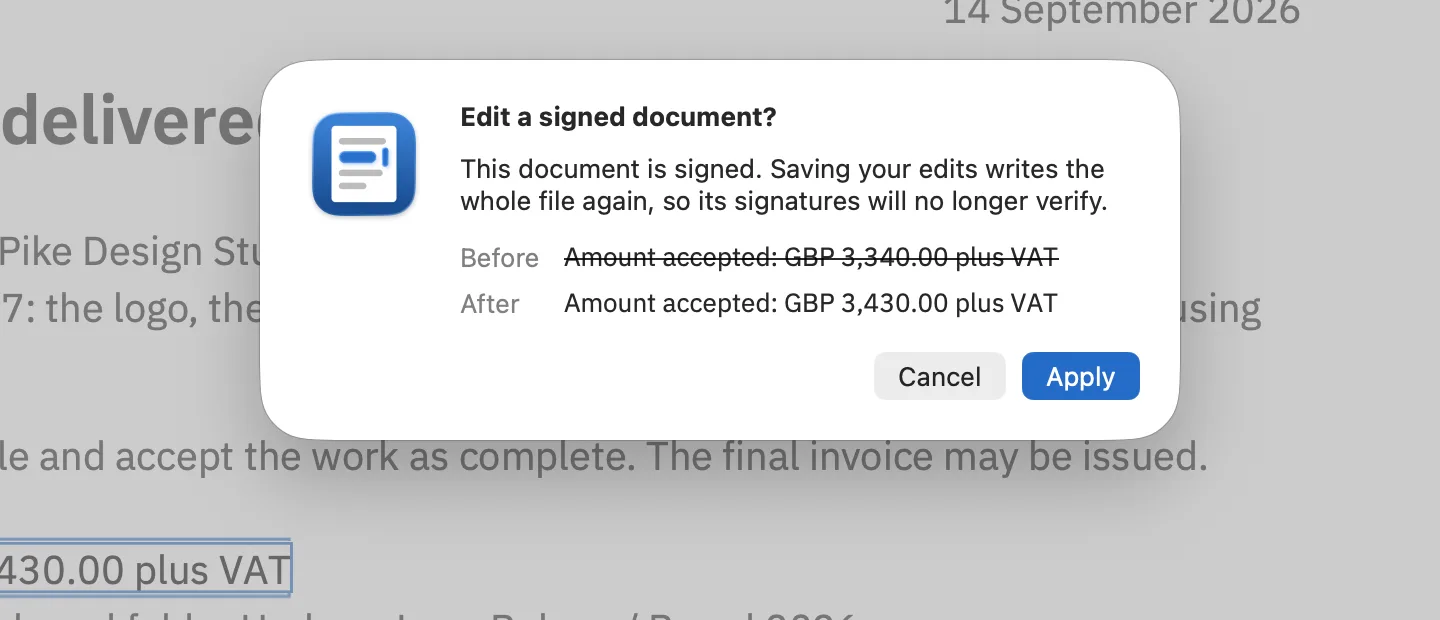
- Apply (Return) applies the edit.
- Cancel (Escape) leaves the editor open with your text, so you can think again.
Nothing is written until you save. File > Save As… (⇧⌘S) writes the edited file under a new name and leaves the signed original untouched, which is what you want in almost every case above. Help > Saving and Privacy in the app repeats the rule: “A signed file’s signatures no longer verify once you save an edit to it.”
PDF Textfix does not sign files and does not remove signatures. The edited file still holds the old signature field; it simply no longer matches the bytes. What it changes is the text you replaced, in the font inside the document, and what saving does to your PDF explains what else the saved file keeps.
How can I try this without touching a real contract?
The screenshot above comes from a demo signed note with an amount corrected from GBP 3,340.00 to GBP 3,430.00. Its signature has a correct byte range but no certificate, so a viewer that checks signatures reports it as not valid even before any edit; it exists to show the question PDF Textfix asks. Use a demo or a copy of your own file, never the only copy of a signed agreement.
What should I do instead of editing someone else’s signed PDF?
Ask for a new signed copy. Tell the other party what is wrong, let them correct the source and sign again. If the signed document is part of a deal, the contract use case walks through correcting a draft before anyone signs it, which is when an edit causes no trouble. Whether changing a signed document is allowed where you live is a legal question; is it legal to edit a PDF gives the general picture, and a lawyer gives the answer.
Questions
Can you edit a PDF once it has been signed?
The text can be changed, but the digital signature then stops verifying, and viewers that check signatures say the document changed after signing. For anything others signed, get a new signed copy instead.
Will the other person see that the signed PDF was edited?
If the file was rewritten, their viewer recomputes the digest of the signed bytes, finds a difference and shows the signature as no longer valid. The signature exists to make that visible.
Can I remove my own signature and edit the document?
If you are the only signer, Adobe’s help says you can clear your signature in Acrobat, make the change and sign again. Keeping an unsigned copy before signing avoids the question.
Is a signature added with Preview a digital signature?
No. Preview places a picture of your handwritten signature on the page as markup. It does not seal the file’s bytes, so nothing reports a later change.
Does PDF Textfix keep the signed original?
It never writes until you save. Use Save As to write the edit to a new file and keep the signed original as it was.
