
Word can open a PDF, but it does not edit the PDF: it converts a copy into a new Word document. Microsoft puts it plainly: “Word makes a copy of the PDF, converting it to a Word document and attempting to match layout of the original PDF.” Pages cannot open a PDF at all; Apple’s guide says “You can’t open PDFs in Pages.” On a Mac, Microsoft’s help pages on opening a PDF in Word name no Word for Mac version and do not say whether the conversion runs on your Mac or on a Microsoft server, so check before you open a confidential file (Step 1). Conversion is the right route when you need to rewrite paragraphs. For one wrong word, a date or a name, it changes far more than the word, while editing the line inside the PDF leaves the rest of the page where it was.
Step 1: How do I open a PDF in Word?
Microsoft’s page for Word for Microsoft 365, Word 2024, 2021, 2019 and 2016 gives the steps:
- In Word, choose File > Open and pick the PDF.
- Word warns you about the conversion. In Microsoft’s words, “Word tells you that it’s going to make a copy of the PDF and convert its contents into a format that Word can display. The original PDF won’t be changed at all.”
- Select OK, edit the document, then save it as a Word document or as a new PDF.
Can I open a PDF in Word on a Mac?
Microsoft’s two pages on the subject, “Opening PDFs in Word” and “Edit a PDF”, list the versions they apply to: Word for Microsoft 365, Word 2024, 2021, 2019 and 2016. Microsoft labels its Mac editions separately, as “for Mac”, and none is on either list, so neither page tells you what Word for Mac does with a PDF. Neither says whether the conversion happens on your computer or on a Microsoft server.
If the PDF is confidential, find out before you open it in Word. Turn Wi-Fi off and choose File > Open. If Word cannot convert the PDF without a connection, the conversion depends on the network, and you should treat the file as one that may leave your Mac. How to edit a PDF offline on a Mac shows how to see what an app sends.
Whatever the version, the result is a new document built from the PDF, not the PDF with your change in it.
Step 2: What converts well, and what does not?
Microsoft’s page is direct: “Converting from PDF to Word works best with files that are mostly text—for example, business, legal, or scientific documents.” It adds: “But when you open a PDF file in Word, it might not look exactly the way it looked as a PDF.”
Graphics are the hardest case: “If the PDF contains mostly charts or other graphics, the whole page might show up as an image. When that happens, the text can’t be edited.” Structure can be misread too: “For example, if Word doesn’t recognize a footnote, it treats the footnote as regular text and might not put it at the bottom of the page.”
Under the heading “Document elements that don’t convert well”, Microsoft notes that “Some elements are known to be problematic when converting from PDF to Word format.” and lists them:
- tables with cell spacing;
- page colors and page borders;
- tracked changes and frames;
- footnotes that span more than one page, and endnotes;
- audio, video and other active PDF elements;
- PDF bookmarks, PDF tags and PDF comments;
- font effects such as glow or shadow, which become graphics.
Step 3: Why does converting change the layout and the fonts?
Because a PDF and a Word document hold different things. Microsoft explains: “PDF is a fixed file format, which means the file stores the location of text, pictures, and vector graphics on a page, but not necessarily the relationships among them.” A PDF does not know which lines form a paragraph or which boxes form a table. Word has to guess, and then lays the text out again by its own rules, which is why its note on the Edit a PDF page warns that “The converted document might not have a perfect page-to-page correspondence with the original. For example, lines and pages may break at different locations.”
Fonts change for a related reason. A PDF usually carries its fonts inside the file, often only the characters it uses. A converted Word document names its fonts, and unless they are embedded in the Word file, it is drawn with the fonts available on the computer that opens it. Microsoft’s page on embedding fonts gives the reason to embed them: “if you share your document with someone else who doesn’t have the same fonts installed that you do, the fonts, layout, and styling of the document won’t change, and special characters won’t turn into meaningless rectangles.” Where the PDF’s font is not available on your Mac, the text appears in a substitute with other letter widths. Lines grow or shrink, and the breaks move.
When you save the result as a PDF again, that new PDF is made from the Word document: new fonts embedded, new positions, and none of the bookmarks, tags or comments Word could not carry over. It replaces the original only if you save over it.
Step 4: Can I open a PDF in Pages?
No. Apple’s Pages User Guide lists what Pages opens: “You can open and edit Microsoft Word documents (files with a .doc or .docx filename extension), iBooks Author books (files with a .iba filename extension), and text documents (files with a .rtf or .txt filename extension) in Pages”, and then says “You can’t open PDFs in Pages.”
Pages can export one, though. Apple’s article on converting Pages files lists PDF among the formats a Pages document converts to: “You can also convert to PDF and a variety of other file formats depending on the app you’re using.” So the route through Pages takes two conversions: the PDF to a Word document first, in Word or another converter, then the Word document into Pages, then a new PDF out of Pages. Each step lays the text out again. If you made the PDF in Pages in the first place, the better route is to open your original Pages document, correct it there and export again.
Step 5: When is converting the right move?
Convert when the change is about the text itself rather than one detail of it:
- you need to rewrite or add paragraphs, so text has to flow from line to line and page to page;
- the PDF is mostly running text, such as a report or a contract written in a word processor;
- you will read every page of the result and fix what moved;
- the file’s own fonts, bookmarks and form fields do not matter for what you do next.
Do not convert for one wrong word, a date, a name or a figure, especially in a designed document such as a letterhead, an invoice or a CV, a signed PDF, or a form. Conversion rebuilds the whole document to change a few characters, and the rest of the page is what you then have to check. How to edit a PDF without changing its format explains the three ways a layout breaks.
Step 6: What is the alternative that edits the PDF itself?
Edit the line inside the PDF. PDF Textfix, a Mac app, opens the PDF itself, not a copy converted to another format:
- Open the PDF and double-click the line, or select it and press Return.
- Type the correction. The editor writes in the line’s own font, the one embedded in the file.
- Press Return. Before the edit is applied, PDF Textfix checks that every other character on the page stays where it was.
- Press ⌘S. Everything you did not edit is copied as it was, unless the file was damaged; PDF Textfix tells you when it repaired one.
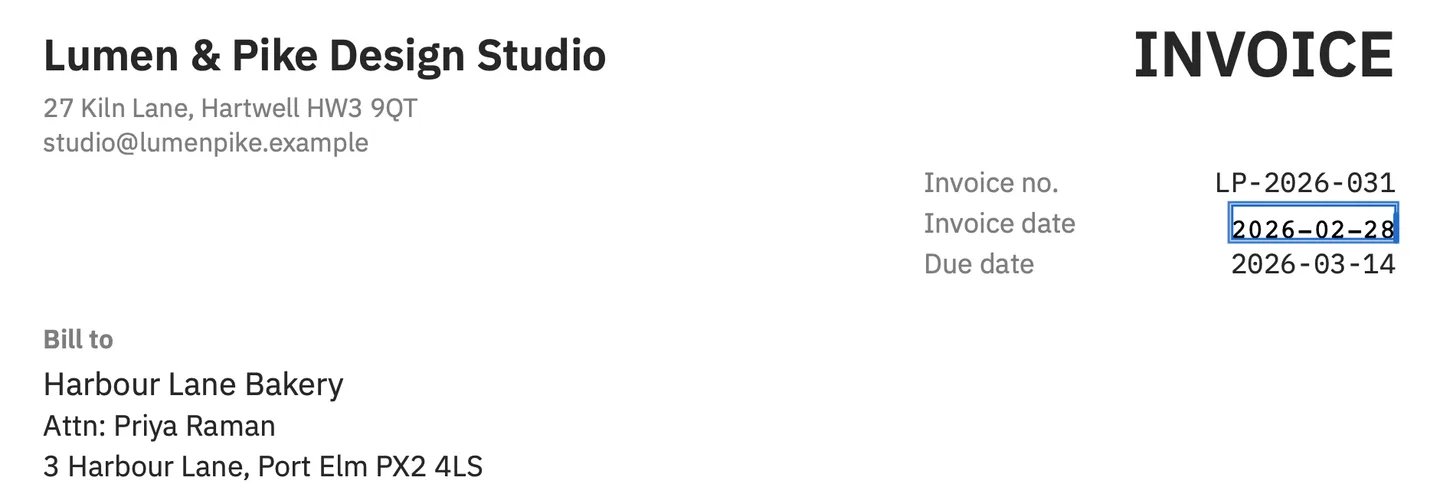
The trade-off runs the other way. PDF Textfix changes one line at a time, does not reflow paragraphs, does not add text and does not change fonts or sizes. If the job is rewriting, convert; if it is correcting, edit in place.
| Aspect | Word conversion | Editing the line in the PDF |
|---|---|---|
| What you edit | A new Word document made from a copy | The PDF itself |
| Fonts | Fonts installed on your Mac | The font embedded in the file, with marked fallbacks |
| Layout | Laid out again; breaks can move | Every other character stays where it was |
| Bookmarks, tags, comments | Listed by Microsoft as not converting well | Copied as they were, except the edited line’s accessibility text |
| Best for | Rewriting paragraphs | A wrong word, date, name or figure |
Everything you did not edit is copied as it was, unless the file was damaged; PDF Textfix tells you when it repaired one. In a tagged PDF, the accessibility text of the edited line is rewritten or removed with the edit, and where another page shares it, it keeps the old words.
Step 7: How do I check a converted document?
Put the original PDF and the converted file side by side and go page by page: line breaks, page breaks, tables, footnotes, headers and the fonts of headings. After you export a new PDF, open it and look at its fonts; how to find which fonts a PDF uses on a Mac shows where to look. Keep the original PDF: Word does not change it, and it is your reference.
Questions about editing a PDF in Word or Pages
Can I edit a PDF in Word without losing formatting?
Not reliably. Microsoft notes that the converted document might not match the original page for page, and that lines and pages may break in other places. Mostly-text PDFs convert best.
Does Word change the original PDF?
No. Word works on a copy, and the original PDF stays as it was until you choose to save over it.
Why can't Pages open my PDF?
Pages opens Word, iBooks Author, RTF and plain text documents, and Apple’s guide states that PDFs are not among them. Convert the PDF to a Word document first, or open the original Pages file if you have it.
Is Google Docs any different?
It also converts the PDF into a document of its own. Editing a PDF in Google Docs versus editing the PDF compares the two.
