
There are four ways to change text in a PDF, on any computer: edit the text in place with a PDF editor, cover the old words and type new ones on top, convert the PDF to a word-processing document and export it again, or make a new PDF from the original source file. They are not equal. Each one does something different to the fonts, the layout, the words you meant to remove and the size of the file, and the right choice depends on how much you are changing and whether the document is yours. This guide sets the four side by side, then shows the in-place route on a Mac with PDF Textfix, and says when to ask the sender for the source instead.
What are the four ways to change text in a PDF?
| Way | Fonts | Layout | The old words | File size |
|---|---|---|---|---|
| 1. Edit in place | Kept when the editor uses the embedded font; otherwise a stand-in | Kept, if the editor checks the line | Removed from the page; may survive in earlier revisions if the editor appends | Small change |
| 2. Cover and retype | Your installed font | Placed by eye | Still in the file, under the cover | Grows a little |
| 3. Convert and export | Rebuilt from installed fonts | Rebuilt, often differently | Gone, with everything else rebuilt | Can change a lot |
| 4. Recreate from source | Correct by construction | Correct by construction | Gone | Whatever the source exports |
A PDF is not a document in the word-processing sense. Microsoft’s own explanation is a good one: “PDF is a fixed file format, which means the file stores the location of text, pictures, and vector graphics on a page, but not necessarily the relationships among them.” That is why each of the four ways has a cost: there are no paragraphs to retype into, only characters at positions.
Way 1: How does editing the text in place work?
A PDF editor finds the drawing instruction that shows the words and rewrites it with your text. Done well, nothing else on the page moves, and the corrected line sits exactly where the old one did.
The cost is the font. The typeface is usually embedded in the PDF as a subset, and an editor that types with installed fonts cannot use it. Acrobat’s help states its rule plainly: “To edit text using a specific font, you must have that font installed on your computer.” Check your own editor’s documentation for its rule. Where the font is not installed and the editor substitutes, the new word looks different from its neighbors.
There is a second, quieter cost: how the editor saves. The PDF standard allows saving by appending: “When updating a PDF file incrementally, changes shall be appended to the end of the file, leaving its original contents intact.” An editor that saves this way keeps your old text in an earlier revision of the file. What saving does to your PDF measures the difference.
One more limit comes from the format itself: a PDF has no paragraphs, only lines placed at fixed positions. Some editors group lines into a text box so that a sentence can wrap, and that is where line breaks and spacing start to drift. Editors that keep the page as it is work line by line instead: a replacement longer than the original needs room on its own line, so they either refuse an edit that would run into the next word or let you push the rest of the line along. Plan corrections that fit: “Februray” to “February” fits, a new sentence does not.
Use it for: a wrong date, a misspelled name, a typo, a number, a line of an address. The guide to fixing a typo covers the single-character case.
Way 2: Why is covering and retyping risky?
This is the white-out method: draw a white rectangle over the wrong words and type the right ones in a text box on top. Free viewers can do it. Apple’s guide for Preview lists exactly these tools, and says first: “Although you can’t edit the text of a PDF in Preview, you can use the markup tools to provide feedback or write down something you want to remember.” Its text tool works as you would expect: “Type your text, then drag the text box where you want.”
Three costs follow. The old words are still in the file under the cover, so selecting, searching or copying the page can bring them back. The new words use an installed font. And the box is positioned by hand, so its baseline rarely lines up. For a private note it is fine; for a document you send, it is a risk. The guide to whiting out text separates covering, deleting and real redaction.
Way 3: What happens when you convert a PDF to Word and back?
Word processors can open a PDF and turn it into an editable document. Microsoft describes what happens: “Word makes a copy of the PDF, converting it to a Word document and attempting to match layout of the original PDF.” It also warns that “when you open a PDF file in Word, it might not look exactly the way it looked as a PDF.”
Google Docs does something similar from Google Drive, with limits it lists: “The file should be 2 MB or smaller.” And of the formatting: “Lists, tables, columns, footnotes, and endnotes are not likely to be detected.”
The upside is real: once converted, you can change whole paragraphs and the text reflows. The cost is that the export is a new document rebuilt from guesses, with installed fonts and new line breaks. Good for heavy rewrites of plain documents; poor for anything whose look matters, such as a designed CV, an invoice template or a contract with fixed numbering. The guide to editing a PDF in Word or Pages goes through it step by step.
Way 4: When should you recreate the PDF from the source file?
Whenever you can. If you made the PDF from a Pages, Word, Docs or InDesign file, open that file, fix it, and export a new PDF. The fonts are right because they are installed where the document was made, the layout is right because the app that made it lays it out again, and nothing of the old text survives, because the new file never contained it.
The source is often missing: the PDF came from someone else, from an online service, or from a template you no longer have. That is when Ways 1 to 3 come in.
How do you pick the right way for your document?
- One or a few wrong lines, and you need the document to look untouched: edit in place, with an editor that keeps the embedded font.
- Whole paragraphs to rewrite: go to the source, or convert and accept the new layout.
- The page is a scan: none of these work until the image is recognized as text; the troubleshooting guide explains why some text will not change at all.
- The document is signed: an edit saved by rewriting the file, as PDF Textfix does, means the signature no longer verifies. Ask for a new signed copy; the guide to editing a signed PDF covers the cases.
- The document is someone else’s issued record: do not edit it; ask the issuer to correct it.
By platform: on Windows, Linux, iPad or iPhone, use any PDF editor whose documentation says how it handles fonts that are embedded but not installed, and test on a copy. On a Mac, the next section shows one route.
Step by step: how do you change a line on a Mac?
PDF Textfix is a Mac app for Way 1, done carefully. It writes your text with the font embedded in the file, checks before applying anything that no other character on the page moves, and saves by writing the file again, so the old line is not kept in an earlier revision.
- Open the PDF (File > Open, ⌘O).
- Click the wrong line, or find it with ⌘F.
- Press Return and type the new text over the old.
- Press Return to apply. If the change would disturb anything else on the page, it is refused with the reason, and nothing changes.
- Save with ⌘S, or with Save As (⇧⌘S) to keep the original file as it was.
On the demo invoice, which is dated February 30, the date line is corrected in place in the invoice’s own monospaced font:
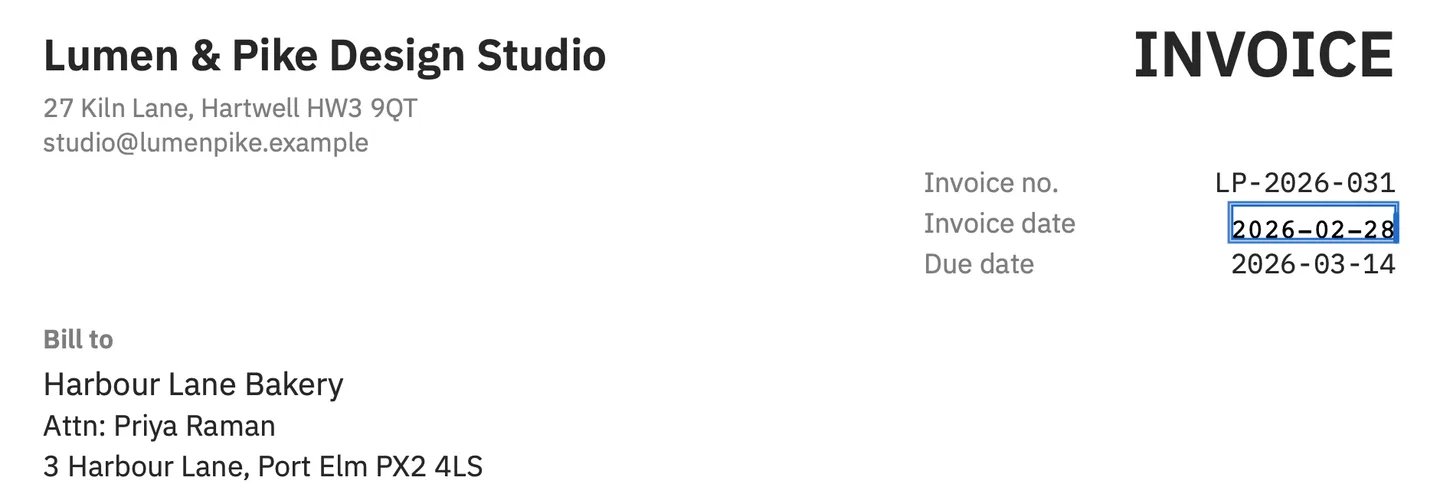
The rest of the page is copied as it was, unless the file was damaged; PDF Textfix says so when it has repaired one. It changes text that is already there, one line at a time: it does not add text boxes, reflow paragraphs, change fonts or sizes, or edit scanned pages. The full Mac guide has every step with screenshots.
When should you ask the sender for the source file instead?
Ask when the change is more than a line or two, when the text must reflow, when the document is signed or certified, or when it is not yours to change: an invoice from a supplier, a certificate, a statement from an institution. The sender can correct the source and export a new PDF in minutes, and the result is a document they stand behind. A polite request that names the exact line and the correction is usually all it takes.
Questions people ask
Can I change text in a PDF for free?
Covering and retyping is free in most viewers, and converting through a word processor you already have costs nothing, with the costs described above. PDF Textfix is free to try. Your first 5 line edits save clean. After that, saved files carry a watermark until you buy once.
Why can't I select or change some text in my PDF?
It may be a scanned image, a font made of pictures, a form field, or a file whose permissions forbid changes. The guide to text you cannot edit goes through the reasons.
Does changing text in a PDF change the file's size?
Editing in place changes it a little; converting and exporting can change it a lot. An editor that appends its saves makes the file grow at every save.
Can I change text in a PDF on my phone or tablet?
Yes, with a mobile PDF editor, and the same four ways and the same font question apply. Test on a copy first. PDF Textfix runs only on a Mac with Apple silicon.
How do I edit out text in a PDF?
Edit the line in place and replace the words with nothing, or cover them with a white box. The two are different: covering leaves the words in the file under the box, and removing them from the page can leave copies in other parts of the file, such as bookmarks or metadata. For confidential content, neither is enough; the guide to whiting out text separates covering, deleting and real redaction.
