
When a PDF will not let you change its text, the cause is usually one of ten things: the page is a picture of text (a scan), the font cannot be typed with, the file is password-protected or its permissions forbid changes, it is signed or certified, the letters were turned into drawn shapes, the text is hidden or shared between pages, it sits in a form field, the file is a PDF/A archive copy that the viewer opens read-only, the file is damaged, or the app you are using is a viewer that does not edit text at all. Each has a quick test and a way out, below. Most come down to one fact: a PDF stores how a page looks, not a document you type into, so an editor can only change text that is stored as text, in a font it can write with, in a file that allows the change.
Which cause is it? A quick table
| What you see | Most likely cause |
|---|---|
| You cannot select a single word, and zooming in shows fuzzy pixels | 1. A scanned page |
| You can select text, but the edit comes out in another font or is refused | 2. The font |
| A password prompt, or a padlock or “secured” note in the viewer | 3. Permissions or a password |
| A signature panel or a banner about a certificate | 4. Signed or certified |
| You cannot select the words, but zooming in shows sharp edges | 5. Text drawn as outlines |
| Search finds words you cannot see, or one edit changes several pages | 6. Hidden or shared text |
| Clicking puts a cursor inside a box with a colored background | 7. A form field |
| A bar says the file complies with PDF/A and opened read-only | 8. A PDF/A file |
| A warning that the file is damaged or was repaired | 9. A damaged file |
| Nothing on the page reacts to typing at all | 10. The app is a viewer |
Cause 1: Is the text actually a picture of text?
A scanned page or a photographed receipt holds no letters, only pixels. Adobe’s help says it plainly: “When you scan a paper document to PDF, the resulting file contains only image data, not searchable text.” Recognize it by trying to select a word: if the selection is a rectangle around part of the image, or nothing at all, the page is a picture. Zoom in, and the letters turn blurry at the edges.
The way out is optical character recognition (OCR), which reads the picture and adds a layer of real text behind it, or retyping the page. Neither gives you an editable copy of the original lettering. PDF Textfix tells you this directly: on such a page the Lines pane says “This page is a scanned image” and “PDF Textfix edits text that is already in the PDF.” The guide to editing text in a scanned PDF covers the options.
Cause 2: Is the font one the editor cannot type with?
To write new letters into a line, an editor needs the shapes of those letters. A PDF usually carries only a subset of each font, the characters the document used, and some files carry no font at all for some text. Editors handle this differently. Adobe’s help for Acrobat says: “To edit text using a specific font, you must have that font installed on your computer. If the font isn’t installed but is embedded in the PDF, you can only change the text’s color or size.”
Three font situations block edits:
- The font is not embedded. Every viewer substitutes a font of its own, so the editor has no original to match. Font not embedded in a PDF explains the fix.
- It is a Type 3 font. The PDF standard says that “In Type 3 fonts, glyphs shall be defined by streams of PDF graphics operators.” Each letter is a little drawing, with no font program behind it to type with. See Type 3 font.
- It is a CID font with an encoding the editor cannot write. CID fonts serve large character sets; some use predefined encodings for Chinese, Japanese or Korean that an editor may display but cannot write.
To check, list the file’s fonts as shown in how to find which fonts a PDF uses. PDF Textfix writes with the font embedded in the document, so an embedded font that is not installed on your Mac is not a problem; a character the subset lacks is taken from another copy of the same font in the file, the same font installed on your Mac, or the closest standard font, and a character drawn with another font is marked in orange. It locks the lines it cannot write and says why, for example “This text is drawn with a font made of pictures, so PDF Textfix cannot write new text in it.” for a Type 3 font.
Cause 3: Is the PDF protected by a password or by permissions?
The PDF standard defines two passwords: “an owner password and a user password”. The user password, often called the open password, is needed to open the file at all. The owner password, often called the permissions password, guards a list of allowed actions, one of which is modifying the document’s contents. A file can open without any prompt and still forbid changes. Preview’s Encryption inspector shows this; Apple describes it as the place to “View encryption and permission information for a password-protected PDF.”
The way out is the owner’s password, or the owner. If you made the file, remove the passwords with your password in the app that set it. Allowing changes in the permissions is not always enough: the file stays encrypted, and some apps, PDF Textfix among them, open any encrypted file view only. If someone sent it to you, ask them for an unrestricted copy. This site does not cover getting around a password.
PDF Textfix shows the reason in a banner, such as “This file’s permissions do not allow changes, so PDF Textfix can show it but not edit it.” or “This file is encrypted, so PDF Textfix can show it but not edit it.” A file locked in the Finder looks similar from the outside: it opens, but apps cannot save over it. PDF locked for editing goes through the Finder lock and both passwords in detail.
Cause 4: Is the PDF signed or certified?
A digital signature seals the file’s bytes, and a certification signature also says which changes the author allows afterwards; the strictest level allows none. An app that rewrites the file, as PDF Textfix does, changes the signed bytes, so the signature no longer verifies. An app that appends its change leaves the signed bytes as they were, and then it is up to the viewer, and to what a certified file allows, whether the addition is accepted. Recognize it by a signature panel, a ribbon icon or a banner about a certificate. How to edit a signed PDF explains what an edit does to the signature and when to ask for a new signed copy instead; the certified PDF entry explains the levels. PDF Textfix asks before it applies the first edit to a signed file, and keeps a certified file that forbids changes locked until you allow editing and confirm.
Cause 5: Were the letters turned into outlines?
Designers often convert type to outlines before they export a PDF, so it prints the same everywhere. The result looks like text but is a set of drawn shapes, with no characters behind them. Recognize it: you cannot select the words, search finds nothing, yet zooming in shows sharp edges at any size, unlike a scan. The file’s font list may be empty for that page.
No PDF text editor can type into outlines, because there is nothing to type into. The way out is the source file the designer worked from. See text outlines.
Cause 6: Is the text hidden, or shared by several pages?
Some text is invisible on purpose. The OCR layer behind a scanned page is the common case: the PDF standard has a text mode described as “Neither fill nor stroke text (invisible).” Search finds those words, but there is nothing visible to edit, and changing them would not change what the page shows. Other text is drawn once and reused, such as a running header that every page shows from one shared drawing.
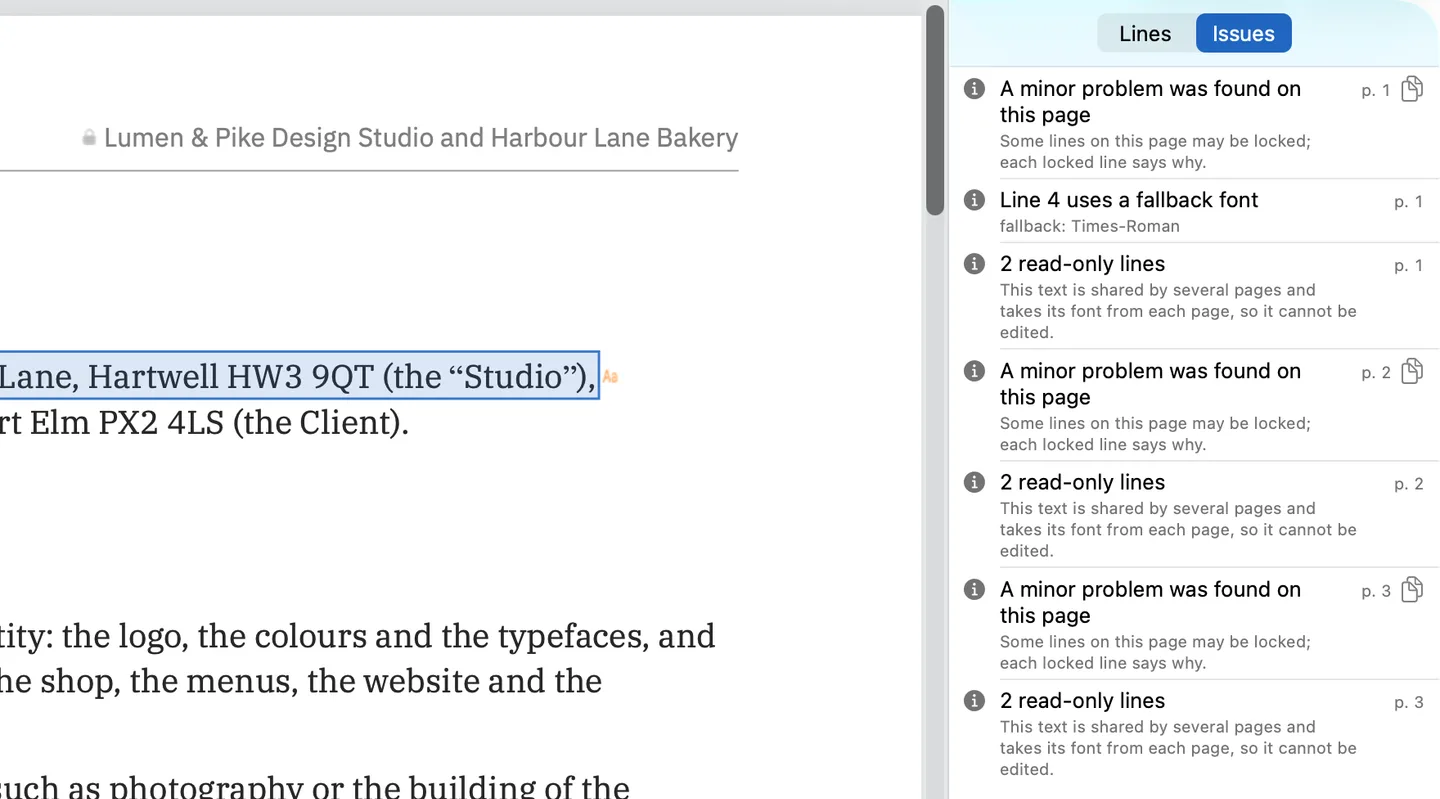
PDF Textfix handles both openly. Hidden text is locked with the reason “This is hidden text, such as the text layer of a scan, so it cannot be edited.” Text shared by several pages is editable when its drawing carries its own fonts, and the editor says how many places will change; when it takes its font from each page, it is locked, as the screenshot shows. The guide to hidden text in a PDF goes further, and can’t select or copy text in a PDF covers the selection side of the same problems.
Cause 7: Is the text inside a form field?
A fillable form keeps its answers apart from the page. The standard describes an interactive form as “a collection of fields for gathering information interactively from the user”, and a viewer draws each field from its stored value. Recognize it by clicking: a cursor appears inside a box, often with a colored background.
The way out is to fill the field, not edit it, in an app that fills forms, such as Preview on a Mac.
PDF Textfix shows form fields but does not fill them, and locks their text with the reason “This text belongs to a form field or a comment, which viewers draw again from its own value, so it cannot be edited here.” Fillable versus editable PDFs explains the difference, and the form field entry has the details.
Cause 8: Is the file a PDF/A archive copy?
PDF/A is the ISO standard for PDFs meant to be kept for a long time, and some viewers open such files read-only to protect them. Adobe’s help for Acrobat says: “When you open a PDF/A compliant document in PDF/A viewing mode, the document is opened in Read mode to prevent modification.” It adds: “A message is displayed in the document message bar.” Recognize it by that message bar at the top of the document.
The way out in Acrobat is its own preference: “If you turn off PDF/A mode, you can edit the document.” Adobe gives the setting: “Choose an option for View Documents In PDF/A Mode: Never, or Only For PDF/A Documents.” An edited archive copy should be checked against the standard again before it goes back into an archive; PDF/A and editing explains why.
PDF Textfix edits PDF/A files and says so in a banner, such as “PDF/A-2b document: characters missing from its fonts are always added with an embedded font.” That keeps a rule the standard sets for fonts; it does not validate the whole file again.
Cause 9: Is the file damaged?
A PDF is a structured file, and a broken download, a faulty export or a tool that wrote it carelessly can leave parts of it damaged. An app can repair some damage as it opens the file, so the pages may look fine. Apple’s own advice for a file that will not open covers this: “If you can’t open a file with a specific app, the file may be damaged or may not be recognized by that app.” Recognize it by a warning that the file was repaired, by an app that opens it but refuses to edit or save it, or by pages that look different in different apps.
The way out is a fresh copy: export the PDF again from the source document, or ask the sender for a new one.
PDF Textfix says what it found. When the list of pages is damaged, the banner says “This file’s list of pages is damaged, so PDF Textfix can show it but not edit it.” When the damage is elsewhere and cannot be worked around, an edit is refused with “This file is damaged in a way PDF Textfix cannot edit.” When it repaired the file as it opened, the Issues pane says so: “PDF Textfix repaired the file when it opened, and the pages show the repaired file. Keep a copy of the original before you save.”
Cause 10: Is your app a viewer rather than an editor?
A viewer reads, annotates and signs; it does not change the text already on the page. Apple’s guide for Preview says: “Although you can’t edit the text of a PDF in Preview, you can use the markup tools to provide feedback or write down something you want to remember.” The PDF viewer built into a web browser is a viewer too. If nothing reacts when you type on a line, the app was never going to edit it.
The way out is an app that edits text in place. Editing text in a PDF on a Mac compares the routes, from the source file to Preview’s markup to dedicated editors, and PDF Textfix compared with Preview shows what each does.
How can an editor tell you why?
When an editor refuses without saying why, you are left guessing. PDF Textfix says why. A locked line shows a lock and says why on the page and in the Lines pane. The Issues pane (View > Issues, ⌥⌘I) lists the locked lines, the fonts the file does not embed, the fonts whose licence limits edits, invisible text, text drawn in several places, and form fields. And when an edit itself is the problem, for example a longer word that would push into the next one, the edit is refused with the reason and what to do instead, such as Shift Rest of Line (⌃⌘R).
There is one more honest limit: PDF Textfix changes text one line at a time. It does not add text boxes, reflow paragraphs, or change fonts or sizes. If your job is one of those, the glossary and the guides above point to the right kind of tool.
Questions
Why can I select the text but not change it?
Usually the app is a viewer (cause 10), or the editor cannot type with the font (cause 2). Selection only needs the text; editing also needs a font the app can write with and a file that allows changes.
Why can't I edit a PDF someone sent me?
Files that come from others are often scans, signed, or restricted by permissions. Check for a password prompt or a signature banner first, then try selecting a word.
How do I make a PDF editable?
It depends on the cause. Start from the source file (Word, Pages, InDesign) when you have it: correct it there and export a new PDF. Without it, a scan needs OCR, a restricted file needs its owner, and a font problem needs an editor that writes with the embedded font.
I could edit this PDF before. Why can't I now?
Something changed between then and now. Check which app opens it: the default PDF app may have changed, and changing the default PDF app on a Mac puts it back. Check the file: it may now be signed, locked, password-protected or saved as PDF/A. And check the app: if its editing features came with a trial or a subscription, they may have ended with it.
Why did my edit come out in a different font?
The editor drew your new letters with a font installed on your computer instead of the one in the document. Why editing a PDF changes the font explains it.