
To change the default PDF app on a Mac, select any PDF in the Finder, choose File > Get Info (⌘I), open the Open with section, pick the app from the pop-up menu and click Change All. From then on, every PDF you double-click opens in that app. To open a single PDF in another app without changing the default, Control-click it and choose Open With. Quick Look is not affected by either setting. The steps below are Apple’s, with the shortcuts that make them faster and the one mistake to avoid.
Step 1: How do I make every PDF open in the same app?
Apple’s guide calls this permanently changing the app used for all files of a type. In the Finder:
- Select any PDF.
- Choose File > Get Info, or press ⌘I. You can also Control-click the file and choose Get Info.
- In the Info window, click the arrow next to Open with to expand the section.
- “Click the pop-up menu, choose an app, then click Change All.”
The pop-up lists the apps on your Mac that say they can open PDFs, so an app you just installed appears there once it is in the Applications folder.
One warning from Apple’s page matters: “Don’t click Change All if you only want the specific file you selected to open with that app.” If you choose an app and close the window without clicking Change All, only that one file is reassigned, which is a common reason one PDF opens somewhere different from the rest.
Step 2: How do I open one PDF in a different app, just this once?
Apple lists four ways, none of which changes the default:
- Drag the PDF onto the app’s icon in the Dock or in the Applications folder.
- Select the file in the Finder and choose File > Open With, then the app.
- “Control-click the file, choose Open With, then choose an app.”
- Open the app first, then choose File > Open and pick the PDF.
This is the right method when you use a second app for one job, such as editing a line of text, and want double-click to keep opening your usual viewer.
Why did another app take over my PDFs?
Because that app was chosen as the default somewhere, and Get Info is not the only place. Adobe’s own steps for making Acrobat the default on a Mac go through the Open With dialog: “Right-click a PDF file name and select Open With > Other.” After choosing Adobe Acrobat: “Select the Always Open With checkbox and then select Open.” Adobe’s page ends: “Your PDF files now open in Acrobat or Acrobat Reader by default.” It also advises, for anyone with both of its apps: “If you have both Acrobat and Acrobat Reader, set Acrobat as the default.”
So if PDFs open in Acrobat when you expected Preview, or in Preview when you expected Acrobat, someone picked the other app in one of these places, perhaps while installing it. The fix is step 1 with the app you want, and Change All. If only some PDFs follow your choice, those files were given their own app one at a time; step 1 with Change All sets them all again.
Does changing the default app change Quick Look?
No. Quick Look, the preview you get by selecting a file and pressing the Space bar, is a separate thing. Apple describes it as “a fast, full-size preview of nearly any kind of file without opening the file”. It shows the same preview whatever your default app is. When you want to go further, the Quick Look window has a button that opens the file in an app.
Step 3: How do I set Preview back as the default PDF viewer?
Repeat step 1, choose Preview in the pop-up menu, then click Change All. Preview comes with every Mac, so it is always in the list. If PDFs started opening in a browser or in an editor you installed, this puts them back in Apple’s own viewer.
Where does PDF Textfix fit in?
PDF Textfix opens PDFs, but it is a text editor: it changes a line of text that is already in the PDF, in the font inside the document, and saves the file again. It registers for PDFs as an alternative app, so it appears in the Open With menu, and it never makes itself the default. A practical setup is to keep Preview or another viewer as the default and open the file in PDF Textfix only for the correction:
- Control-click the PDF and choose Open With > PDF Textfix.
- Drop the PDF on the PDF Textfix icon in the Dock, or on an open PDF Textfix window.
- In PDF Textfix, choose File > Open (⌘O).
- In Terminal, run
open -a "PDF Textfix" file.pdf.
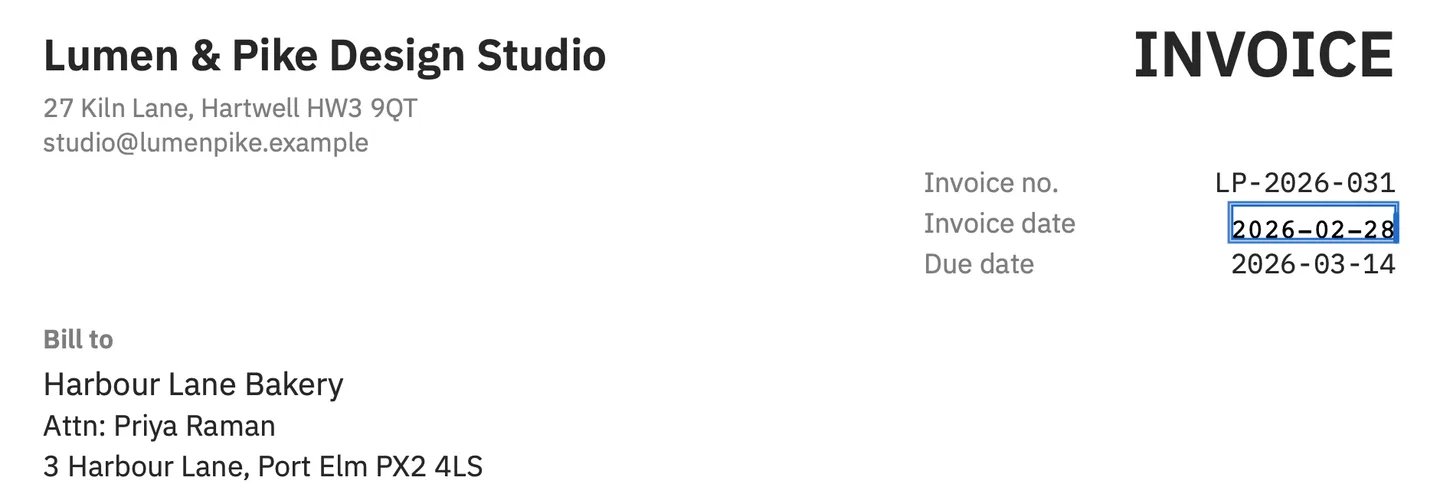
You can make it the default with Change All if you prefer; it shows the pages of any PDF at once, and files it cannot edit, such as encrypted ones, open view only. For reading, signing and filling in forms, a viewer is the better default, and PDF Textfix compared with Preview sets out which app does which job. The manual covers opening files in detail, and the download page has the requirements: macOS 26 or later on a Mac with Apple silicon.
What if the PDF will not open in the app I chose?
Apple’s guide has the answer: “If you can’t open a file with a specific app, the file may be damaged or may not be recognized by that app. Try opening it with a different app.” A PDF that opens in one viewer and not another is often damaged in a way the first viewer tolerates.
Questions
Why do my PDFs suddenly open in a browser or another app?
The default for PDF files was changed to that app at some point. Select a PDF, press ⌘I, choose your viewer under Open with and click Change All.
Why does only one PDF open in a different app?
That file has its own app set, which happens when an app is chosen in Get Info without clicking Change All. Set it again in that file’s Info window.
Does changing the default delete or change my PDFs?
No. It only decides which app opens them. The files stay exactly as they are.
Can I make PDF Textfix the default PDF app?
Yes, with the same steps. Keeping a viewer as the default and using Open With for a correction works just as well.
