
To see previous versions of a PDF on a Mac, look in five places: the version history macOS keeps for apps such as Preview (File > Revert To > Browse All Versions), a Time Machine backup, iCloud Drive’s Recently Deleted folder if the file was deleted rather than overwritten, the version history of Dropbox, Google Drive or OneDrive if the file lives in one of them, and the PDF itself when the app that saved it appended its changes. Check them in that order. If none holds it, the earlier version is gone, which is why the habit at the end of this page matters more than any recovery trick.
Step 1: How do I see previous versions of a PDF in Preview?
Yes, if Preview saved them. Apple’s guide says: “Preview periodically saves “snapshots” (called versions) of your PDF or image. You can view the file as it appeared in the past and revert to a previous version.” To see them:
- Open the PDF in Preview.
- Choose File > Revert To > Browse All Versions.
- Click the arrows, or a tick mark on the timeline at the right, to move between versions.
- Click Restore to go back to the one on screen, or hold Option and click Restore a Copy to keep it as a new file beside the current one.
The catch is which app made them. Apple’s general guide says “Many apps automatically save versions of documents as you work on them” and that a version is also saved when you open, save, duplicate, rename or revert a document. An app that does not take part saves none, so if another app overwrote the PDF, the timeline may hold nothing earlier.
Step 2: How do I get an older copy from Time Machine?
If Time Machine backs up your Mac, Apple’s guide is short: “If you use Time Machine to back up the files on your Mac, you can easily get back lost items or recover older versions of files.”
- Open the Finder window of the folder that holds the PDF.
- Open Time Machine with Spotlight; Apple notes it is in the Other folder.
- Use the arrows or the timeline to go back to a backup from before the bad save.
- Select the PDF and click Restore.
“Restored items return to their original location.” Move the current file aside first so you can compare the two. With many apps, Apple adds, Browse All Versions also shows Time Machine versions.
Step 3: Does iCloud Drive keep previous versions?
iCloud’s recovery is for deleted files: “On iCloud.com, you can recover files deleted from both iCloud Drive and other apps within the last 30 days”. Sign in at iCloud.com, open iCloud Drive and look in Recently Deleted. That helps when the old PDF was deleted. A file saved over in place is not a deleted file; for that, use the versions in step 1 or a Time Machine backup.
Step 4: Does Dropbox, Google Drive or OneDrive keep previous versions?
Yes, for files kept in them, each for a limited time. They help only when the PDF sits in a folder the service syncs.
- Dropbox: “Version history is a feature that helps you view all of the changes made to a file or folder over a certain period, compare versions, and restore previous versions of those files and folders.” How far back depends on the plan: “Dropbox Basic, Plus, and Family customers have 30 days,” and the business plans keep 180 or 365 days. On dropbox.com, open the file’s menu and choose Version history.
- Google Drive: select the file on drive.google.com, click More, then Manage versions. Google notes that “Version history for Google Docs, Sheets, and Slides is different than history for .pdf files, images, and other files stored in Drive,” and that “A version might be permanently deleted after 30 days or if there are 100 newer versions.” Choose Keep forever on a version you want to hold on to.
- OneDrive: “Version history works with all file types, including Microsoft 365 files, PDFs, CAD files, photos, videos, and more.” On onedrive.com, right-click the file, choose Version history, and restore the one you want. Microsoft’s page adds: “File version history is retained for 30 days.”
Step 5: Can the earlier version still be inside the PDF?
Sometimes. Many PDF apps save a change by adding it to the end of the file, an incremental update, and leave the earlier bytes in front of it untouched. Cut such a file at its first end-of-file marker and you have the earlier version. On the demo invoice this site measures, an appended save of one corrected date left the complete original, all 63,626 bytes, at the start of the file, old date included. What saving does to your PDF shows the measurement and how to check a file of your own.
You cannot plan on this route, since you rarely know how the app that saved the file writes, and it is also why an edited PDF can carry text you thought was gone.
What does PDF Textfix do instead?
PDF Textfix keeps no hidden versions in the file. Instead it gives you plain controls before you save:
- No autosave. Nothing is written until you choose Save, and closing a window or quitting asks about unsaved edits first.
- Undo and Redo. Edit > Undo (⌘Z) and Redo (⇧⌘Z) step through your applied edits, one step per edit.
- Revert to Saved. File > Revert to Saved drops every edit since the last save.
- Save As. File > Save As… (⇧⌘S) writes the edited file under a new name and leaves the original untouched.
Save (⌘S) writes the whole file again. The lines you replaced are removed from the pages, and the saved file keeps no earlier version of them; everything you did not edit is copied as it was, unless the file was damaged, and the app tells you when it repaired one. Earlier revisions a file arrived with are left out once you save an edit. That is the point: a corrected invoice should not carry the wrong date in its first half. So step 5 will never find an earlier version in a file PDF Textfix saved with an edit.
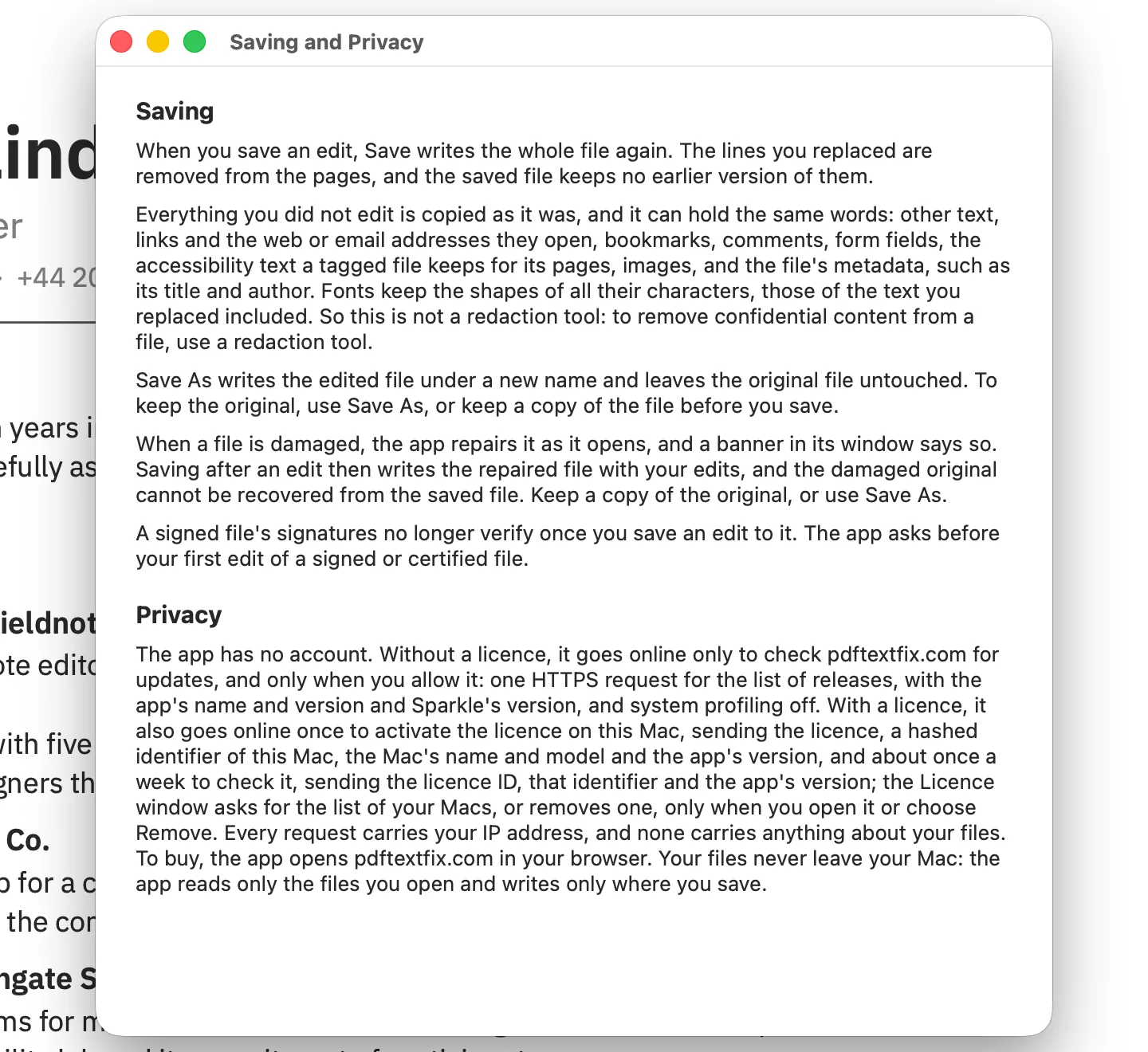
The manual’s section on saving lists these commands.
Which habit avoids the question?
Keep the original before the first edit. In PDF Textfix, use Save As for the first save, so the file you received stays as it was. In any app, duplicating the file in the Finder first does the same. With Time Machine running too, a bad save costs minutes, not a document.
Questions
Why does Browse All Versions show nothing earlier?
Versions exist only for saves made by an app that keeps them. If another app wrote the file, the history starts there. Try a Time Machine backup instead.
Can I see the previous versions of a PDF that was emailed to me?
Only what the file itself holds. If the sender’s app appended its changes, earlier revisions may be inside; otherwise ask the sender for the earlier file.
Can I undo a save in PDF Textfix?
While the window is still open, yes: Edit > Undo (⌘Z) brings the line back, and saving again writes it. After you close the window, the replaced lines are not in the file; use the original you kept with Save As, a copy, or a backup.
Does iCloud Drive keep old versions of my PDFs?
Apple documents recovery of files deleted in the last 30 days from Recently Deleted on iCloud.com. For a file saved over in place, use versions or a backup.
