
To correct a misspelled name in your own PDF, open it in PDF Textfix, find every line the name is on with Find (⌘F), double-click each line, type the name, press Return, and save with ⌘S. The new letters are written in the font already inside the document. Three things need a second look: a letter the font lacks (often an accented one), a longer name, and names in a running header, which can be locked.
This is about correcting your own documents: a letter you wrote, an invoice you issued, your CV. Certificates, identity papers and anything someone else issued in your name are out of scope. If you meant the file’s name, rename it in the Finder; the title in the document’s properties is metadata, covered in how to view and edit PDF metadata on a Mac.
Step 1: Where does the name appear in the document?
Usually in more places than the one you noticed: the address block, the salutation, the signature, a header or footer, an email address. In the demo cover letter, a synthetic document, the writer typed her own name, “Renee Okafor”, in the heading and again in the signature, without the accent she writes: Renée.
Choose Edit > Find > Find Line… (⌘F) and type part of the name. Find searches the whole document; ⌘G and ⇧⌘G move between the matches. In the cover letter, a search for “Renee Okafor” lists both lines, the heading and the signature; the screenshots below show the heading corrected. Note every match first: PDF Textfix changes one line at a time and has no replace-all.
Step 2: How do I type the corrected name?
Select the line and press Return, or double-click it. An editor opens over the line, in the line’s own font. Type the name and press Return to apply it, or Escape to cancel. Tab applies the edit and moves to the next line. The bar under the pages names the line’s font, for example “Font: IBMPlexSerif-SemiBold (embedded subset), 20 pt”. “Embedded subset” means the file carries only the letters the document used.
For an accented letter, press and hold the plain letter’s key. Apple’s guide says: “When you press and hold a letter key, the accent menu opens and shows the accent marks you can enter with that letter.” Hold E and choose é. Apple adds: “You can also use the Character Viewer to enter characters with accent marks.” On the U.S., ABC and British keyboard layouts, pressing Option-E and then E types é as well.
Step 3: Why is one letter of the name orange?
Because the line’s font does not contain it. The demo cover letter was written without a single accented letter, so its subsets have no é, and when you type “Renée Okafor” in the heading, PDF Textfix looks for it in a fixed order: another copy of the same font in the file, the same font installed on your Mac, then the closest standard font. The file holds one copy of IBM Plex Serif SemiBold and a stock Mac does not install IBM Plex, so Times-Bold draws the é, tinted orange while you edit.


The signature, in the Regular weight, still reads “Renee Okafor” in the screenshot; correct it the same way.
Zoom in and compare the orange letter with its neighbors. If you have a licence for the document’s font, installing it can let that font draw the letter, when the installed copy is a TrueType font whose widths match the one in the file; the letter is still marked in orange. An underlined letter comes from another copy of the line’s own font, so it matches. The guide to accents and umlauts missing in a PDF explains these gaps.
Step 4: What if no font can draw a letter of the name?
The letter turns red and the bar says why; a font whose licence limits edits is one cause. A red letter is never applied, and PDF Textfix never puts another character in its place for you: whether a stand-in is acceptable in a person’s name is your call. If you have the source document, correct the name there and export it again. For the Romanian letters with a comma below, the bar can offer a look-alike, as the guide to Romanian diacritics in PDFs explains.
Step 5: What happens when the new name is longer?
By default, the text after the name on the same line stays where it is. When the longer name would run into it, PDF Textfix moves that text along by the difference on its own and shows a Keep Following Text in Place button, which puts it back; the Shift Rest of Line checkbox (⌃⌘R) turns the move on or off by hand. Nothing ever wraps onto the next line.
When the name would read as part of the text after it, such as the next column, the edit is refused: “The edited text runs into the text after it on this line, such as the next column, and would read as part of it.” When it only comes close to or touches other text, the bar warns, “The edited text comes very close to, or runs into, the text after it or the edge of the page.”, and a second Return applies it. Either way, you can shorten the edit, with an initial for example.
Step 6: Why can’t I edit the name in the header?
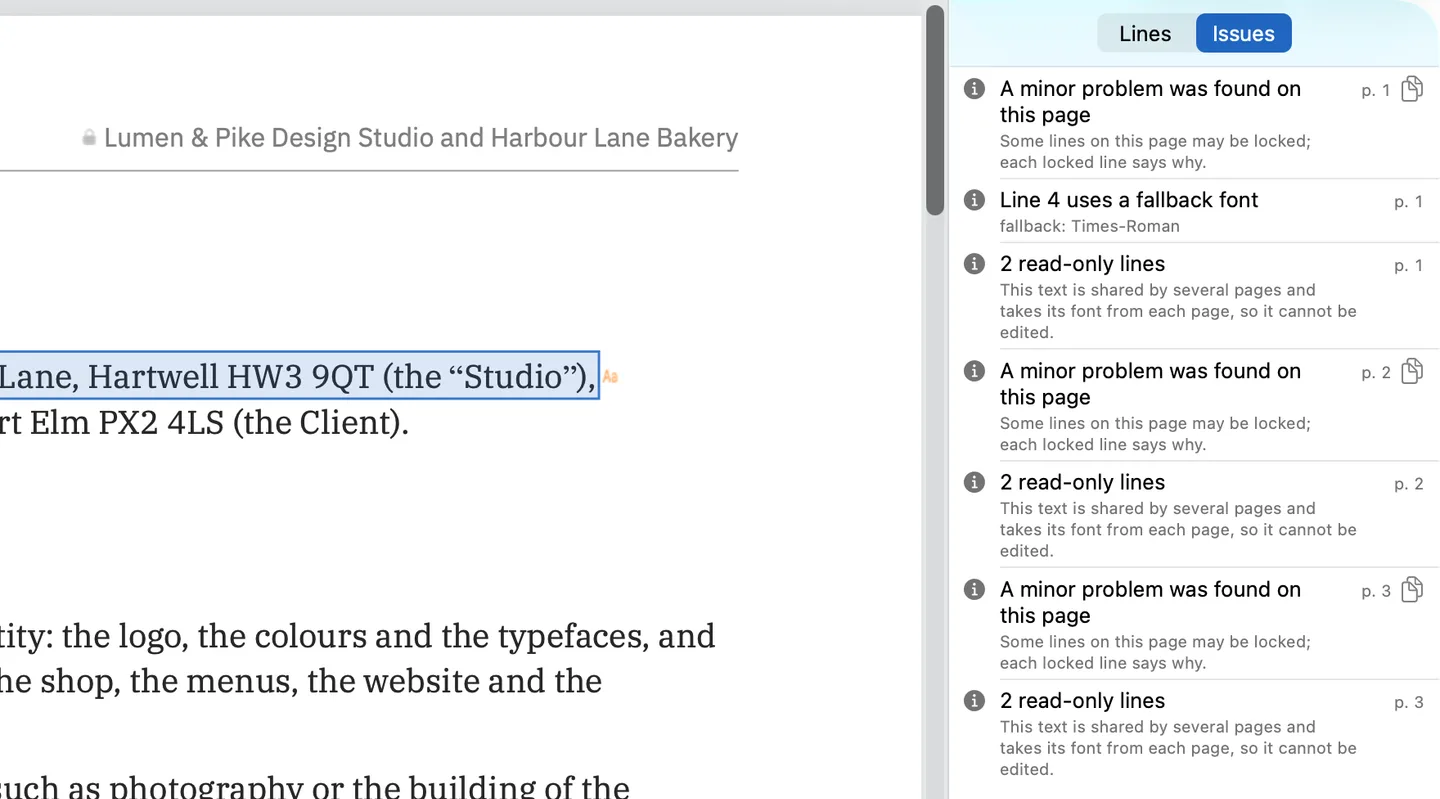
Some files draw a header from one shared part of the file on every page. When that part carries its own fonts, one edit changes every place it is drawn, and the bar says how many. When it takes its font from each page, the line is locked: “This text is shared by several pages and takes its font from each page, so it cannot be edited.” The demo contract’s header, which names both parties, is such a line, and the Issues pane (⌥⌘I) lists it on every page. Names in form fields and comments are locked too.
For a locked line, correct the source document and export it again, if you have it.
Step 7: How do I save and check the result?
Press ⌘S; the bar says “Saved and verified.” Save As (⇧⌘S) keeps the original. The old spelling can remain wherever Save copies the file as it was: the document’s properties, bookmarks, the address a link opens, comments, form fields, a tagged file’s accessibility text and images. A name is often personal data, so check those before you send the file; hidden text in a PDF lists where to look, and what saving does to your PDF shows what Save writes. Each corrected line is one line edit. Free to try. Your first 5 line edits save clean. After that, saved files carry a watermark until you buy once.
Questions about changing a name in a PDF
Can I change every occurrence at once?
No. Each line is its own edit, and Find takes you from one to the next. The exception is shared content, which changes everywhere it is drawn. How to replace a word or a line in a PDF covers longer runs of corrections.
Can I correct a name in a signed PDF?
Yes, after a confirmation. Saving writes the file again, so its signatures no longer verify, and the confirmation says so first.
Can I change the name on a scanned letter?
No. A scan is a picture with no text to change; the Lines pane says “This page is a scanned image”.
