
To change a date in a PDF you issued, open the file in an editor that writes with the document’s own font, select the wrong digits, type the right ones, apply the edit and save a corrected copy, then send it with a note saying what changed. This guide does exactly that on the demo invoice, which is dated February 30, a day that does not exist. It also covers what is not a visible date (the file’s own creation and modification dates, and the time inside a digital signature), what any change does to a signed document, and how to send the correction. It is about correcting your own documents; a document someone else issued is theirs to correct.
Step 1: How do you find every date that needs to change?
Dates rarely appear once. On an invoice, the issue date usually drives a due date, a payment term (“within 14 days”) and sometimes a reference number. In a letter, there is the date line at the top and often a deadline in the body. In a schedule or an itinerary, the same day can head a section and repeat in every row under it, and in an agreement, the start date can come back in a renewal or notice clause. In PDF Textfix, choose Edit > Find > Find Line… (⌘F) and search for a fragment rather than the whole date: “2026-02” finds every line of February 2026 in a numeric format, and the month’s name finds the written ones. ⌘G steps through the matches across the whole document.
Write down each line you will change before you start, so the corrected document agrees with itself.
Step 2: How do you retype the date in the same font?
Click the date and press Return, or double-click it. An editor opens over the line in the line’s own font. Select only the digits that are wrong, here the “30”, and type “28”. Press Return to apply. PDF Textfix first checks that every other character on the page stays where it was, and applies the edit only if they do.
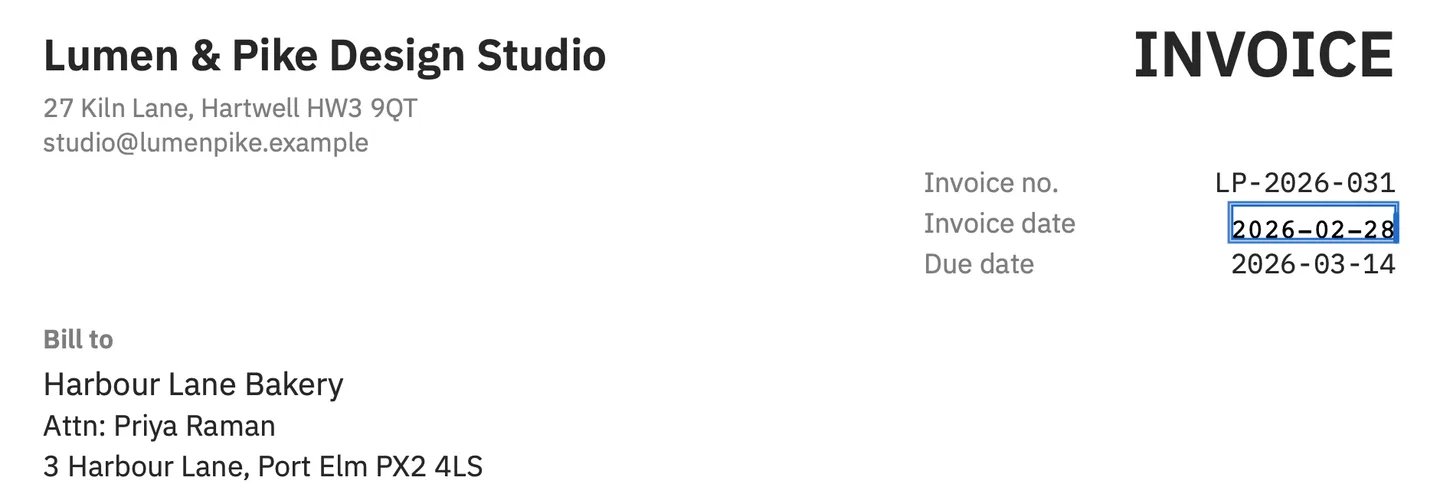
The demo invoice sets its figures in IBM Plex Mono, a monospaced font: every digit has the same width, so “28” takes exactly the room “30” did and nothing after it needs to move. In a proportional font, a “1” can be narrower than a “0”. When a wider date would run into the text after it, PDF Textfix moves the rest of the line to make room and says so in the bar; Keep Following Text in Place puts it back, and Shift Rest of Line (⌃⌘R) moves it by hand.
A date written in words is changed the same way. In a letter dated “February 28, 2026”, select the month or the day and type over it. A month name of another length changes the length of the line: “May” is far shorter than “September”, so look at the gap it leaves or the room it needs before you apply the edit.
Step 3: How do you know the digits came out in the document’s font?
The bar under the pages names the line’s font while you edit. On the invoice it reads IBM Plex Mono, an embedded subset, at 9.5 points:

Digits are usually in the subset: a document with dates, amounts and page numbers tends to use all ten. A character the embedded font lacks would be drawn with a fallback font and marked in orange, so you would see it before applying the edit.
Step 4: Does the rest of the document still agree with the new date?
A PDF has no formulas. Correcting the issue date does not move the due date, recalculate interest or update “Dated” lines on other pages. Check:
- the format: keep the document’s own style, such as 2026-02-28, rather than another order of day, month and year;
- the due date, if it is counted from the issue date;
- dates written in words, such as “February 28, 2026”, which a numeric search does not find;
- the same date on later pages, in a footer or a summary;
- any reference number that encodes the date.
In the Lines pane (⌥⌘L), the Edited filter lists the lines you changed on the pages around the one on screen. For a document of many pages, repeat the Find of Step 1 for the old date: when Find Next (⌘G) no longer lands on a line that holds it, no copy is left.
Step 5: How should you send a corrected date?
- Save with Save As (⇧⌘S) under a name that says what it is, such as the document’s number or title followed by “corrected”, and keep the original as it was.
- Open the saved copy in a second viewer and read the corrected lines once more.
- Send it with one sentence naming the change: “The date was 2026-02-30 in error; this copy reads 2026-02-28. Nothing else has changed.”
Some documents call for more than a corrected copy: for an invoice, the invoice use case covers when your bookkeeping needs a new document instead. The guide to whether editing a PDF is legal separates your own documents from other people’s.
What is not a visible date?
Two kinds of date in a PDF are not on any page, and this guide does not change them.
The file’s properties. A PDF can record when it was created and last changed. The standard describes these as “The date and time the document was created, in human-readable form” and “The date and time the document was most recently modified, in human-readable form”. Preview shows a file’s properties in its Inspector; Apple’s guide says “You can view information about a document or image, such as file size, the author name, and the image resolution, in the Inspector window.” PDF Textfix copies the document’s properties as they were, dates included; it does not edit them. Finder’s modification date does change, because the file is written when you save. The guide to PDF metadata on a Mac explains what each field means.
A signature’s time. A digital signature records when it was made. It is part of the signature, not of the page, and it is not something to alter.
Signed file.
After an edit is saved. The bytes differ from the ones signed.
What happens if the document is signed?
A digital signature is a digest of the file’s bytes. The standard puts the consequence simply: “Differences in the digest values indicate that modifications have been made since the document was signed.” Saving an edit in PDF Textfix writes the file again, so the signature no longer verifies.
PDF Textfix asks before your first edit of a signed or certified document and shows the line before and after, so you decide with that in front of you. For a signed document, the right correction is usually a new copy, signed again by the people who signed the first. The guide to editing a signed PDF covers the cases.
Questions people ask
Does saving with PDF Textfix change the dates in the file's properties?
No. PDF Textfix changes text on the pages and copies the document’s properties, the creation and modification dates included, as they were. Only Finder’s date changes, because the file is written when you save.
Will the new date match the rest of the page?
Yes, when the digits are in the document’s embedded font, which they usually are. Any character drawn with another font is marked in orange before you apply the edit.
Can I change a date in a PDF someone else sent me?
Ask the sender for a corrected copy. A document someone else issued is theirs to correct, and if it is signed, an edit saved by rewriting the file, as PDF Textfix does, means its signature no longer verifies.
Does fixing one date use the free version's allowance?
It uses one line edit. Free to try. Your first 5 line edits save clean. After that, saved files carry a watermark until you buy once. The pricing page has the details.
