
To edit a PDF offline on a Mac, use an app that runs on the Mac and works on the file where it is: Preview for notes, highlights, forms, signatures and redaction, and PDF Textfix to change a line of text that is already in the PDF. The Mac App Store version of PDF Textfix goes online only when you buy or restore, to confirm the purchase with RevenueCat and, until you quit the app, a few times more to keep that confirmation current; buying and downloading go through the App Store. The version from pdftextfix.com activates a licence online once on each Mac and checks it about once a week when the Mac is online; its updater checks for updates only when you allow it. Online editors need the file uploaded first. Below: what offline means, how to check any app yourself, what other desktop editors say about it, and what each option does.
What does “offline” mean for a PDF editor?
Three separate things, and an app can pass one and fail another:
- No upload. The file is read and written on your Mac, never sent to a server to be processed.
- No account. Nothing asks you to sign in before it opens or saves a file.
- No check-in. The app does not contact a server in the background to validate a licence, report usage or sync settings.
An app that works with Wi-Fi off passes the first test while you are offline. Whether it phones home once you are back online is a separate question, and the next steps answer it.
Step 1: How do I check that an app works with no connection?
Turn Wi-Fi off in Control Center and unplug any network cable. Open a PDF in the app, make an edit, save it, close the app and open the file again. If all of that works, the app can edit offline. It does not prove the app sends nothing when the connection is back.
Step 2: How do I see whether an app connects when I am online?
Watch it. Activity Monitor, built into macOS, lists the processes running on your Mac; Apple’s guide explains that “Processes are programs running on your Mac. Processes can be apps, system apps used by macOS, or invisible background processes.” Click Network. The window still lists the processes, one row each, and Apple’s guide documents the totals at the bottom: “Data received, Data sent: The total amount of information moved (in megabytes).” Find the app in the list, use it for a while, and watch its row. To bring the busiest processes to the top, Apple’s guide says: “Sort processes: Click a column heading to sort the list.”
An app’s helpers run as processes of their own, with their own rows. View > All Processes, Hierarchically, which Apple describes as “Shows processes that belong to other processes, so you can see the parent/child relationship between them.”, helps you find them. In the version of PDF Textfix from pdftextfix.com, the update check is made by Sparkle’s downloader service, not by PDF Textfix itself, so during a check, watch the helper’s row rather than the app’s.
For a record of every connection, use an outgoing-connection monitor:
- Little Snitch, from Objective Development: its maker says “The Little Snitch Network Monitor shows you where your Mac connects to on the Internet.” It is sold with a license key; without one, “Little Snitch runs in demo mode, which provides the same protection and functionality as the full version. The demo runs for three hours, and it can be restarted as often as you like.”
- LuLu, from Objective-See, is free; its page says “LuLu is a free, open-source firewall that blocks unknown outgoing connections, protecting your privacy and your Mac.”
The firewall in System Settings is not this tool. Apple’s guide says “A firewall can protect your Mac from unwanted contact initiated by other computers when you’re connected to the internet or a network.” It deals with connections coming in, not with what an app sends out.
Step 3: How do I read an app’s network permission?
Apps from the Mac App Store run in the App Sandbox, which grants network access only through an entitlement. Apple’s documentation defines the key com.apple.security.network.client as “A Boolean value indicating whether your app may open outgoing network connections.” To list an app’s entitlements, run this in Terminal:
codesign -d --entitlements - "/Applications/PDF Textfix.app"In a sandboxed app (the output lists com.apple.security.app-sandbox), no com.apple.security.network.client means the app process cannot open an outgoing connection. Two caveats: a helper inside the app can carry its own entitlements, and an app outside the sandbox needs none of this, so for those, Step 2 is the test.
Step 4: What does PDF Textfix send?
- Mac App Store version: nothing while you open, edit and save. It goes online only when you buy or restore the purchase, to confirm it with RevenueCat, which keeps our record of in-app sales as our processor, and, until you quit the app, a few times more to keep that confirmation current. Each request carries the App Store’s signed record of the purchase, a random identifier the app creates and the versions of the app and of macOS, never your files, and RevenueCat does not keep your IP address. Before you buy it sends nothing, and once bought it stays unlocked offline. Its entitlements include
com.apple.security.network.clientfor these requests, and Help > Saving and Privacy says “The app has no account. It goes online only when you buy or restore the purchase, to confirm it with RevenueCat, the service that records our in-app sales, and, until you quit the app, a few times more to keep that confirmation current.” - Version from pdftextfix.com: nothing while you open, edit and save. Its updater, Sparkle, checks pdftextfix.com for updates through a separate helper, and only when you allow it: it asks before its first automatic check, and Help > Check for Updates… checks at once whenever you choose it. A check is one HTTPS request for the update feed. Like every web request it carries your IP address, and it names the app, its version and the version of Sparkle. No system profile is sent, and nothing about your documents. Without a licence, that is the only request. With a licence, the app also goes online once on each Mac to activate it, sending the licence, a hashed identifier of the Mac (never its serial number or hardware ID), the Mac’s name and model and the app’s version. About once a week, when the Mac is online, it checks the licence, sending the licence ID, that identifier and the app’s version. That weekly check is the kind of check-in the third test above asks about; it sends nothing about your files. The Licence window asks for the list of your Macs only when you open it.
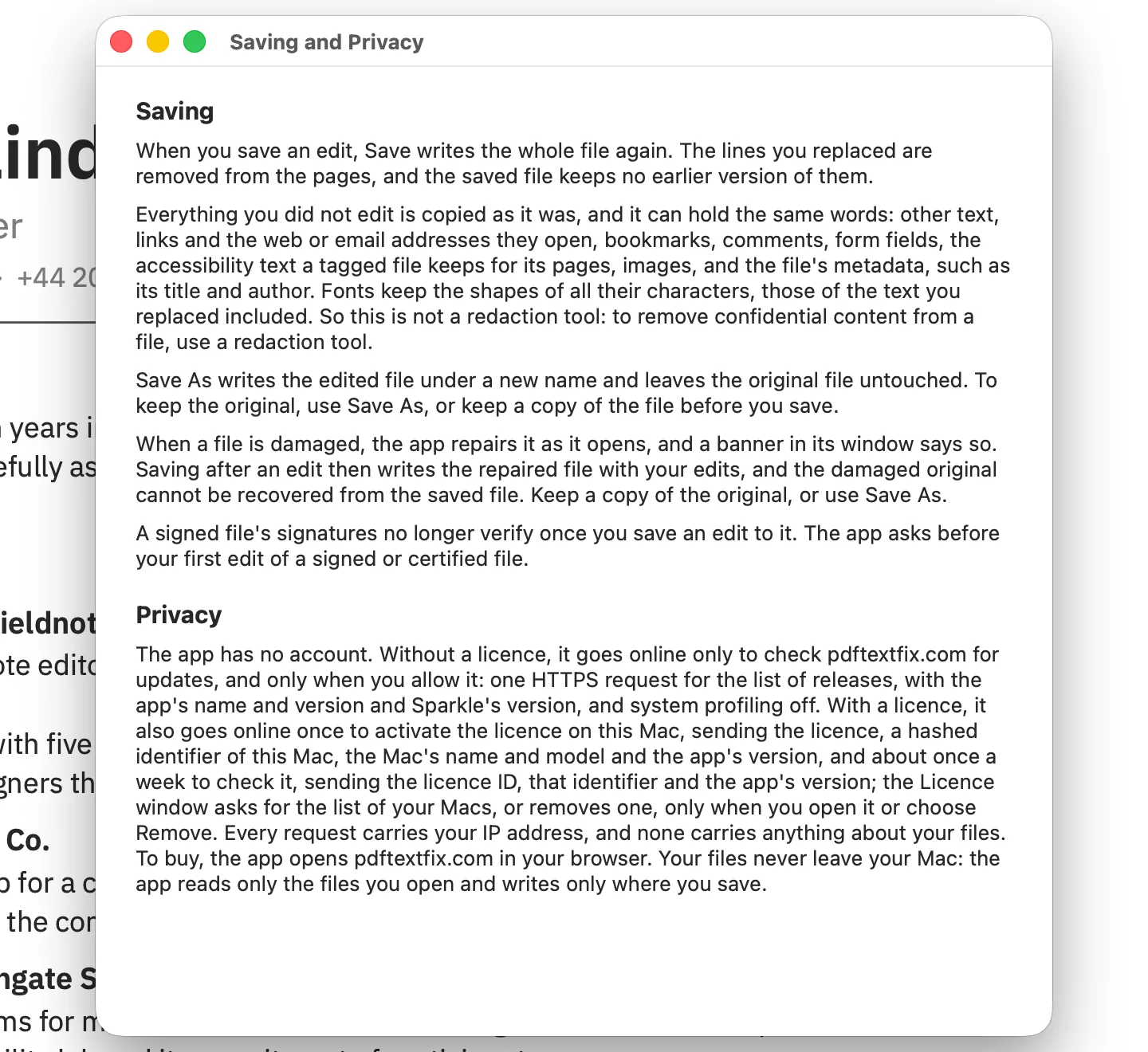
The app has no account in either version: nothing asks you to sign in to open, edit or save a file. Buying needs a connection, through the App Store or through the checkout on pdftextfix.com, and so does downloading; editing does not. The direct version needs a connection once on each Mac to activate a licence; after that it edits offline, and after 30 days without a successful weekly check it asks you to connect once. Help > Report a Problem… shows its report before anything is sent; you send it yourself, by email. The privacy policy has the details, and the download page has both versions.
Step 5: What can Preview do offline?
Preview, which comes with macOS, opens and saves PDFs on your Mac, and its markup tools (text boxes, shapes, highlights, notes, signatures, form filling and Redaction Selection) work on the file in place. What it cannot do, online or offline, is change the existing text. Apple’s guide says so: “Although you can’t edit the text of a PDF in Preview, you can use the markup tools to provide feedback or write down something you want to remember.” Can you edit PDF text in Preview? goes through each tool.
To change a line that is already in the PDF, offline, PDF Textfix opens the file, edits the line in the document’s own font, and saves it back to the same place. How to edit text in a PDF on Mac walks through it.
Step 6: Do other Mac PDF editors work offline?
Desktop editors open and save the file on your Mac, so they pass the first test. The other two depend on the app. Here is what each vendor’s own page says, read on October 12, 2026:
- Adobe Acrobat Pro and Standard. Adobe’s install steps for retail customers include “Sign in with your Adobe ID.” Its support article adds: “The Internet is required to complete the licensing process on the first launch and every 30 days to validate your subscription.”
- PDFgear. Its Mac page says “Open PDFgear and begin working without registering or signing in.” and “Most editing tools within PDFgear work locally on the Mac. AI features, online services, help content, and software updates require an internet connection.”
- UPDF. Its FAQ says “To use the free version, users need to sign up for an account and log in.” and “Please note that you need keep your device connected to the Internet while registering and activating UPDF, as well as to get live updates, product usage assistance, etc.”
- PDF Expert. Readdle’s help explains that “PDF Expert offers a subscription that unlocks Premium features on both Mac and iPhone or iPad.” and has you sign in on the Mac for it. The page does not say what else needs a connection.
Run the same three checks on any of them: Wi-Fi off (Step 1), the network monitors (Step 2) and the entitlements (Step 3). Mac PDF editors side by side and free PDF editors for Mac compare them on more than this, and an offline alternative to iLovePDF covers moving from an online service.
Step 7: Why do online editors need an upload?
Because the editing happens on the vendor’s servers. You send the file, the server changes it, and you download the result. Each service sets its own rules for how long it keeps your file. Sejda’s editor, for example, shows “Files stay private. Automatically deleted after 2 hours.” next to its upload button and offers a desktop app for people who would rather not upload, with “Same features as the online service, and the files never leave your computer.”
Read the terms before you upload a contract, an invoice or a CV. Is it safe to edit a PDF online? lists what to check, and the comparison of online PDF editors compares four services.
Questions about editing PDFs offline on a Mac
Can I edit a PDF on a Mac without the internet?
Yes. Preview adds notes, shapes, signatures and form entries offline, and PDF Textfix changes existing lines of text offline. Neither asks you to sign in to edit. Buying and downloading need a connection, and so does activating a licence of the version from pdftextfix.com, once on each Mac; editing does not.
Does PDF Textfix need an account or an activation?
No account, in either version. The version from pdftextfix.com activates its licence online once on each Mac, on up to 3 Macs at a time, then edits offline and checks the licence about once a week when the Mac is online. The licence has no expiry. The Mac App Store version goes online only to confirm a purchase. Buying needs a connection, through the App Store or the checkout on pdftextfix.com.
Is there a free offline PDF editor for Mac?
Preview is free and already installed, for markup and forms. For changing the existing text, PDF Textfix works this way: Free to try. Your first 5 line edits save clean. After that, saved files carry a watermark until you buy once.
Does the macOS firewall stop apps from sending data?
No. The built-in firewall controls connections coming into your Mac. To see or block what an app sends out, use an outgoing-connection monitor.
