
On macOS Tahoe 26, Preview handles the everyday PDF jobs: it adds, deletes and reorders pages, fills in forms (with AutoFill from your contact card), adds your signature and marks pages up. It still cannot change the text already on a page, and Apple’s guide for macOS 27 Golden Gate says the same. To change a word, a date or a number in the document’s own font, you need an app that edits PDF text. PDF Textfix is one: it runs on macOS 26 or later on a Mac with Apple silicon, so a few Intel Macs that run Tahoe cannot use it. Below: what Preview does on Tahoe, which Macs run PDF Textfix, and what to expect on macOS 27.
What can Preview do with a PDF on macOS Tahoe?
Apple’s Preview User Guide for macOS Tahoe 26 describes four kinds of PDF work.
Pages. “You can open a PDF in Preview, then add, delete, and rearrange pages, or move pages from one PDF to another.” You do it in the Thumbnails or Contact Sheet view. One detail is worth knowing before you delete: “When you delete a page from a PDF, all the annotations on the page are removed as well.”
Forms. In a fillable form, “Click a field in the form, then type your text.” For a form without fields, Apple’s answer is: “If a PDF won’t allow you to type directly into the form, you can add a text box instead.” AutoFill is not new on Tahoe: “With macOS 14.2 or later, you can use enhanced AutoFill to fill in PDF forms with names, addresses, and other contact information.” Apple adds: “Not all PDFs support this feature.”
Signatures. “To sign PDFs, you can capture your signature using your trackpad, the built-in camera on your Mac, or your iPhone or iPad.” The signature is placed on the page as a picture of your handwriting.
Markup. Highlights, notes, shapes and text boxes go on top of the page.
Text editing is not on the list. The same guide says: “Although you can’t edit the text of a PDF in Preview, you can use the markup tools to provide feedback or write down something you want to remember.” Editing PDF text in Preview shows what Preview’s text box and redaction tools do instead, and where they stop.
What is PDFKit, and does it decide what Mac apps can edit?
PDFKit is Apple’s framework for showing PDFs inside apps; Apple’s documentation sums it up as “Display and manipulate PDF documents in your apps.” PDF Textfix uses it too: the pages you scroll through in its window are a PDFKit view.
Editing is a separate matter. Changing a line in the document’s own font means reading the page’s text drawing instructions, finding the glyphs in the embedded font, and writing a new file that keeps everything else in place. PDF Textfix does that with its own text engine, checks every edit before it applies it, and writes the file with qpdf, an open-source PDF library it bundles. So what it can edit does not depend on what a macOS release adds to Preview.
Which Macs on macOS Tahoe can run PDF Textfix?
Any Mac with Apple silicon that runs macOS 26 or later. Those are the app’s requirements: it is built and tested for macOS 26 or later, and its test suites and a release build have been run on macOS 26.6.2. The app and the qpdf library it bundles are built for Apple silicon only, so Intel Macs are not supported.
That matters on Tahoe, because Tahoe still installs on a few Intel Macs. Apple’s list says “You can install macOS Tahoe 26 on any of these Mac models” and includes the MacBook Pro (16-inch, 2019), the iMac (Retina 5K, 27-inch, 2020) and the Mac Pro (2019), all Intel. Those Macs run Tahoe but not PDF Textfix. The download page answers the chip-by-chip question.
What should I expect on macOS 27 and later?
Apple’s compatibility page says: “macOS 27 Golden Gate is the latest major version of the Mac operating system.” It adds: “If you have a Mac with Apple silicon, you can upgrade to macOS 27.” So every Mac on macOS 27 has Apple silicon, and the Intel question goes away.
For PDF Textfix, macOS 27 is the system it is developed on, and macOS 26 is the floor it is tested on, so both are supported. Updates arrive the usual way for each version: the Mac App Store version updates through the App Store, and the version from this website checks pdftextfix.com for updates only when you allow it, from Help > Check for Updates…. For Preview, expect what Apple’s guide says today; the review date at the foot of this page says when that was last checked.
How do I change a line of text on macOS Tahoe?
The same way as on any supported Mac. Open the PDF in PDF Textfix, select the line, press Return, type the correction in the line’s own font and press Return again. The edit is checked first. If it would run into the text after it, the app moves the rest of the line to make room and says so; if that cannot make room, the edit is refused with the reason. Then save, with Save As (⇧⌘S) if you want to keep the original. The complete guide to editing PDF text on a Mac walks through each step with screenshots.
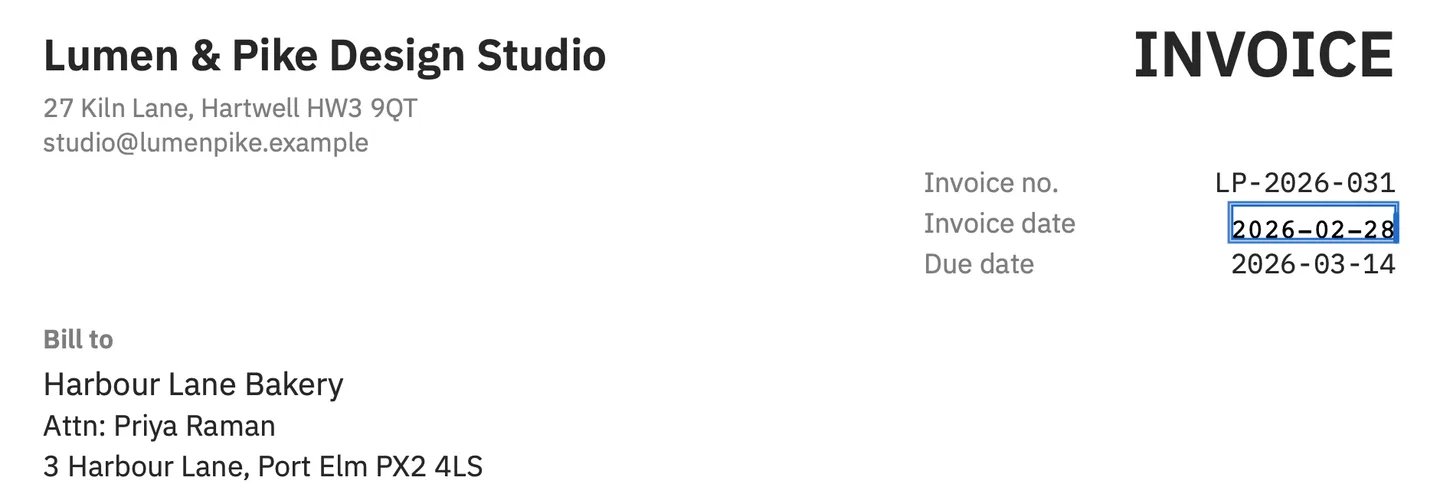
The screenshot was captured on macOS Tahoe 26. PDF Textfix does one job: it does not add text boxes, change fonts or sizes, edit scanned pages, fill forms or redact, so Preview stays the right app for the jobs above. Editing a PDF offline explains why none of these steps uploads the file, and PDF Textfix compared with Preview puts the two apps side by side.
Questions
Does macOS Tahoe come with a PDF text editor?
No. Preview, the PDF app that comes with every Mac, annotates, signs, fills in forms and rearranges pages, but Apple’s guide says it cannot edit the text of a PDF.
Is AutoFill for PDF forms new in macOS Tahoe?
No. Apple’s guide says enhanced AutoFill for PDF forms works with macOS 14.2 or later, and that not every PDF supports it.
Will PDF Textfix run on an Intel Mac with macOS Tahoe?
No. The app is built for Apple silicon only, so it needs a Mac with Apple silicon even though Tahoe itself installs on a few Intel models.
Does PDF Textfix work on macOS 27 Golden Gate?
Yes. It needs macOS 26 or later on Apple silicon, and macOS 27 runs only on Apple silicon Macs.
Is PDF Textfix free on macOS Tahoe?
Free to try. Your first 5 line edits save clean. After that, saved files carry a watermark until you buy once.
