
You can do most PDF jobs on a Mac without Acrobat. Preview, which ships with macOS, adds notes and highlights, signs, fills in forms, and adds, deletes or reorders pages, all for free. What it cannot do is change text that is already on the page. For that job, the question that decides the tool is the font: will your correction come out in the document’s own typeface or in a stand-in? This guide sorts the jobs, weighs the free routes for changing words, shows the one-job route with PDF Textfix, and lists what still calls for Acrobat.
What do you actually need to change in the PDF?
“Edit a PDF” covers several different jobs, and the cheapest tool depends on which one you mean.
| The job | Without Acrobat on a Mac | Worth knowing |
|---|---|---|
| Notes, highlights, shapes | Preview’s markup tools | Added on top of the page; the page underneath is unchanged |
| Sign | Preview’s signature tool | A drawn signature, not a certificate signature |
| Fill in a form | Preview, by clicking a field | A form that refuses typing takes a text box instead |
| Add, delete or reorder pages | Preview’s thumbnails | Free and fast |
| Change words already on a page | A text editor for PDFs, such as PDF Textfix | The font decides how good the result looks |
| Rewrite whole paragraphs | Convert in Word or Google Docs, then export a new PDF | The layout and the fonts are rebuilt |
| Change a word or two for free | LibreOffice Draw | Text arrives in pieces; fonts you lack are substituted |
| Edit a scanned page | Text recognition first | A scan holds pictures of letters, not text |
| Remove confidential content | A redaction tool | Deleting or covering words is not redaction |
A quick way to decide: a change on top of the page or to whole pages is a job for Preview. A change to words already printed on a page needs a text editor for PDFs or a conversion, and the font decides which. A photographed page, or words that must be destroyed, needs other tools.
Step 1: Can Preview do the job for free?
Preview may already be enough. For pages, Apple’s guide says: “You can open a PDF in Preview, then add, delete, and rearrange pages, or move pages from one PDF to another.” For forms: “Click a field in the form, then type your text.” If a PDF won’t let you type into it, Apple’s answer is: “If a PDF won’t allow you to type directly into the form, you can add a text box instead.” The same guide covers signing with the trackpad, the camera or an iPhone.
In practice, choose View > Thumbnails, then delete, drag or insert pages there. Duplicate the file in Finder first if you want to keep the version you started from.
Changing the words themselves is where Preview stops. Apple’s annotation guide is explicit: “Although you can’t edit the text of a PDF in Preview, you can use the markup tools to provide feedback or write down something you want to remember.” A white box with a text box on top is the usual workaround, and it leaves the original words in the file underneath.
Step 2: Is your job a text change, and does the font matter?
If the job is a wrong date, a misspelled name or an old address, you need an editor that rewrites the text. Acrobat’s documentation states its font rule plainly, and it is worth knowing even if you never buy Acrobat; check your own editor’s documentation for its rule. Adobe’s help for changing text says: “To edit text using a specific font, you must have that font installed on your computer. If the font isn’t installed but is embedded in the PDF, you can only change the text’s color or size.”
The catch is that the font a PDF uses is often not installed on the Mac that opens it: the file carries its own copy, often only the characters it needs. The demo cover letter below is set in IBM Plex Serif, which stock macOS does not have. To see what your own file uses, the guide to finding the fonts in a PDF walks through the tools, Terminal’s pdffonts included.
Step 3: Which free routes change the words?
Two routes change the words without Acrobat. Google Docs and LibreOffice are free, and Word costs nothing more if you already have it. Each rebuilds some of the layout.
Convert in Word or Google Docs. Word opens a PDF as a new document. Microsoft’s help says “Word makes a copy of the PDF, converting it to a Word document and attempting to match layout of the original PDF”, and warns that “when you open a PDF file in Word, it might not look exactly the way it looked as a PDF.” Google Docs converts a PDF from Google Drive in the same way. Once converted, you can rewrite whole paragraphs and export a new PDF, but the layout is rebuilt and the text is set in whatever fonts the converter has, so read every page of the result. The guide to editing a PDF in Word or Pages goes through it step by step.
Open it in LibreOffice Draw. The Document Foundation’s wiki explains that “LibreOffice recognizes foreign PDF files as graphical documents, therefore PDFs are opened in Draw.” The text arrives in pieces: “The texts are usually no longer continuous texts, as you are used to, for example, in Writer.” When a document names a font your Mac does not have, a substitute draws it; LibreOffice’s font settings let you “override the default substitution font that your operating system uses when it encounters an unavailable font in a document.” That suits a word or two in a plain document. The comparison with LibreOffice Draw sets out what it does to the file.
Step 4: How do you change the text in place, in the file’s own font?
PDF Textfix is a Mac app for this one job. It changes a line that is already in the PDF and writes your characters with the font embedded in the file, so the font does not need to be installed. The steps, on any PDF of your own:
- Open the file with File > Open (⌘O), or drop it on the Dock icon.
- Find the line by clicking it, by pressing Tab, or with Find Line (⌘F).
- Press Return or double-click, and type the correction in place.
- Press Return to apply it. An edit that would move or change any other character on the page is refused, with the reason.
- Press ⌘S to save, or ⇧⌘S to save a copy and keep the original as it was.
The demo cover letter shows the case Acrobat’s rule is about. Its embedded serif font has no “é”, because the letter never used one. Correcting the writer’s own name keeps every other letter in the embedded font and draws only the “é” with a fallback, marked in orange so you can see it:
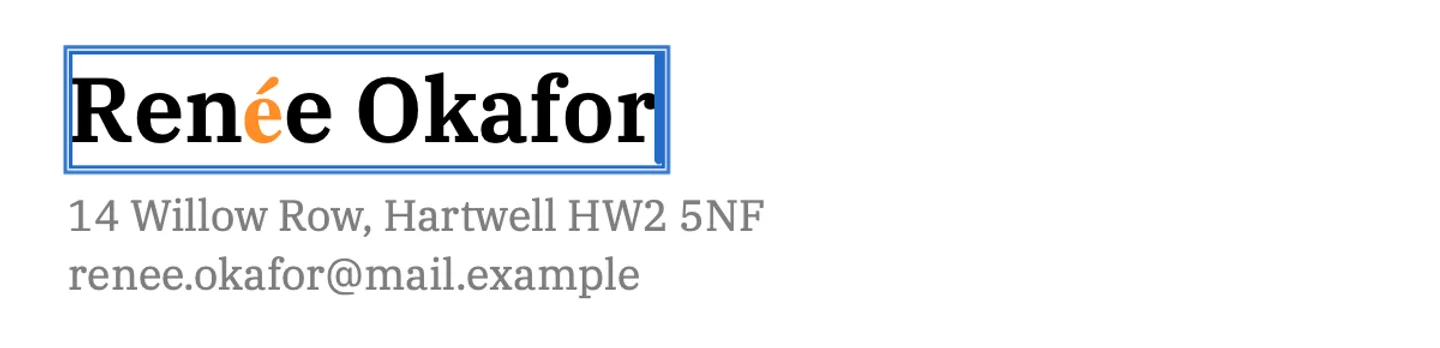
Where that one character comes from, and what the other marks mean, is the subject of the guide to keeping the same font.
Saving writes the whole file again, so the replaced line is gone from the page and no earlier version of it stays in the file. Everything you did not edit is copied as it was, unless the file was damaged; the app says when it repaired one.
Step 5: What still needs Acrobat or another full editor?
PDF Textfix fixes lines of existing text; these jobs need something else:
- Scanned documents. A scan must be recognized as text first. Adobe’s page on editing scans says: “Acrobat automatically applies OCR to your document and converts it to an editable PDF copy.” PDF Textfix does not recognize text; it marks such a page as a scanned image.
- Redaction. Adobe’s redaction steps include this option: “In the dialog box that opens, choose if you want to sanitize and remove hidden information by selecting the toggle button.” PDF Textfix removes the replaced line from the page, but the same words can remain in bookmarks, links, comments and metadata, so it is not a redaction tool.
- Building forms. Creating fillable fields is a job for a full editor. PDF Textfix does not fill forms either: their fields are locked.
- New text boxes, font changes and reflowed paragraphs. PDF Textfix does none of these.
The free Acrobat Reader will not change text either. Adobe’s Reader page says so directly: “Text and image editing is not available in Acrobat Reader and requires an Adobe Acrobat Standard or Adobe Acrobat Pro subscription.” See the comparison with Acrobat Reader, PDF Textfix and Adobe Acrobat side by side, and the Acrobat alternative page for what you keep and lose.
If you decide to buy Acrobat, know how Adobe sells it. Its plans page says: “Adobe discontinued selling perpetual versions of Acrobat after Acrobat 2020. However, if you would like a non-subscription version of Acrobat, Acrobat Pro 2024 desktop software is a one-time, upfront purchase that provides three years of access to Acrobat desktop.”
For the free tools beyond Preview, the roundup of free PDF editors for Mac lists what each one documents.
Questions people ask
Can I change text in a PDF without installing its font?
Yes, with an editor that writes with the font embedded in the document. PDF Textfix does that and marks any character it had to draw with another font.
Why does my edited text look different from the rest of the line?
Usually because the editor drew it with an installed font that only resembles the document’s. Compare letters such as “a”, “g” and “1” with the line above at a high zoom.
How do I edit a PDF for free?
Preview handles notes, signatures, forms and pages for free. For words already on a page, Google Docs and LibreOffice Draw cost nothing, with the layout costs described in Step 3. PDF Textfix is free to try. Your first 5 line edits save clean. After that, saved files carry a watermark until you buy once. There is no subscription; the pricing page has the details.
Can I edit a PDF in TextEdit or Notepad++?
No. Read as text, a PDF is numbered objects and streams of drawing instructions, most of them compressed, so the words on the page are not there to type over. Changing bytes by hand can also break the table that gives the position of every object. The article on why a PDF grows when edited shows what the inside of a PDF looks like.
