
No. The free Acrobat Reader cannot edit the text of a PDF, and Adobe says so on its own Reader page: “Text and image editing is not available in Acrobat Reader and requires an Adobe Acrobat Standard or Adobe Acrobat Pro subscription.” Reader is for viewing, commenting, filling in forms and signing. Changing the words already on a page is a paid Acrobat feature, starting with Acrobat Standard, which Adobe’s plan comparison listed on October 12, 2026 at US$14.99 a month on an annual plan billed monthly in the United States. On a Mac there is a third option for the narrow case of one wrong line: an editor that does only that.
What can the free Acrobat Reader do?
Quite a lot, as long as the job is adding to the document rather than changing it. Adobe’s Reader page lists it: “Adobe Acrobat Reader lets you add comments, highlights, sticky notes, and free-text annotations to PDFs. You can also fill out and save PDF forms.” You can sign, share a file for review, and Adobe says Reader is free on Windows, Mac, iOS and Android. It asks for no subscription.
Reader’s help page on editing draws the same line from the other side. It lists the tasks you need full Acrobat for, and editing text is the first of them, with combining PDFs, scanning to PDF and creating forms after it. Reader fills forms other people made; it does not build them.
Why does Reader have a text tool, then?
Because adding text is not editing text. A free-text annotation is a comment: a box of new text that sits on top of the page. You can type “28” next to a wrong “30”, or over it, and anyone who opens the file sees your note. The original characters are still in the page underneath, a search still finds them, and the note can be moved or deleted by the next person.
That makes the free-text tool right for review. You mark what should change, and the author changes it in the source. It is not a way to correct a finished document so that it reads correctly on its own.
What happens when you try to edit text in Reader?
You reach the edge of the free app. Adobe’s Reader help answers the question “Why can’t I open or edit a PDF in Acrobat Reader?” with “You want advanced editing available in Adobe Acrobat”, and lists editing text first among the tasks that need it. Adobe’s Reader page offers a free trial of the paid plans next to the Reader download, and its FAQ describes the step up plainly: “The upgrade from Acrobat Reader to Acrobat Pro unlocks a complete document workflow platform.” The pages read do not show the exact prompt the desktop Reader displays when you pick a tool that needs paid Acrobat, so this page does not quote one.
There is a second reason a tool can be unavailable, and it has nothing to do with the plan. The same help page says that some secured documents prevent printing, editing or copying, and “If a document has restricted features, any tools and commands related to those features are grayed out in Reader.” Adobe’s advice for that case is to contact the author of the PDF.
If you start the trial, read its terms first. Adobe’s trial page says it lasts 7 days and “After the 7-day free trial ends, your Adobe Acrobat subscription automatically converts to a paid plan at the rate shown at sign up.” It also says you can cancel during the 7 days without being charged.
Can Adobe’s free online editor change existing text?
No. Adobe also offers a free PDF editor in the browser, and it adds to the page: text boxes, sticky notes, highlights, drawings, and fill and sign. Its FAQ answers the question directly: “The free version of Adobe Acrobat’s online editor does not let you edit existing body text within a PDF.” You upload the file to use it, and the FAQ adds that “signing in with a free Adobe account is required to download or share your edited files”. For changes to the text itself, the same FAQ points to Acrobat Pro.
So the online editor and Reader do the same kind of job: they add notes and new text on top of a page that stays as it was. That suits a quick note on a shared document, and it is the wrong tool for a correction that has to read as the original.
What does Acrobat Standard add?
Standard is Adobe’s entry-level paid desktop plan, and editing is what you pay for. Adobe’s plan comparison lists what Standard includes: “Edit and organize PDFs.” It also converts documents to and from PDF, fills and signs forms, requests e-signatures, and protects files with passwords. In Acrobat’s editing tool, Adobe’s help says “To replace existing text, click on the text and then type new content.”
One note in that same help page decides how a correction will look: “To edit text using a specific font, you must have that font installed on your computer. If the font isn’t installed but is embedded in the PDF, you can only change the text’s color or size.” When a PDF was made on another computer, its font may be embedded in the file but not installed on your Mac, and then an edit in Acrobat means choosing an installed font for the new text. The guide to the Acrobat “no available system font” message covers what to do when that happens.
Standard runs on the Mac: Adobe’s technical requirements list Acrobat Standard, Pro and Studio for macOS 13, 14, 15 and 26, on Intel and Apple silicon. It is sold by subscription. The Reader, Standard and Pro comparison goes through the plans, the one-time Acrobat Pro 2024 licence and what each tier adds, and PDF Textfix and Adobe Acrobat compares the full suite with a one-job tool.
What can you do when you only have Reader on a Mac?
It depends on whose document it is and how much needs to change.
You have the source file. If you made the PDF from Word, Pages or a design app, correct it there and export a new PDF. That is free, and nothing about the PDF needs editing.
The change is a note for someone else. Use Reader’s comment and free-text tools. The author makes the change.
You want to try Acrobat. Adobe’s plan comparison offers a free trial of Acrobat Pro. The comparison of Reader, Standard and Pro gives its terms, including what happens when it ends.
One line of your own finished PDF is wrong, and the source is gone. This is the case PDF Textfix is for. It runs on macOS 26 or later on Apple silicon and changes text that is already on the page: you double-click the line, type the correction, press Return and save. The guide to editing text in a PDF on a Mac has every step.
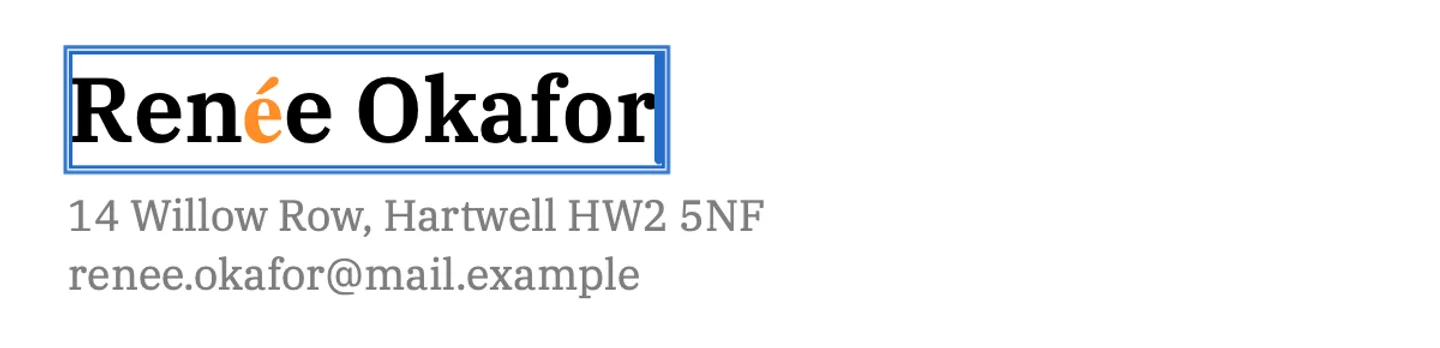
It writes the new characters with the font embedded in the PDF, so the installed-font requirement in Adobe’s note does not apply. In the screenshot above, the writer’s name in the demo cover letter is corrected in the letter’s own serif; only the “é”, which that font does not contain, comes from a fallback font, and the editor marks it in orange while you type. Before applying the edit, the app checks that every other character on the page stays where it was. Save writes the file again without the replaced words on the page, and everything you did not edit is copied as it was, unless the file was damaged; the app tells you when it repaired one.
It does less than Acrobat on purpose. It does not add text boxes, change fonts or sizes, reflow paragraphs, fill forms, sign or edit scanned pages. Reader stays useful next to it for all of that. The step-by-step guide to editing a PDF on a Mac without Acrobat also covers what Preview can and cannot do.
PDF Textfix is a one-time purchase with no subscription; the pricing page lists the price for each region.
Questions people ask
Can Acrobat Reader edit PDF text for free?
No. Adobe says text and image editing is not available in Acrobat Reader and requires an Acrobat Standard or Acrobat Pro subscription.
Can I add text in Acrobat Reader?
Yes, as a free-text annotation, which is a comment on top of the page. The original text stays in the page underneath.
Can Acrobat Reader fill and sign forms?
Yes. Adobe says Reader can fill out and save PDF forms, and sign PDFs. It cannot create forms.
Why does Acrobat Reader ask me to start a free trial when I want to edit?
Because editing text is a paid Acrobat feature, and Adobe offers a 7-day trial of Acrobat Pro so you can try it. Adobe’s trial page says the trial converts to a paid plan when it ends, unless you cancel during the 7 days. To leave a note for someone else, Reader’s comment tools are free.
