
PDFgear or PDF Textfix: what is the difference?
Scope and price. PDFgear is a free PDF reader and editor for Windows and Mac that covers many jobs, editing text among them; its Mac App Store listing calls it “a full-featured and free PDF editor, which provides read, edit, annotation, convert, sign, combine, merge, compress, page management, encrypt, and print PDF documents.” PDF Textfix is a Mac app for one job, changing the words already on a page of a PDF in the font inside the document, and it is free to try and bought once.
They also edit differently. PDFgear treats text as blocks you can rewrite, restyle and extend; PDF Textfix treats it as lines it changes in place and checks before applying. If you want one free app for many PDF tasks, PDFgear is built for that. If the task is a wrong word in a finished document that should otherwise stay as it was, read on.
Is PDFgear really free?
By its own description, yes. The listing says: “PDFgear provides free use for all functions without any limits like trial watermark, page count, etc.” Its page for the Mac adds that “PDFgear for Mac contains no ads, and saved PDFs do not carry any watermarks.”
PDF Textfix is not free in that sense, and says so the same way everywhere. Free to try. Your first 5 line edits save clean. After that, saved files carry a watermark until you buy once. The watermark is on every page of a file saved past the allowance, so you can see an edit’s result before you pay; the sample documents in the Help menu never count. The purchase is one-time, in the Mac App Store or as a licence from this website, with no subscription and no account; the pricing page has the price for your region.
How does each one edit text?
In PDFgear you choose Edit Text and select text on the page. Its guide on fonts explains the unit of work: “PDFgear recognizes PDF text as multiple text blocks, and you’ll need to work with them one by one.” Inside a block you can do a lot: “You can freely replace text, insert text, delete text, move text, rearrange letter orders, change fonts/typefaces, and more.” The font is a menu, “the Font option (marked with your current font) from the upper ribbon”, with style, color and size beside it, and its guide on existing text says you can “Use Enter on the keyboard to start a new line and type in text in the same font.”
PDF Textfix has no ribbon and no font menu. You double-click a line, or select it and press Return, type the change, and press Return to apply it; Tab applies the edit and selects the next line, and Find (⌘F) and the Lines pane reach any line in the document. A line keeps its font and size and holds no line break, so the app never starts a new line, moves text from one line to the next or reflows a paragraph. It does not edit scanned pages, which PDFgear’s listing covers with OCR: “Conduct OCR on PDF documents or images in batch with ease”.
What happens to the font in each app?
PDFgear’s guide to editing existing text says the font is kept: “Select and edit the text in the PDF, and the original text font and styles will preserved while doing so.” For a different font it uses the fonts installed on the computer: “To add a custom font, install the font on your Windows or Mac device, restart PDFgear, and then check whether the font appears in the font list when editing PDF text.”
One case its pages do not cover: typing a character the document’s embedded font does not contain. It comes up whenever a font is embedded as a subset holding only the characters the document uses. On October 12, 2026, pdffonts listed every font of the demo contract, IBM Plex Serif SemiBold, IBM Plex Serif Regular and IBM Plex Sans, as an embedded subset. The table marks the row “not verified”; PDFgear was not tested for this page.
For PDF Textfix, that case is documented. When the embedded font lacks a character, it looks in a fixed order: a glyph already in the same font, another copy of the same face in the document, the same font installed on your Mac, then the closest standard font. A character from another font is orange while you type, one from another copy of the line’s font is underlined, and one no font can draw is red and is not applied. The font objects already in the file are never modified; added glyphs go into a new font used only by the inserted text.
What does PDF Textfix check before it applies an edit?
Every other character on the page. Before an edit is applied, the app checks that the rest of the page stays where it was and looks as it did, and that the edited line reads back as typed. When a check fails, it refuses the edit, says why in the bar under the pages, and leaves the file as it was; a reason reads like “This edit would move or restyle characters it should keep, so it was not applied.”
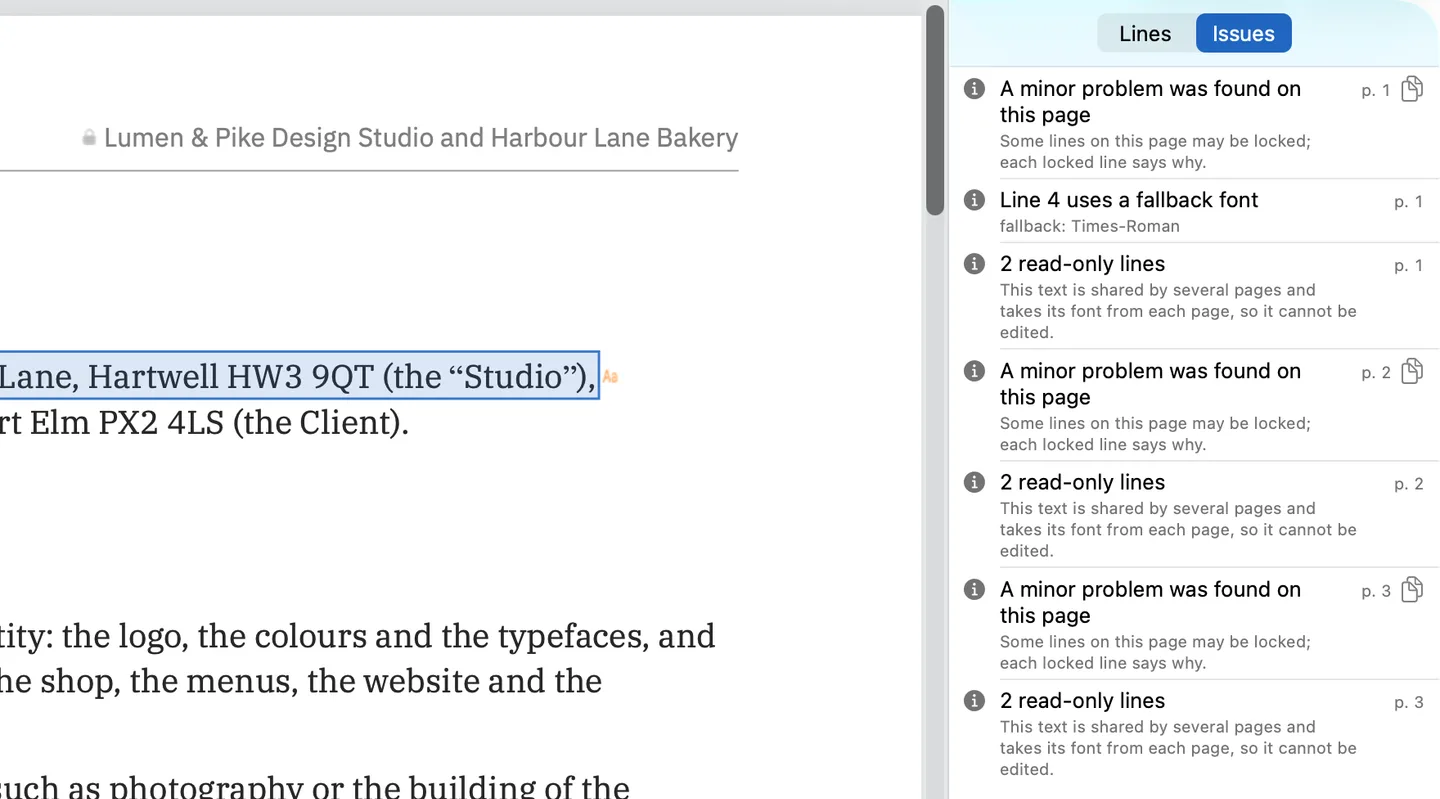
The Issues pane, in the screenshot above, collects what the app found in the demo contract after one edit: “Line 4 uses a fallback font”, naming Times-Roman as the font that drew the new quotation marks, and on each page “2 read-only lines”, with the reason in full: “This text is shared by several pages and takes its font from each page, so it cannot be edited.” The pane also lists fonts the file does not embed and edits that would fall outside the visible area of the page. Locked lines say why they are locked; among the reasons are fonts made of pictures, the hidden text layer of a scan, vertical and right-to-left text, form fields and comments.
What does each one write when you save?
PDFgear’s guides end with a Save as step; the pages read do not describe how it writes the bytes of a PDF, so that row is “not verified”.
PDF Textfix writes the whole file again when you choose Save (⌘S): the lines you replaced are removed from the pages, the saved file keeps no earlier version of them, and everything you did not edit is copied as it was, unless the file was damaged; the app tells you when it repaired one. The status bar then says “Saved and verified.” It is not a redaction tool: the same words can remain in links, bookmarks, comments, metadata and the fonts’ shapes, so confidential content needs a tool made for removing it.
Does either one need the internet?
PDFgear’s page for the Mac says: “Most editing tools within PDFgear work locally on the Mac. AI features, online services, help content, and software updates require an internet connection.”
PDF Textfix comes in two versions with the same editor. The Mac App Store version has no account and goes online only to confirm a purchase. The version from this website has no account either and checks pdftextfix.com for updates only when you allow it. With a licence, it goes online once on each Mac to activate it, then works offline and checks the licence about once a week when online. In both, your files never leave your Mac.
Which Macs run each one?
PDFgear names two minimums in two places. Its Mac App Store listing says “Requires macOS 12 or later.” Its own page for the Mac says “PDFgear for Mac supports MacBook Air, MacBook Pro, iMac, and Mac mini models running macOS 10.14 or later. It requires at least 512 MB of RAM (1 GB recommended) and 200 MB of free storage.” Both pages were read on October 12, 2026, and the download link on the vendor’s page leads to the App Store listing, so the listing’s minimum is the one to check. The vendor offers PDFgear for Windows too.
PDF Textfix needs macOS 26 or later on a Mac with Apple silicon, from the Mac App Store or from this website, and there is no Intel or Windows version. On an Intel Mac, or a Mac that cannot install macOS 26, PDFgear is the one of the two that runs. On a Mac that runs both, nothing stops you from keeping both: they are separate apps, and the Finder’s Open With menu picks one for each file.
Which one should you use?
Use PDFgear if you want one free app for many PDF jobs: reading, annotating, converting, signing, merging, compressing, recognizing scans, and editing text with a free choice of font and layout. If it handles your file the way you need, there is nothing to buy.
Use PDF Textfix when the job is to correct words already on the page and the rest of the file should stay as it was: the date on an invoice, a name in a letter, a figure in a contract, in the document’s own font, with every fallback character marked and every refused edit explained.
You can try both on the same file before paying anything. A PDFgear alternative for Mac text edits looks at moving that one job over, free PDF editors for Mac compares the free options, and the comparison hub sets every editor against the same questions.
Is PDFgear available for Mac?
Yes. It is on the Mac App Store as “PDFgear: PDF Editor & Reader”, sold by PDF GEAR TECH PTE. LTD., at version 2.28 on October 12, 2026, and the vendor’s page for the Mac links to that listing. The listing reads “Only for Mac”, and the two pages name different minimum macOS versions, as the section on Macs above shows.
Can PDF Textfix open a file edited in PDFgear?
Yes, like any PDF. Whether a line can be edited depends on how the file stores it, and a locked line says why. Encrypted files open view only.
Does PDF Textfix recognize scanned text?
No. It edits text that is already in the PDF as text; a scanned page shows “This page is a scanned image” in the Lines pane.
