
What can you use instead of PDFgear for text edits on a Mac?
When the job is to correct words in a finished PDF, and the corrected line must keep its font and its position, PDF Textfix is built for that one job. It changes the text already on a page, one line at a time, in the font inside the document, and before it applies an edit it checks that every other character on the page stays where it was. When a check fails, it refuses the edit, says why, and leaves the file as it was.
PDFgear stays useful for everything else it does, at no cost. This page is about moving the text corrections; the comparison of PDF Textfix and PDFgear lays out both products’ facts.
Why look for a PDFgear alternative?
Not for the price: PDFgear’s Mac App Store listing says it “provides free use for all functions without any limits like trial watermark, page count, etc.” What differs is how editing works, and PDFgear’s own guides describe it.
It edits blocks. PDFgear’s font guide says it “recognizes PDF text as multiple text blocks, and you’ll need to work with them one by one.” Its Mac guide says that inside a block “you can type to add, delete, or change text” and use the toolbar “to adjust the font, size, color, bold, italic, underline, or alignment”. That is a general editor’s model, in which a block’s text can be rewritten and restyled as a whole.
Its font rule. PDFgear’s guide says that when you edit, “the original text font and styles will preserved”. For any other font, you “install the font on your Windows or Mac device, restart PDFgear”. The pages read do not say what happens when you type a character the document’s embedded font does not contain; the table marks that row as not verified.
If a corrected line ever looks different from its neighbors, in any editor, three causes are worth checking: a character missing from the embedded subset, a block laid out again with new widths or line breaks, or a font drawn from the computer instead of the file. The guide on editing a PDF without changing its format covers all three.
What does PDF Textfix do differently?
It narrows the job so each of those causes is either avoided or shown to you.
- Open the PDF (⌘O) and find the line by scrolling, with Find (⌘F), or in the Lines pane.
- Double-click the line, or select it and press Return, and type the correction.
- Press Return. The edit is applied only if every other character on the page stays where it was. The rest of the line stays where it is unless the new text would run into it. Then the app moves the rest of that line, says so in the bar, and Keep Following Text in Place puts it back. Shift Rest of Line (⌃⌘R) moves it by hand. An edit that would run into other text, with no room to make, is refused with the reason, and the file stays as it was.
- Save with ⌘S, or ⇧⌘S to keep the original. The status bar says “Saved and verified.” once the written file passes its check.
There is no block to lay out again: text never moves from one line to the next, and paragraphs never reflow. The font comes from the file first. When the embedded font lacks a character, the app looks in a fixed order:
You type é. The line’s own font has no é.
- Another copy of the same font in the file.
- The same font, installed on your Mac.
- The closest standard font.
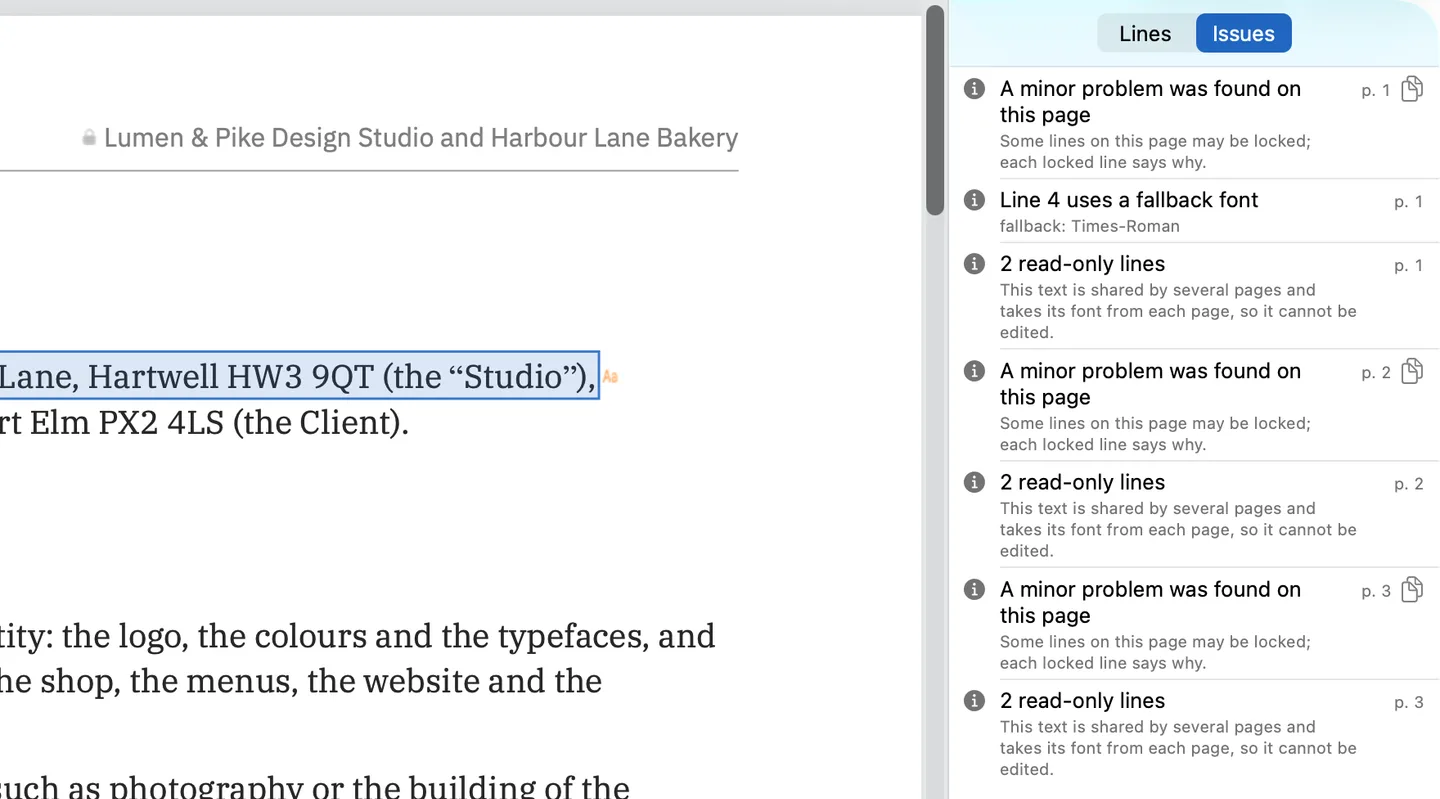
A glyph already in the same font, another copy of the same face in the document, the same font installed on your Mac, then the closest standard font. Every character a fallback supplied is marked while you type, so a substitution is never a surprise in the saved file. The Issues pane lists locked lines and why, fonts the file does not embed, and the fallback fonts your edits used.
Where do PDFgear’s other jobs go?
They can stay in PDFgear. PDF Textfix does not convert, annotate, sign, merge, compress, encrypt or run OCR, and it does not add text or change fonts, sizes or colors. Keeping PDFgear installed for those jobs costs nothing. For scans, the guide to editing text in a scanned PDF explains what OCR involves.
What else can you use on a Mac instead of PDFgear?
If you want another free tool, the roundup of free PDF editors for Mac sets out what each free option changes and where its catch is, in each vendor’s own words. For a general editor you pay for, each of these has a page that sets its vendor’s documentation beside PDF Textfix, with the source and date of every statement: PDF Expert, UPDF, PDFelement and Acrobat. The side-by-side table of Mac editors puts them on one page with PDFgear and Preview. None of these pages ranks them.
How do the prices compare?
PDFgear is free, in its listing’s words, with no trial watermark or page limit. PDF Textfix is free to try. Your first 5 line edits save clean. After that, saved files carry a watermark until you buy once. The purchase is US$29.99 in the Mac App Store or US$29 from this website (€32 in the EU, €19.99 in Romania, £25 in the UK), paid once, with every 1.x update included; the pricing page has the details. If PDFgear handles your file the way you need, that is a good reason to keep using it.
What happens to your files?
Nothing needs moving: a PDF opens in PDF Textfix wherever it is. Files you edited in PDFgear open like any other PDF. Comments and form fields stay as they are and are locked in PDF Textfix’s editor. A signed PDF’s signatures no longer verify once an edit is saved, so the app asks before your first edit of one.
Is PDF Textfix the right tool for you?
- Your edits are corrections to words in finished PDFs: yes.
- The corrected line must keep its font and position, and the document must look untouched: yes, every edit is checked and every substitution marked.
- You want to add text, restyle it or reflow a paragraph: no, keep a general editor such as PDFgear for that.
- Your Mac has an Intel chip or runs a macOS version before 26: no, PDF Textfix needs Apple silicon and macOS 26 or later; PDFgear’s listing says it needs macOS 12 or later.
Try the same correction in both on a copy of your file; the 5 free line edits are enough to compare.
Questions people ask
Is there a free alternative to PDFgear on a Mac?
The roundup of free PDF editors for Mac lists the free options with what each vendor says its free version does. PDF Textfix is not free to keep. Its free version is a trial measured in line edits, as the price section above sets out.
Is PDFgear as good as Acrobat for editing text?
This page does not rank them. PDFgear’s guide says the original font and styles are kept when you edit; the side-by-side table of Mac editors sets that beside Adobe’s own font rule for Acrobat, with the source of each, and the comparison of PDF Textfix and Acrobat covers Acrobat in full.
Is PDFgear really free?
Its Mac App Store listing says it provides free use for all functions, without a trial watermark or page limit.
Does PDF Textfix need the font installed?
No. It writes with the font inside the document and uses an installed copy of the same font only when the file’s copies lack a character.
