
Wondershare PDFelement and PDF Textfix answer different needs. PDFelement is a full PDF editor: in Wondershare’s words, it lets you “edit, convert, OCR, annotate, and sign PDFs across macOS and iOS”, creates fillable forms, and adds AI tools. PDF Textfix does one thing: it corrects text already on a page, a line at a time, in the font stored inside the PDF, and checks each edit before applying it. If you need OCR or forms, PDFelement has them and PDF Textfix does not. If you need one wrong line fixed in a font you do not have installed, Wondershare’s own guide says PDFelement “can’t edit the PDF text with it”, and that is the case PDF Textfix is built for.
What can PDFelement do that PDF Textfix cannot?
A great deal. PDFelement edits text, images and links, adds new text anywhere, converts PDFs to and from Office formats, annotates and signs, and offers AI reading tools. Its Mac page promises “OCR PDFs on Mac–accurate, fast, and multilingual.” and “One-click form creation–generate fillable and editable PDF forms instantly.” Its cross-platform plans run on “desktop, mobile (iOS & Android), web”.
PDF Textfix has none of those. It does not add text boxes, change fonts or sizes, move text from one line to the next, reflow paragraphs, edit scanned pages, fill forms or redact. Text in a form field is locked, and the line says why: viewers draw that text again from the field’s own value, so editing the drawn copy would not stick. The guide to fillable versus editable PDFs explains the difference, and the one on editing text in a scanned PDF explains why a scan has no text to change.
So if your work is building forms, digitizing paper or converting documents, PDFelement is the tool for that work, and the rest of this page will not change that.
How does each one handle the font of the line you edit?
PDFelement’s guide on editing with the same font describes its steps: open the file, choose Edit All, and “PDFelement will automatically recognize the font of the text and let you make changes with the matching font.” The next section of the same guide covers the case where it cannot: “If the original font is not supported in your system, you can’t edit the PDF text with it.” It offers two ways out. One is to pick a similar font, found with an online font matcher, and change the text to it. The other is to find the original: “Download and install the font to your computer.”, then relaunch PDFelement and choose it from the font list.
Both fixes cost something. A similar font is a different font, and the edited line can look different from its neighbors. Installing the original works when the font is free to download; for a commercial typeface or a company font it means buying it or asking its owner for a copy you may install.
PDF Textfix does not ask your Mac for the font. A PDF usually stores its fonts inside the file, often as a subset holding just the characters the document uses, and PDF Textfix writes the correction with that stored font. When you type a character the subset lacks, it looks in a fixed order: a character already in the same font, another copy of the same face in the document, the same font installed on your Mac, then the closest standard font. A character drawn with a fallback font is orange while you type, one from another copy of the line’s font is underlined, and one no font can draw is red and not applied. The fonts already in the file are never changed; glyphs a fallback adds go into a new font used only by the inserted text.
What does PDF Textfix check before it applies an edit?
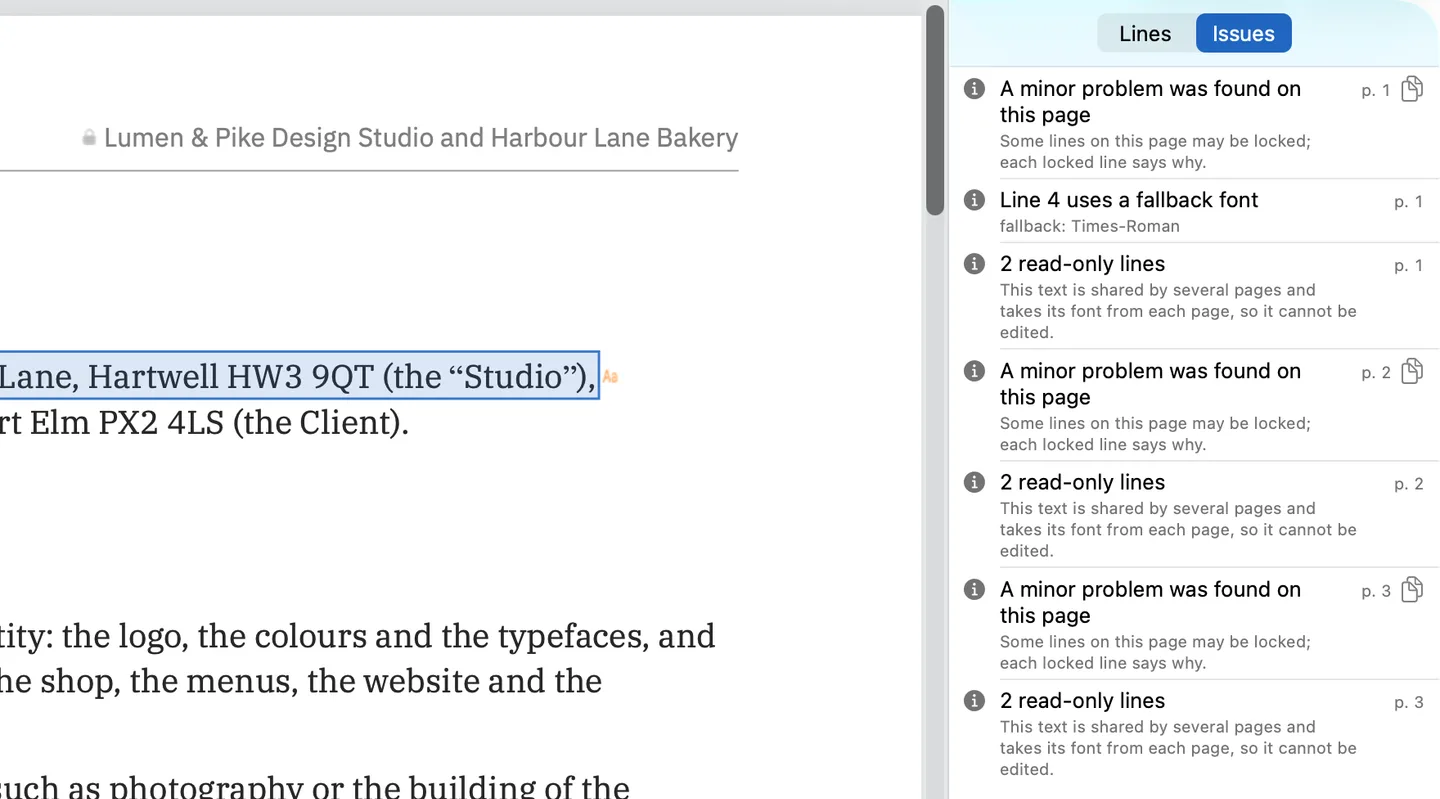
Every edit is checked before it is applied: every other character on the page must stay where it was, or the edit is refused and the bar says why. When a longer edit would run into the text after it, the rest of the line moves to make room and the bar says so; Keep Following Text in Place puts it back. The Issues pane (⌥⌘I), in the screenshot above, collects what the app found in a document: the lines it locks and the reason for each, fonts the file does not embed, characters drawn with another font, and edits that would fall outside the visible area of the page. On the demo contract it lists a line that uses a fallback font, and lines shared by several pages that take their font from each page, so they cannot be edited.
Saving with ⌘S writes the whole file again. The lines you replaced are removed from the pages and the saved file keeps no earlier version of them; everything you did not edit is copied as it was, unless the file was damaged; the app tells you when it repaired one. The status bar says “Saved and verified.” Save As (⇧⌘S) leaves the original untouched, and there is no autosave. The PDFelement pages read for this comparison do not say how it writes a file, so that row of the table says “not verified”.
What does PDFelement cost compared with PDF Textfix?
In the Mac App Store, PDFelement’s in-app purchases include Pro perpetual at US$119.99, Pro at US$79.99 a year and Pro at US$19.99 a month. On Wondershare’s own store the prices move with its offers and differ by country. On October 12, 2026 its Mac page showed by default US$21.99 a quarter, and US$79.99 a year or US$129.99 once for the Mac-only plans, the one-time fee buying “Perpetual access to PDFelement 13”; the cross-platform plans read US$89.99 a year and US$139.99 once, all under a sale banner, so check the page on the day you buy. The free trial saves with a watermark: “The unregistered trial version will add a watermark to your PDF file when you save it.”
Read the plan cards closely, because the plans differ in what they keep giving you. The quarterly and yearly plans include updates for their term, and the yearly card says “1-year of PDFelement updates”. The perpetual plan gives “Perpetual access to PDFelement 13”, that version. On the cross-platform perpetual plan, mobile and web access is marked “for a limited time”. The cross-platform plans add the iPhone, iPad, Android and web apps; the single-platform plans cover the Mac.
PDF Textfix is free to try. Your first 5 line edits save clean. After that, saved files carry a watermark until you buy once. The purchase is a single payment, US$29.99 in the Mac App Store or a licence from this website, with no subscription and no account, and every 1.x update is free; the pricing page has the price for each region. The sample documents in the Help menu never count against the free edits.
Which one should you get?
Get PDFelement if you need a general PDF workbench: OCR, forms, conversion, annotation, AI tools, and apps on more than the Mac. Its Mac App Store listing asks for macOS 11 or later, so it also runs on older Macs.
Get PDF Textfix if what you need is narrower: correcting a date, a name, an amount or a typo in a finished document, in its original font, without installing that font and without anything else on the page moving. It requires macOS 26 or later on Apple silicon. For a wider view, Mac PDF editors side by side lines up several editors on editing existing text, the comparisons hub lists every comparison on this site, and the PDFelement alternative page covers moving this one job over.
Questions people ask
Is PDFelement free?
It has a free trial. Wondershare’s store page says “The unregistered trial version will add a watermark to your PDF file when you save it”, and that in the trial, batch processing and combining take three files of up to 20 MB.
What does PDFelement cost?
In the Mac App Store, Pro is US$119.99 once, US$79.99 a year or US$19.99 a month as an in-app purchase. Wondershare’s own store lists the Mac-only plans at US$49 a quarter, US$129 a year and US$159 once, and cuts them during promotions, as it did on October 12, 2026.
Does the PDFelement perpetual plan include future versions?
The store’s perpetual card names one version: “Perpetual access to PDFelement 13”. The yearly card instead promises “1-year of PDFelement updates”. PDF Textfix’s purchase includes every 1.x update.
Does PDFelement have OCR?
Yes. PDF Textfix does not edit scanned pages, and the hidden text layer that OCR adds to a scan is locked in PDF Textfix too, since what you see on the page is still the picture.
Can PDFelement create fillable forms?
Yes, Wondershare lists creating fillable forms among PDFelement’s features. PDF Textfix neither creates nor fills in forms: it changes the text already on a page and keeps the text of form fields read-only. The guide to fillable and editable PDFs explains the difference.
